

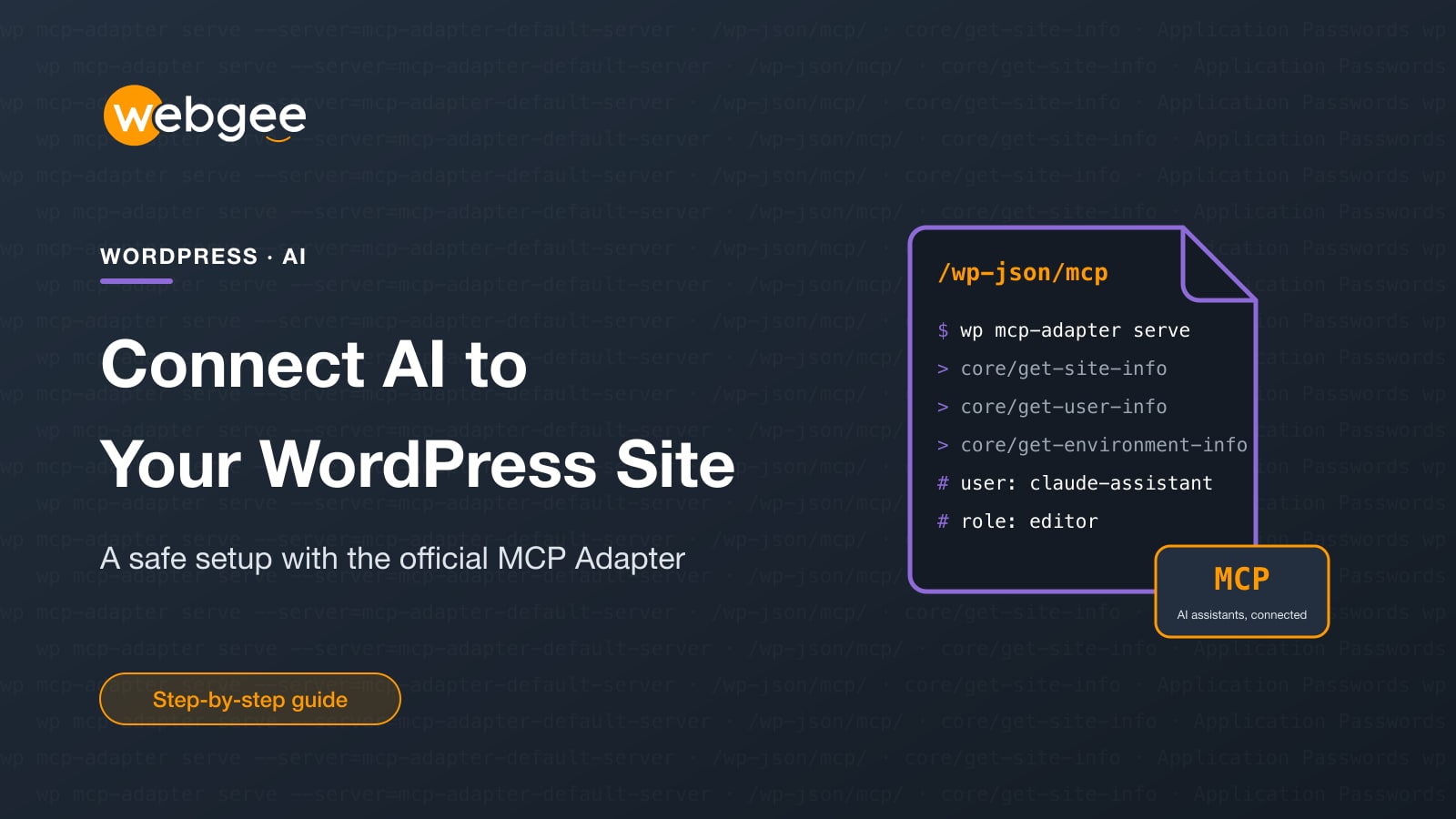
Most people use AI with WordPress the long way round: ask a chatbot for a draft, copy it, paste it into the editor, fix the formatting. WordPress now has an official way to skip that. With the MCP Adapter, an assistant like Claude can see what your site can do and do it directly, within the limits you set.
This guide explains how the pieces fit together, how to connect an assistant in about 15 minutes, and how to keep it safe on a real site.
Key takeaways
- WordPress 6.9 added the Abilities API: a standard list of actions plugins can offer to other software, including AI.
- The official MCP Adapter plugin exposes those abilities over the Model Context Protocol, which Claude, Cursor, VS Code and others understand.
- Out of the box it only reads site, user and environment information; plugins and your own code add more.
- Connect over SSH with WP-CLI, or over HTTPS with an application password through a small proxy.
- Give the AI its own WordPress user with the fewest rights it needs, and try it on staging first.
How it works, in plain terms
- The Abilities API, added in WordPress 6.9, lets WordPress core and plugins publish a list of things they can do, called abilities, each with clear inputs, outputs and a permission check.
- MCP, the Model Context Protocol, is an open standard that AI assistants use to discover and call tools. Claude Desktop, Claude Code, Cursor and VS Code all speak it.
- The MCP Adapter is the official plugin that connects the two: it turns your site's abilities into MCP tools an assistant can use.
Out of the box, WordPress offers three abilities, all read-only: site information, the current user's profile, and environment details such as PHP and WordPress versions. The adapter adds tools that let the assistant discover and run other abilities. Everything else, such as drafting posts or managing products, comes from plugins that register their own abilities, or from a few lines of your own code.
Before you start You need WordPress 6.9 or newer, HTTPS on the site, and an MCP-capable assistant such as Claude Desktop. For the HTTP method you also need Node.js on your own computer. Try it on a staging copy first.
Step 1: install the MCP Adapter
Install the MCP Adapter plugin, from the WordPress plugin directory or the project's GitHub releases, and activate it like any other plugin. Developers who bundle it in their own plugin can use Composer instead (composer require wordpress/mcp-adapter).
Step 2: create a user just for the AI
Don't connect as your main administrator. Create a new user, give it the lowest role that covers what you want the assistant to do (Editor or Author for content work, for example), and use only that account for the connection.
Step 3: connect your assistant
There are two ways. Both use the same configuration format in Claude Desktop (Settings › Developer › Edit Config), Claude Code (.mcp.json in your project), Cursor and VS Code.
Option A: over HTTPS with an application password
This works on any hosting. In wp-admin, open the AI user's profile, scroll to Application Passwords, enter a name such as "Claude" and select Add New Application Password. Copy the password; it's shown only once. Then add this to your assistant's configuration:
{
  "mcpServers": {
    "my-wordpress-site": {
      "command": "npx",
      "args": ["-y", "@automattic/mcp-wordpress-remote@latest"],
      "env": {
        "WP_API_URL": "https://yoursite.com/wp-json/mcp/mcp-adapter-default-server",
        "WP_API_USERNAME": "claude-assistant",
        "WP_API_PASSWORD": "xxxx xxxx xxxx xxxx xxxx xxxx"
      }
    }
  }
}
The small proxy runs on your computer and talks to your site over HTTPS. Restart the assistant after saving, and it lists your site's tools.
Option B: over SSH with WP-CLI
If your plan includes SSH (all WebGee WordPress Cloud sites do, and cPanel hosting can enable it), the assistant can run WP-CLI on the server directly. Set up SSH key login first, so no password prompt gets in the way:
{
  "mcpServers": {
    "my-wordpress-site": {
      "command": "ssh",
      "args": [
        "user@yourserver",
        "wp", "--path=/home/user/public_html",
        "mcp-adapter", "serve",
        "--server=mcp-adapter-default-server",
        "--user=claude-assistant"
      ]
    }
  }
}
Nothing new is opened on the web this way: the connection uses your existing SSH access.
Step 4: try it
Ask something simple, such as "What WordPress and PHP versions is my site running?" The assistant should call the environment ability and answer from your real site. From there, what it can do depends on the abilities your plugins provide.
Adding your own abilities
Abilities are only offered to MCP when they're marked public. For example, this makes the three core abilities available to the default MCP server:
add_filter( 'wp_register_ability_args', function ( array $args, string $name ) {
    $core = array( 'core/get-site-info', 'core/get-user-info', 'core/get-environment-info' );
    if ( in_array( $name, $core, true ) ) {
        $args['meta']['mcp']['public'] = true;
    }
    return $args;
}, 10, 2 );
When you register your own abilities, give each one a real permission check based on WordPress capabilities. Never use a permission callback that always returns true for anything that changes data.
Security checklist
- Connect as a dedicated user with the lowest role that works, never your main admin
- Use one application password per assistant, and revoke it when you stop using it
- Prefer read-only abilities on connections that go over the web
- Give every ability that changes data a proper capability check
- Keep HTTPS on, and WordPress, PHP and plugins up to date
- Test new abilities on a staging copy before using them on the live site
A good place to experiment
AI tools that act on your site are worth trying, but not first on the site your customers use. On WebGee WordPress Cloud, every site gets its own container, staging with one-click push to live, SSH access and backups with point-in-time restore. You can connect an assistant to a staging copy, see what it does, and only then point it at production.
Frequently asked questions
What is MCP?
The Model Context Protocol is an open standard, first introduced by Anthropic, that lets AI assistants discover and use tools in other software. Claude Desktop, Claude Code, Cursor and VS Code all support it.
Which WordPress version do I need?
WordPress 6.9 or newer, which added the Abilities API that the MCP Adapter builds on. Any current version, such as 7.1.4, works.
Can the AI publish posts or change my site?
Only if an ability for that action is registered and made available to MCP, and only with the permissions of the WordPress user it connects as. The three core abilities only read information.
Does it work on shared hosting?
Usually, yes. The HTTP method only needs HTTPS and the WordPress REST API. The SSH method needs SSH access and WP-CLI, which WebGee WordPress Cloud includes and cPanel hosting can enable.
Is it safe to connect AI to a live site?
It can be, with care: a dedicated low-privilege user, read-only abilities for anything reachable over the web, HTTPS, and testing on staging first. Treat the connection like any other account with access to your site.
