Welcome to the Mail Delivery Center. This guide explains how to use the dashboard to monitor your email delivery, check your sending domains, view logs, and manage blocked emails.
What is the Mail Delivery Center?
The Mail Delivery Center is your one-stop place to:
- See how many emails were sent, delivered, failed, or bounced
- View email logs and search or filter by date, recipient, and more
- Check sending domains and their SPF configuration
- View deliverability trends and per-domain stats
- See blocked emails (local and subject blocks) and unblock addresses when needed
- View email statistics (volume by IP, recipient, and sender)
- Get notifications when there are service issues (optional)
- Use dark or light theme and your preferred language
How to access the Mail Delivery Center
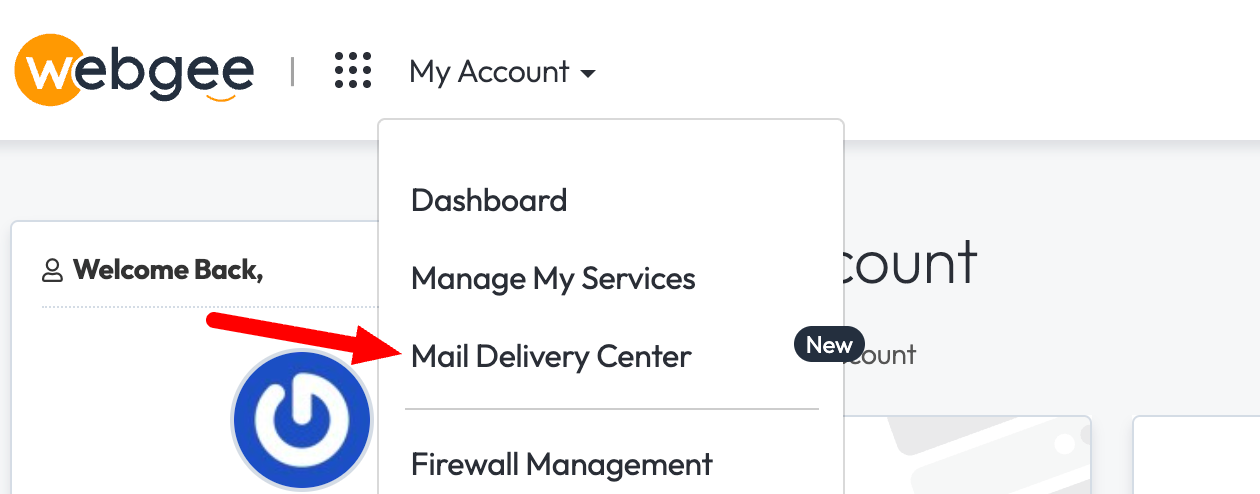
- From your client area: Use the Mail Delivery Center link in the main menu or in the sidebar. You will be signed in automatically (no need to enter your password again).
- Direct login: You can also open the Mail Delivery Center in a new tab and sign in with your client area email and password.
Dashboard (Home)
The Dashboard gives you an overview of your email activity for a chosen period.
- Summary cards: Sent, Delivered, Failed, and Bounced counts.
- Timeframe: Use the dropdown to switch between Last Hour, Last 24 Hours, Last 7 Days, This Month, or Billing Period.
- Chart: A graph of email volume over time (sent vs delivered vs failed).
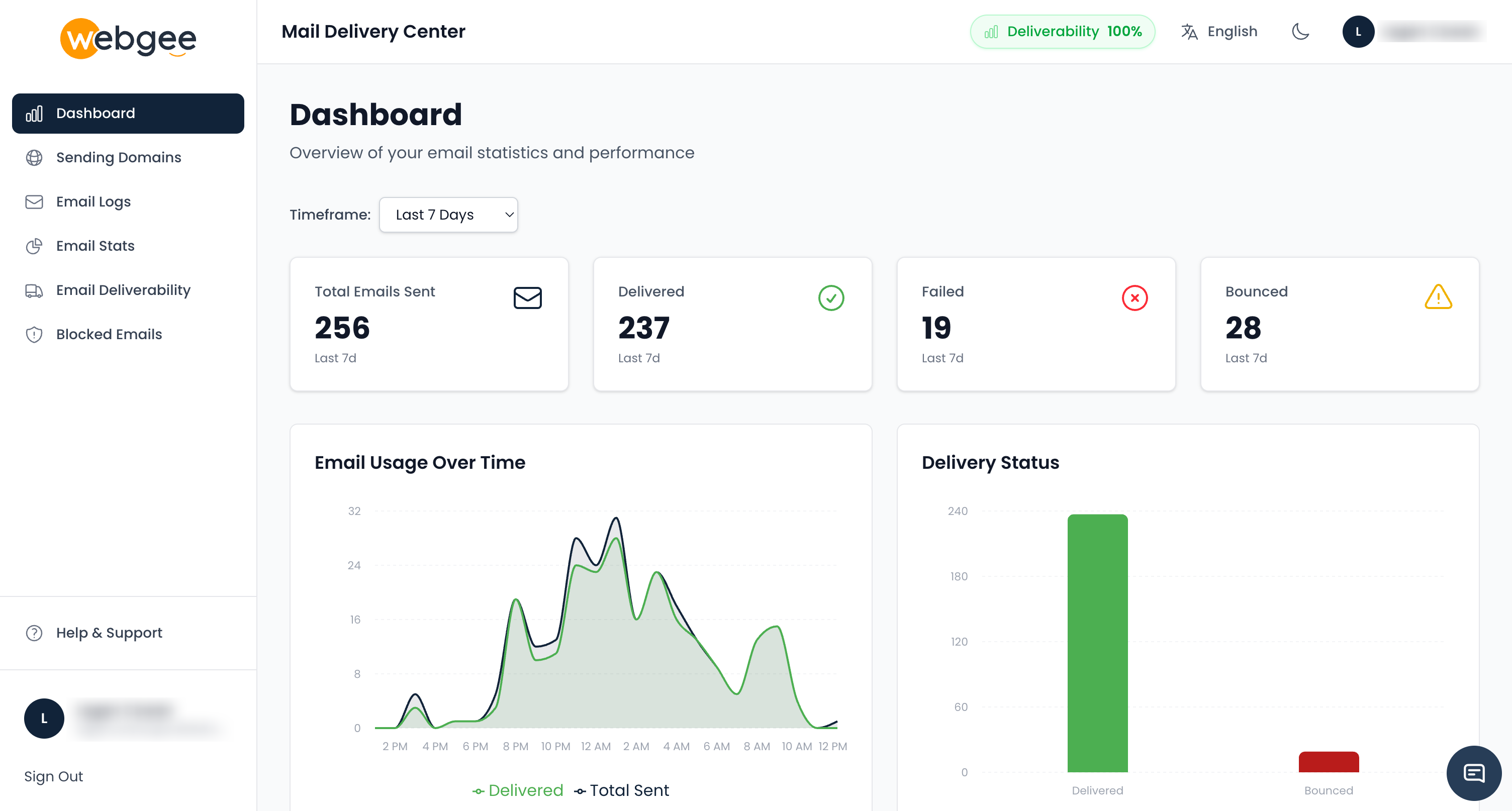
How to use it: Select the timeframe you care about and check the numbers and chart to see if delivery is healthy or if failures increased in a specific period.
Email Deliverability status in the navigation bar
At the top of every page you will see a Deliverability badge in the navigation bar. It gives you an at-a-glance view of how well your email is being delivered.
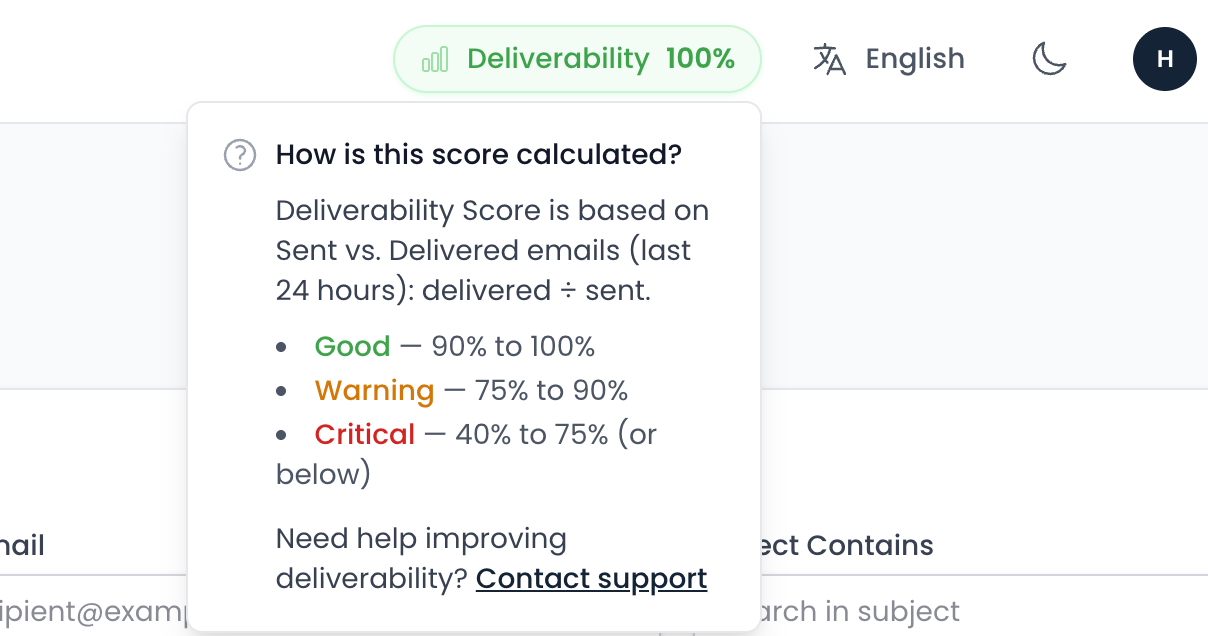
- What it shows: A percentage based on Sent vs. Delivered for the last 24 hours (delivered ÷ sent). For example, if 95 out of 100 emails were delivered, the score is 95%.
- Colors:
- Green — Good (90% to 100% delivery rate).
- Yellow / Amber — Warning (75% to 90%). Worth checking the Email Logs or Email Deliverability page for recent failures.
- Red — Critical (below 75%). Review failed messages and Domains (e.g. SPF) to improve delivery.
- Click for details: Click the badge to open a short explanation of how the score is calculated and what the ranges mean.
- Service status: When the Service Status feature is enabled, the bar may also show a status indicator (e.g. a coloured dot and “Operational” or “Degraded”). Click it to open the Service Status page for current API status and past incidents.
Use the Deliverability badge to spot problems quickly without opening the Dashboard or Email Deliverability page.
Email Logs
Email Logs let you search and browse individual email records.
- Filters: Set date range, search by recipient or other fields, and apply filters to narrow results.
- Table: Each row shows key details (e.g. date, recipient, subject, status, response).
- Details / Not Spam: For some delivery responses you will see Details and Not Spam links. Use them to open the provider’s page in a new tab (e.g. to see why a message was flagged or to report “Not Spam”).
- Pagination: Use Previous / Next to move through pages.
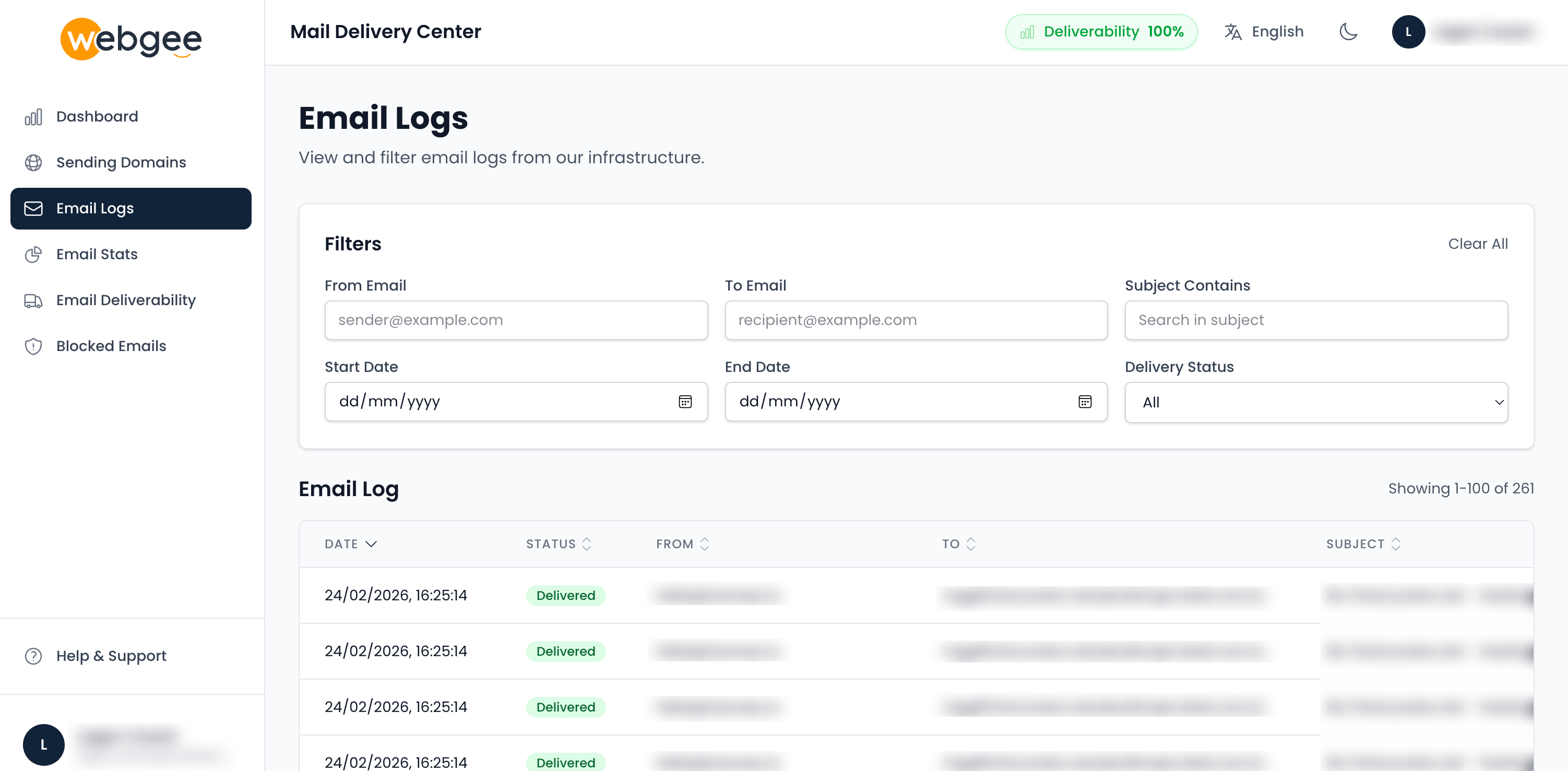
How to use it: When a customer says they didn’t receive an email, open Email Logs, filter by date and recipient, and check the status and response. Use “Details” or “Not Spam” when available to resolve issues with the receiving provider.
Domains
The Domains page lists the domains you are allowed to send from (based on your active services).
- Table: Domain name, service or type (e.g. Reseller Domain), and status.
- SPF check: Use the check or info action to see if the domain’s SPF record is correctly set for our mail system. The page will show Configured, Not configured, or Needs update.
- Refresh: Use the refresh button to reload the list if you added a new service or domain.
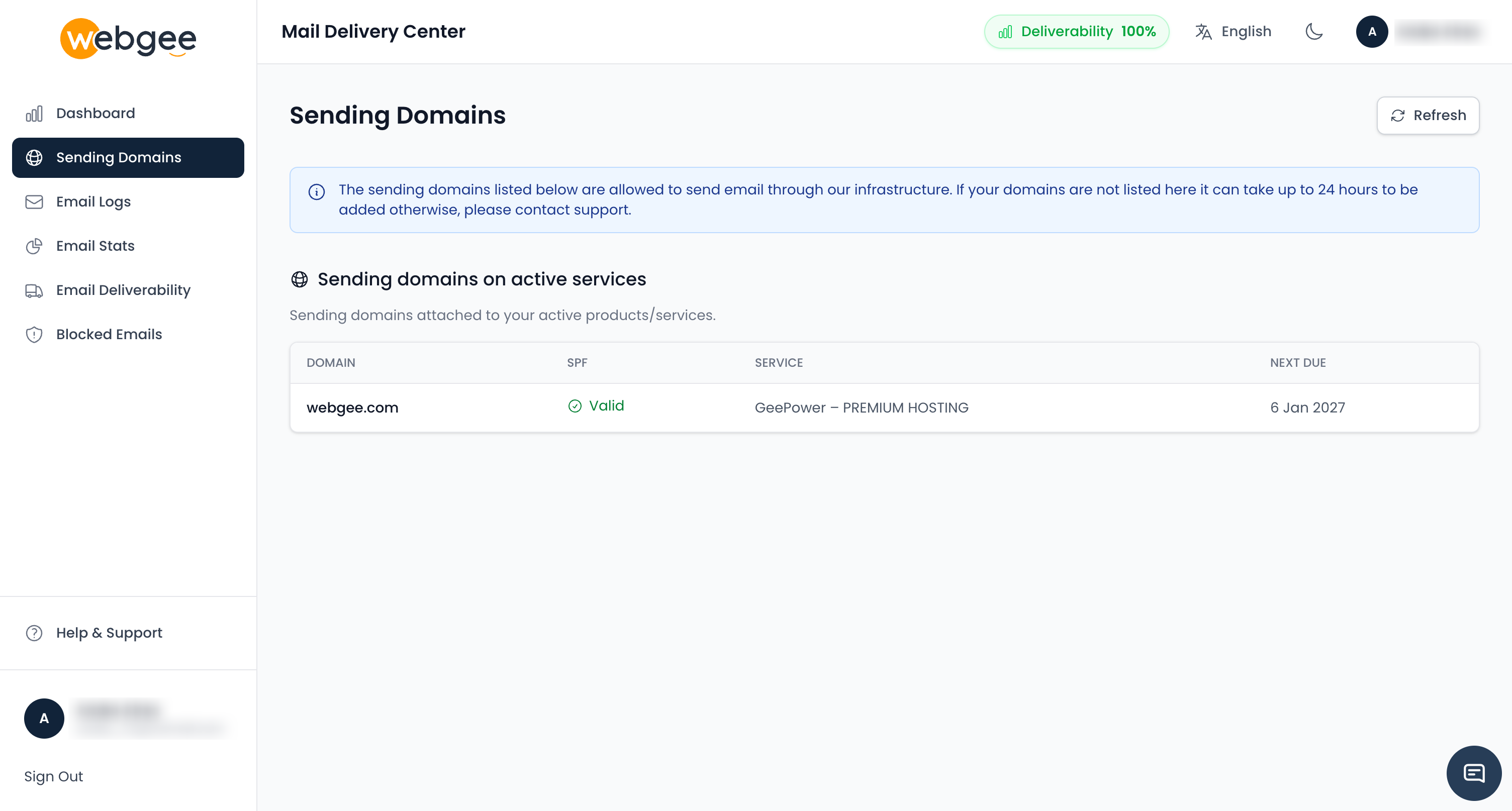
How to use it: Before sending from a new domain, open Domains and run the SPF check. If it says “Not configured” or “Needs update,” add or update the SPF record in your DNS as suggested so delivery is not affected.
Email Deliverability
Email Deliverability shows how well your mail is being delivered over time.
- Filters: Choose a date range.
- Chart: Visualize delivery performance over the selected period.
- Table: Per-domain breakdown (e.g. sent, delivered, failed, bounce rates).
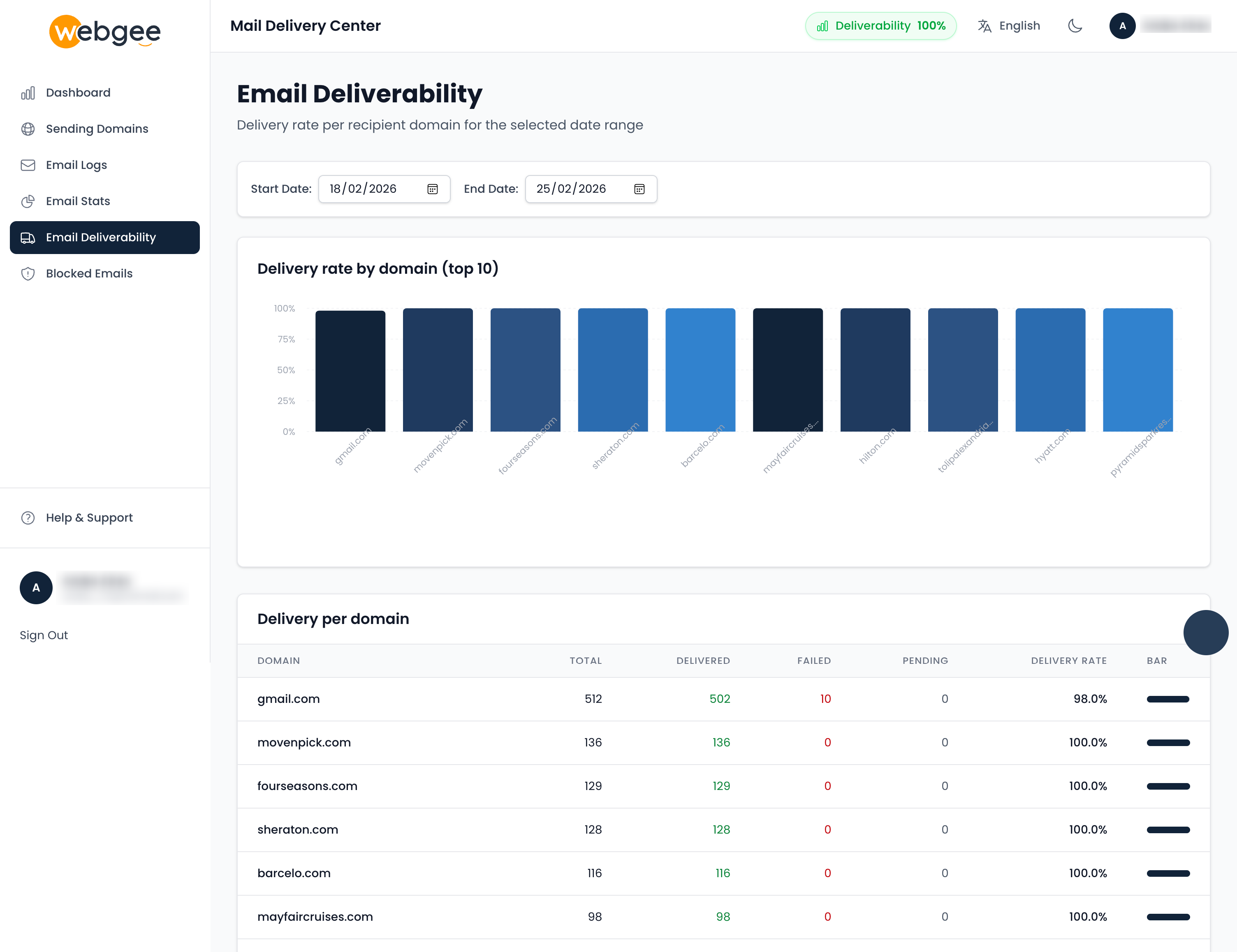
How to use it: Review the chart and table to spot domains or periods with lower delivery or higher failures, then fix SPF/DNS or content issues as needed.
Blocked Emails
The Blocked Emails page shows addresses that are currently blocked (e.g. local blocks or subject-based blocks).
- Tabs: Switch between Local blocks and Subject blocks (or similar, depending on your setup).
- Table: Lists blocked senders/subjects and when they were blocked.
- Unblock: Use the Unblock action to remove a block when the address is safe or the block was a mistake.
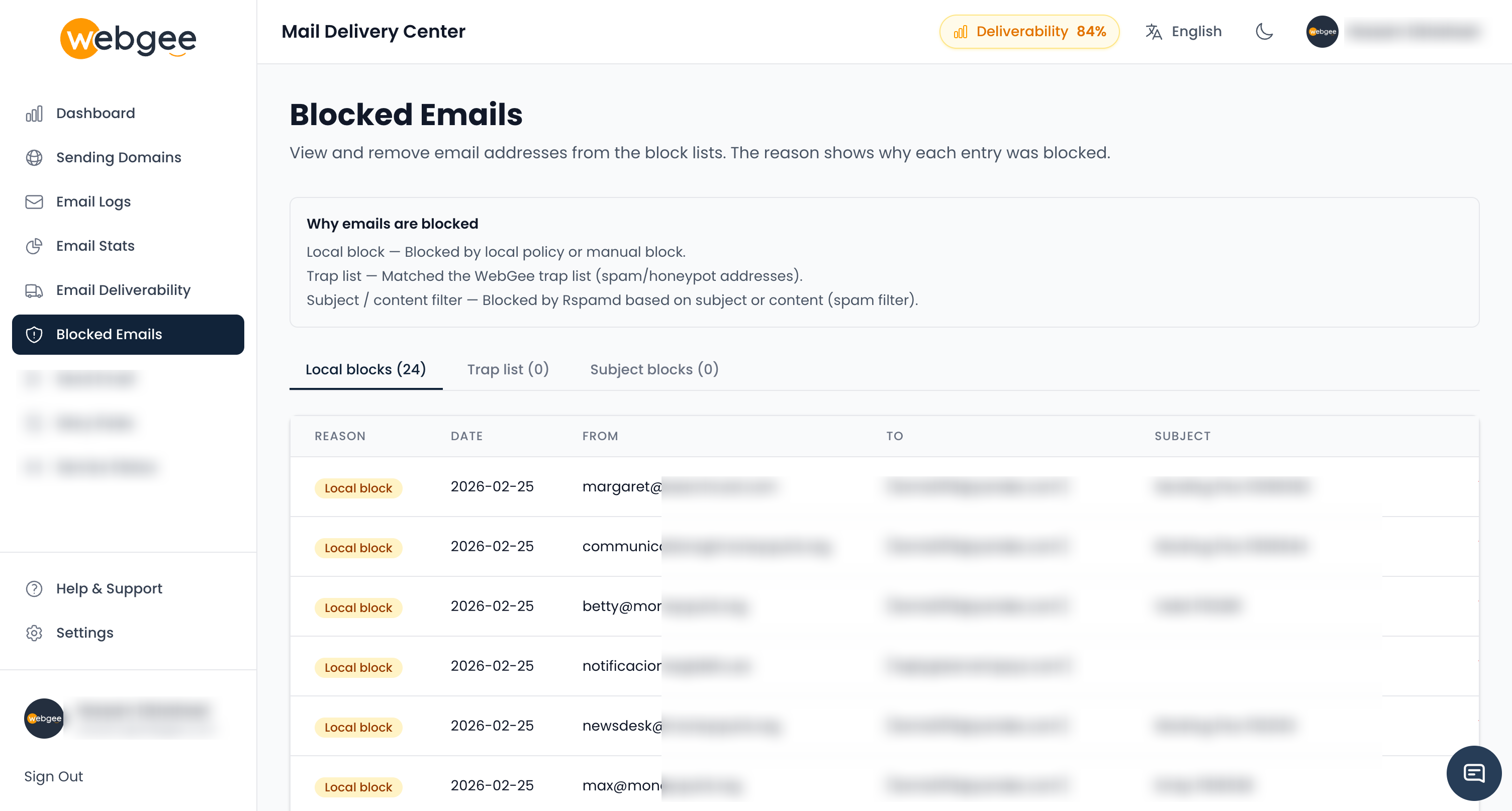
How to use it: If a legitimate sender is blocked, find them in the list and click Unblock. For subject blocks, review the reason and unblock only if appropriate.
Email Stats
Email Stats gives you usage and volume breakdowns.
- Date range: Select start and end date.
- Charts/Tables: View volume by IP, by recipient (To), and by sender (From) to see who is sending and receiving the most mail.
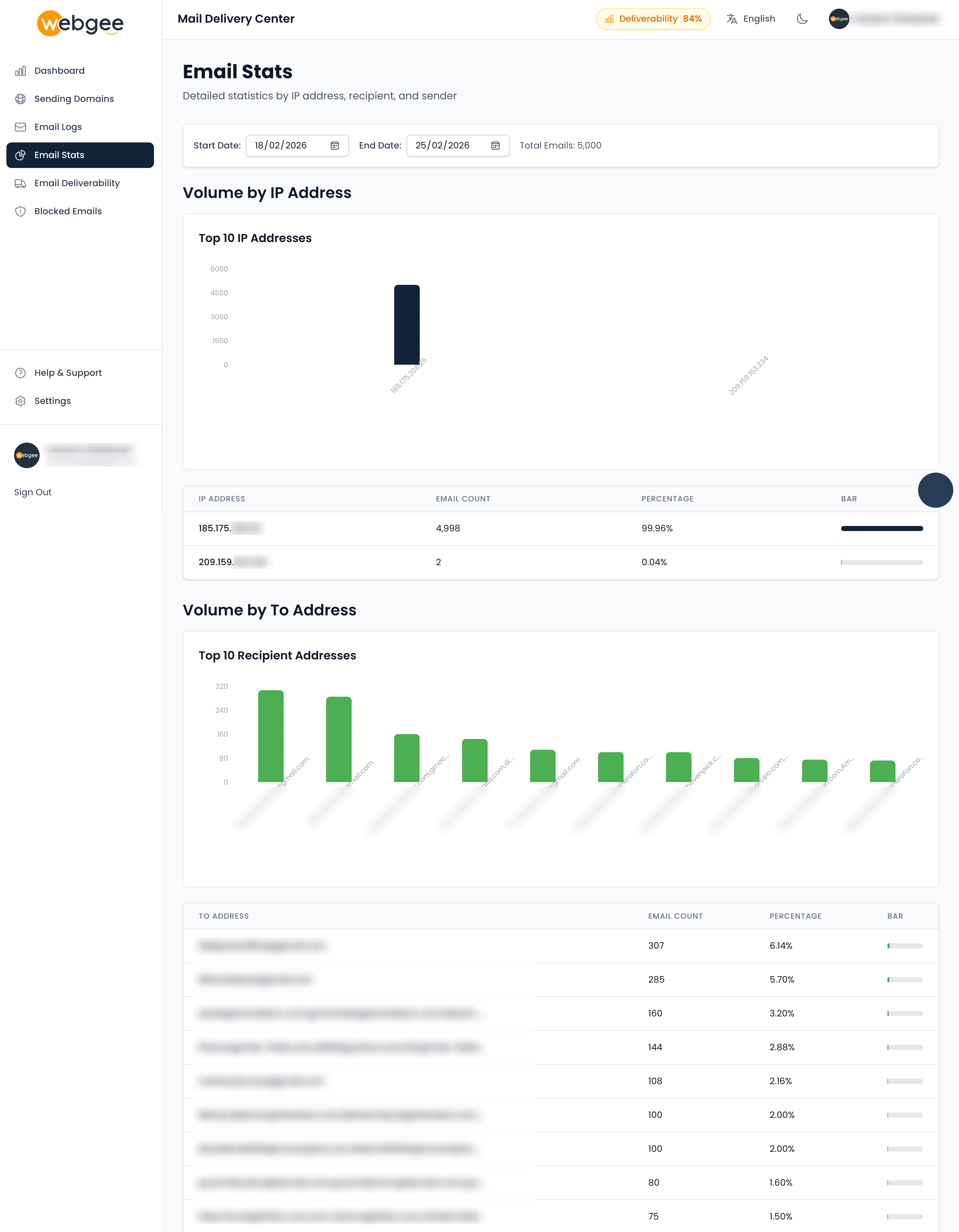
How to use it: Use these views to understand traffic patterns, troubleshoot high volume from a single IP or address, or prepare simple reports.
Quick tips
- Bookmark the Mail Delivery Center after opening it from your client area so you can return quickly.
- Check SPF on the Domains page whenever you add a new sending domain.
- Use Email Logs and the Details / Not Spam links when a recipient reports missing or blocked mail.
- Review Blocked Emails periodically and unblock any legitimate senders.
- Use the Dashboard timeframe to compare “Last 24 Hours” vs “This Month” when investigating a sudden change.
Need help?
If you have questions about the Mail Delivery Center or your email delivery, contact our support team and mention “Mail Delivery Center” so we can assist you quickly.