New Feature Announcement: Master Your Email Delivery with the Mail Delivery Center

SpamExperts - How to configure quarantine digest emails / Protection Reports

The Periodic Domain Report sends a daily digest of all the previous day's blocked messages for all the domain's users.

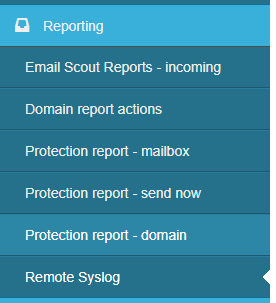
In the Domain Level Control Panel, click on Reporting > Protection report - domain.
e6c0a098ac94c674969bc6d62e55b297e2c6a25c893ba61e51556bbc31a6e112045aa8522ef3a49c?t=c3abd79c8bb0be19895ce0fe6e068ba4

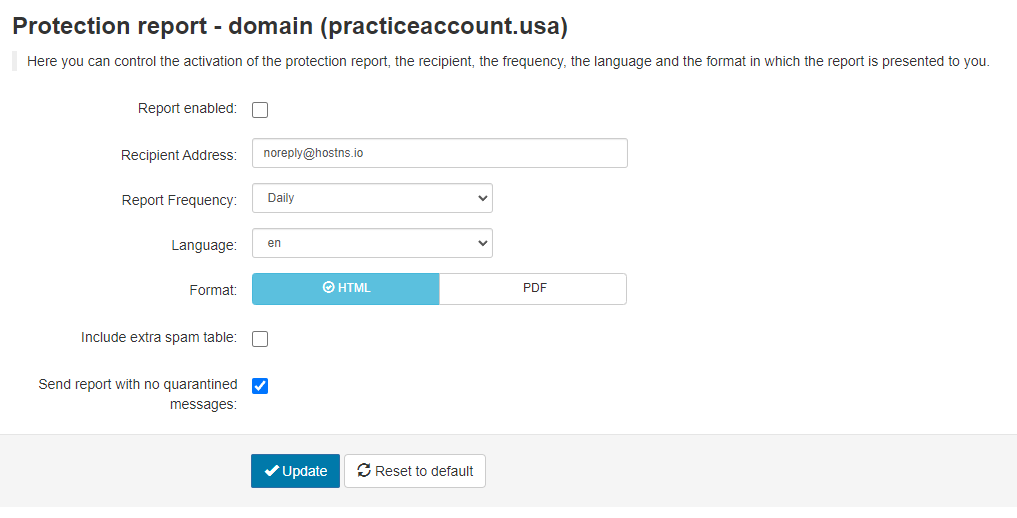
The report page is displayed.
e88abbfbf80435109190d48028eab37214817a67de796b65f2409f0c3435ad2e54fc32a47635f470?t=93b040d38b71ff096f36bdb5f1c90b18

  1. To enable the report tick the Report enabled box.
  2. In the Recipient address field, enter the report recipient(s) email address - separate multiple recipients with a comma.
  3. From the Report Frequency dropdown, select Daily or Weekly.
  4. Select the Language you want the report to be in. 
  5. For the report Format select either HTML or PDF.
  6. Select the Include extra spam table option if you want to add a table of messages that were rejected but not quarantined to the report.
  7. If you want the report to be sent even when no messages have been quarantined in the set period, select Send report with no quarantined messages.
  8. Once you've made your changes, click on Update.
  • 395 Users Found This Useful
Was this answer helpful?

Related Articles

 Getting Started

Overview MailGee supports a variety of email clients, both on desktop computers and on...

 Android

Open the Email app. If this is your first email account, tap Add Account; if not, tap More and...

 Apple macOS / iOS

Method 1 via Mobileconfig¶ Email, contacts and calendars can be configured automatically on...

 eM Client

Launch eM Client. If this is the first time you launched eM Client, it asks you to set up your...

 KDE Kontact

Launch Kontact. If this is the first time you launched Kontact or KMail, it asks you to set up...

Powered by WHMCompleteSolution