New Feature Announcement: Master Your Email Delivery with the Mail Delivery Center

SpamExperts - Checking your delivery logs

This article will show you how to access SpamExperts Email Protector and check your delivery logs. The logs can help you determine if a message was received at all by the SpamExperts filters, and whether or not the message was treated as spam.

Accessing the mail delivery logs

Click the Logs button.
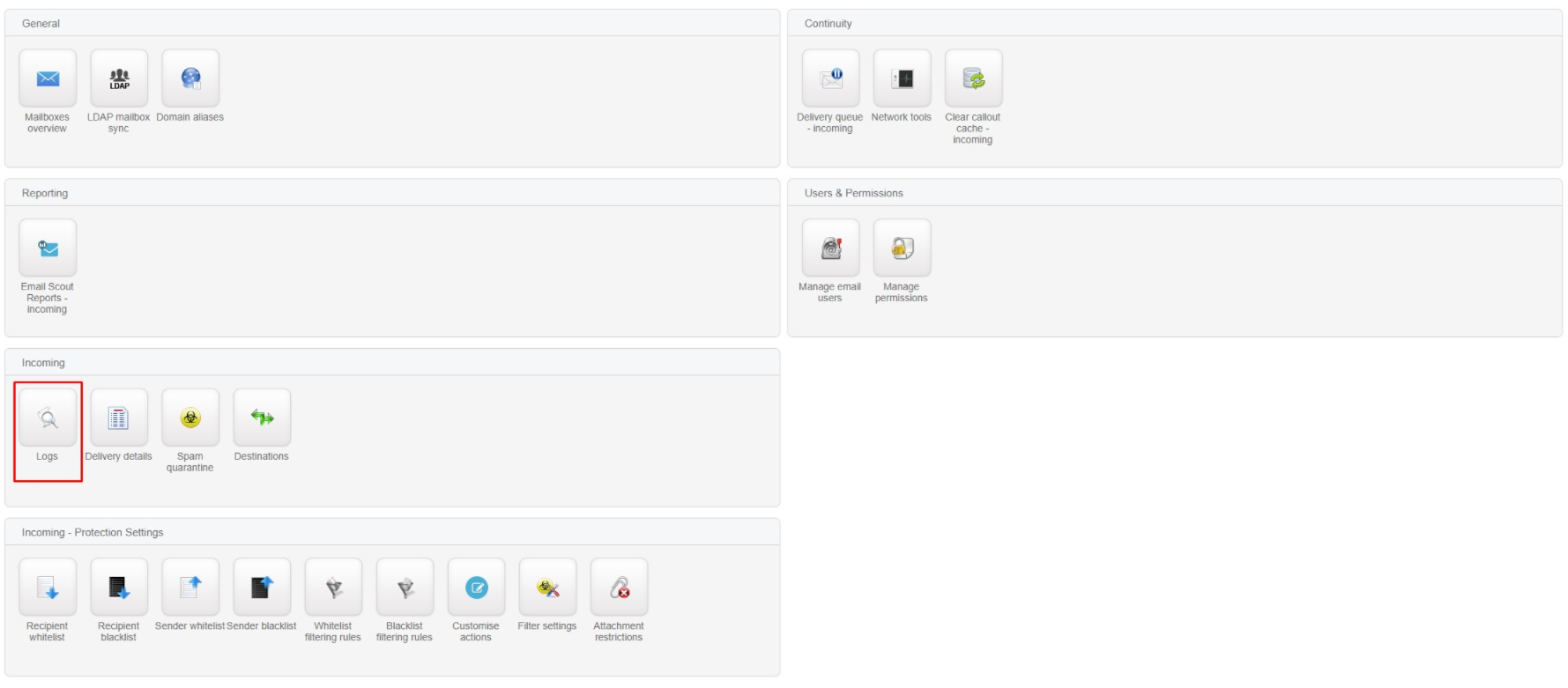
27a4b509edcc5cab91f56f75cc23b39521efcc72ee133a64509b83561aa5bc38ade0e90e9724c0a6?t=7eb2d08d7f9cbaa9257d8d02886472c9

You'll then see the Log Search screen with results populated below. The default Query Rule will show all emails received for the previous 1 week. You can click on each rule field and select options to be as specific as you need or add additional query rules.

You will be able to perform some actions on individual emails within this log screen - but if you want to release emails from quarantine or other Spam actions you should visit the Spam quarantine log instead.

  • 326 Users Found This Useful
Was this answer helpful?

Related Articles

 Getting Started

Overview MailGee supports a variety of email clients, both on desktop computers and on...

 Android

Open the Email app. If this is your first email account, tap Add Account; if not, tap More and...

 Apple macOS / iOS

Method 1 via Mobileconfig¶ Email, contacts and calendars can be configured automatically on...

 eM Client

Launch eM Client. If this is the first time you launched eM Client, it asks you to set up your...

 KDE Kontact

Launch Kontact. If this is the first time you launched Kontact or KMail, it asks you to set up...

Powered by WHMCompleteSolution