CyberPanel is a LiteSpeed based control panel that provides a graphical interface for Linux server management. It provides an easy and user-friendly graphical interface for various tasks, such as webmail, web hosting, and some more complicated like Docker. This is a very comfortable panel that supports both CentOS and Ubuntu OS.
CyberPanel system requirements:
-
Centos 7.x, Centos 8.x, Ubuntu 18.04, Ubuntu 20.04, Ubuntu 22.04.
-
Python 3.x
-
1024MB or above Ram.
-
10GB Disk Space.
Installation
The CyberPanel installation is very simple, you just enter a single command on your SSH(Terminal) and respond to its questions.
sh <(curl https://cyberpanel.net/install.sh || wget -O - https://cyberpanel.net/install.sh)
However, if you use our WEB SSH, due to syntax, that command might not work, so you will need to use these two commands:
wget https://cyberpanel.net/install.sh
sh install.sh
So when you started the installation, you will get asked a few Yes/No questions, such as if you want to install PowerDNS, MySQL, Redis, FTP, and some other services. You chose the answers based on your needs. Keep in mind that you can always install these options later.
You will have a chance to set the panel password or use a default one, again, you can choose your preferred option, which you can change anytime later.
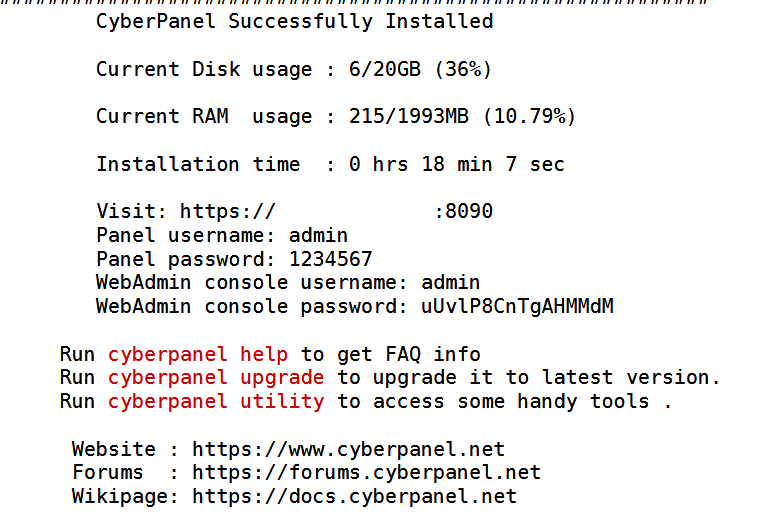
Once the installation is complete, you should be able to see a similar view:
Accessing the Panel
Upon completed installation, you will see the control panel access details as you can see in the image above. It will be:
Panel URL: https://yourserverIP:8090
Panel username: admin
Panel password: your set password for the control panel
CyberPanel menu is very straight forward and simple to use.
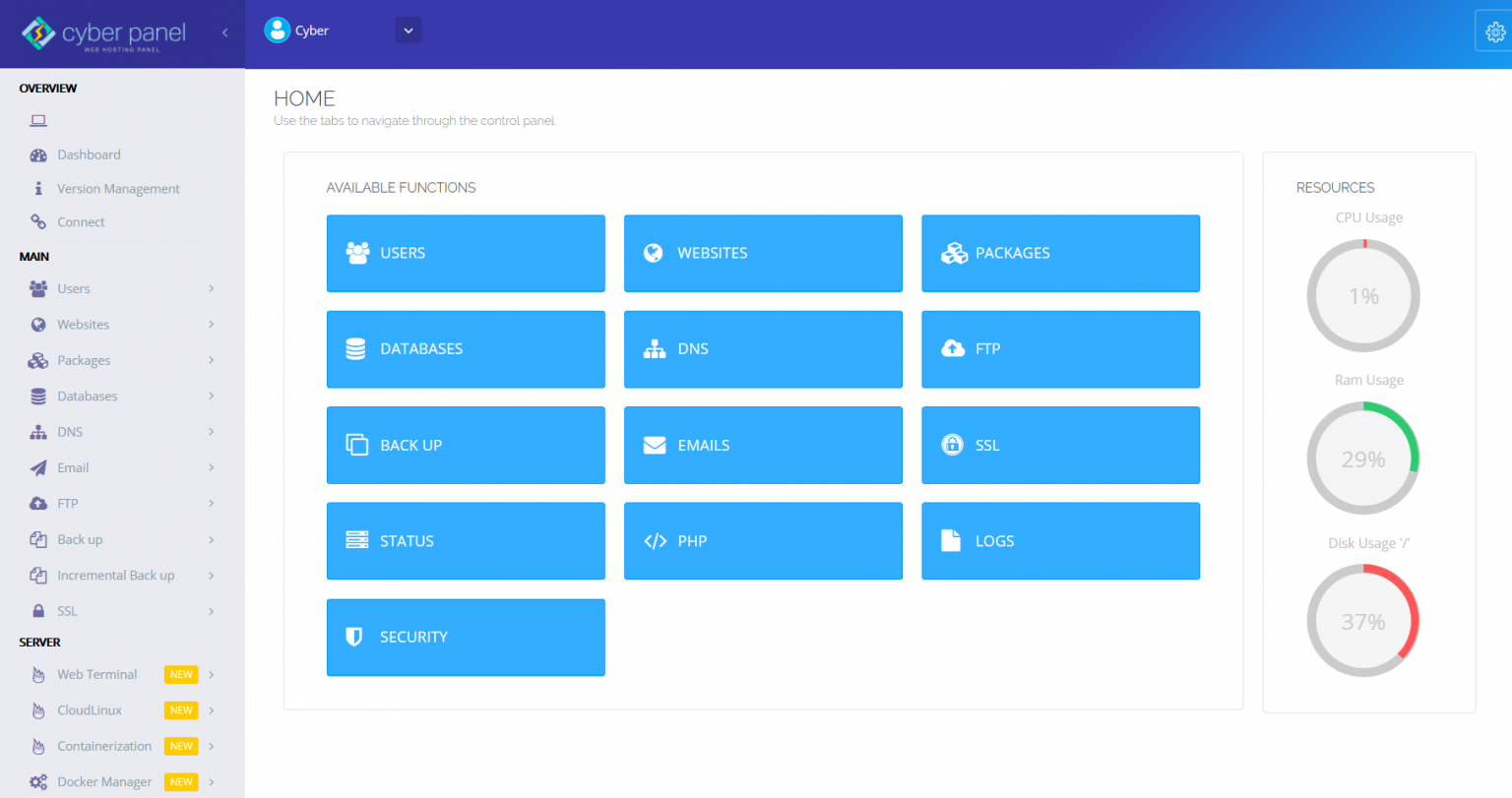
You can see the clear menu on the left toolbar, which will be your main navigation. On the right side is the main resource usage. The control panel provides a Terminal option on it, so you won’t need any additional SSH client for the command line.
Additional information
CyberPanel has great documentation explaining all the functions on CyberPanel here.
Github URL is here.