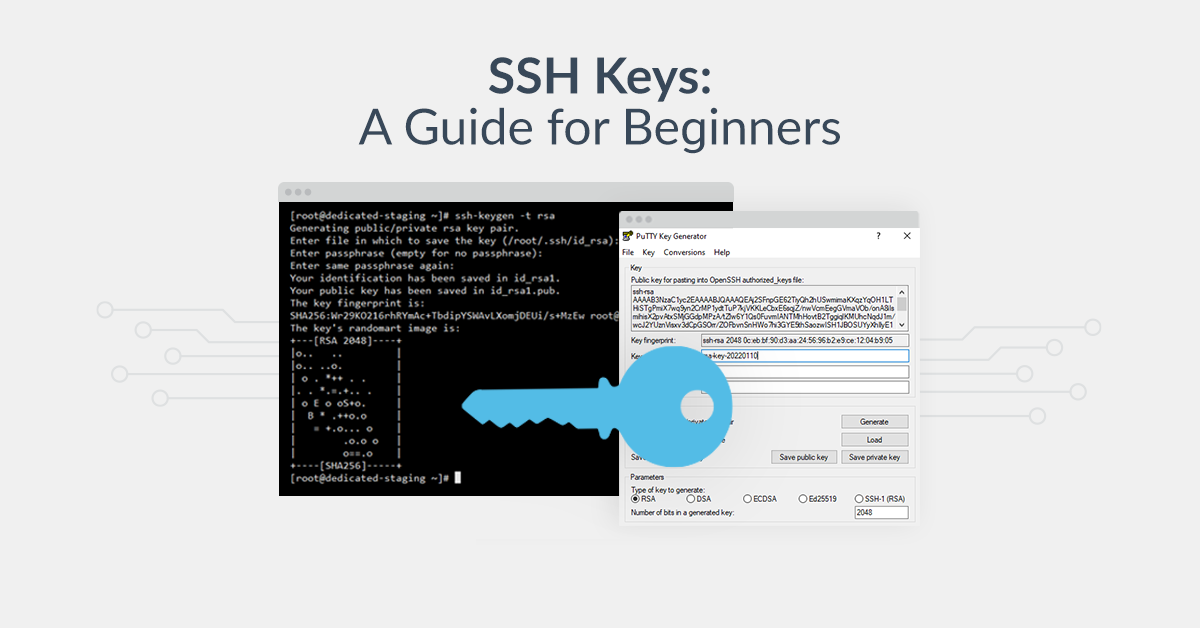
Secure Shell (SSH) is a protocol used to securely connect to remote servers. SSH keys provide a more secure and convenient method of authentication compared to traditional password-based logins. This guide will walk you through the process of generating an SSH key and using it to connect to any Linux server.
Step 1: Check for Existing SSH Keys
Before generating a new SSH key, it’s a good idea to check for existing keys on your system. Open a terminal and enter the following command:
ls -al ~/.ssh
This command lists the contents of the ~/.ssh directory. If you see files named id_rsa and id_rsa.pub (or similar), you already have an SSH key pair.
Step 2: Generate a New SSH Key
If you don’t have an existing key or want to create a new one, use the ssh-keygen command:
ssh-keygen -t rsa -b 4096 -C "[email protected]"
Here’s a breakdown of the options used:
-t rsa: Specifies the type of key to create. RSA is a widely used algorithm.-b 4096: Specifies the key length. 4096 bits is recommended for strong security.-C "[email protected]": Provides a label for the key. Use your email address to identify the key.
You will be prompted to choose a location to save the key. By default, it will save to ~/.ssh/id_rsa. Press Enter to accept the default location.
Next, you will be prompted to enter a passphrase. Adding a passphrase enhances security by requiring an additional password to use the key. If you choose to set a passphrase, you will need to enter it every time you use the key. Press Enter if you prefer to leave it empty.
Step 3: Add Your SSH Key to the SSH Agent
To simplify the process of using your SSH key, add it to the SSH agent, which manages your keys and passphrases. Start the SSH agent:
eval "$(ssh-agent -s)"
Add your SSH key to the agent:
ssh-add ~/.ssh/id_rsa
Step 4: Copy Your SSH Key to the Remote Server
Now, you need to copy your public key to the remote server you want to connect to. The simplest method is to use the ssh-copy-id command:
ssh-copy-id username@remote_server_ip
Replace username with your remote server’s username and remote_server_ip with the server’s IP address or hostname. You will be prompted to enter the password for the remote user account.
Alternatively, you can manually copy the SSH key. First, display your public key:
cat ~/.ssh/id_rsa.pub
Copy the output, then connect to your remote server and open the ~/.ssh/authorized_keys file in a text editor (create the file if it doesn’t exist):
ssh username@remote_server_ip
mkdir -p ~/.ssh
nano ~/.ssh/authorized_keys
Paste your public key into the file, save, and close the editor. Ensure the correct permissions:
chmod 700 ~/.ssh
chmod 600 ~/.ssh/authorized_keys
Step 5: Connect to the Remote Server Using SSH
You are now ready to connect to the remote server using your SSH key:
ssh username@remote_server_ip
If you set a passphrase for your key, you will be prompted to enter it. If everything is set up correctly, you should be logged into the remote server without needing to enter the user password.
Conclusion
Generating and using SSH keys enhances the security of your connections to remote Linux servers. This guide has provided a step-by-step process to create an SSH key, add it to the SSH agent, copy it to a remote server, and connect securely. By following these steps, you can improve your workflow and maintain secure server connections.