The SOA record (or the 'start of authority' record) stores information about a domain names administrative contact. The SOA record also contains some additional information, such as the duration of time that the server should wait before domain refreshes (TTL).
All DNS zones need an SOA record in order to conform to IETF standards. SOA records are also important for zone transfers.
Example of an SOA record:
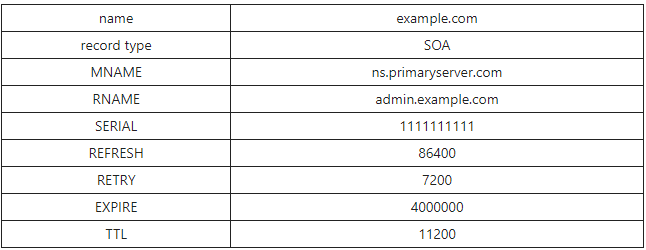
The 'RNAME' value here represents the administrator's email address, which can be confusing because it is missing the ‘@’ sign, but in an SOA record, admin.example.com is the equivalent of [email protected].
How do I customise the SOA record?
The SOA record is generated based on the email address of your reseller account. You can confirm which email address is in use, by going to WHM -> List Accounts, and checking the 'Email' field against the reseller account.
The correct method to change this for future DNS zones would be to update the email address to a contact email address you are happy to show within your domains DNS zones. In most cases, this will be something similar to '[email protected]'.
It is possible, however, to have your own email address differ, from the one displayed on the SOA. To do so, go to WHM -> Edit Zone Templates
From here, you will have 3 options, each of which will need to have the same update.
Please ensure you follow these steps exactly; otherwise, you risk invalidating the DNS zones of your clients, which will prevent them from loading.
To change the SOA record, you would need to replace the following...
@ %nsttl% IN SOA %nameserver%. %rpemail%. (
With the following...
@ %nsttl% IN SOA %nameserver%. admin.yourdomain.tld. (
IMPORTANT: Note the trailing '.', and the fact that the @ has been replaced with the '.'. This is required for the SOA to be considered valid!