As part of its automatic update system, WordPress has a built-in maintenance mode that it activates whenever you update your software, themes, or plugins from the WordPress dashboard. You can see a message addressing this in the WordPress update interface whenever you run an update:
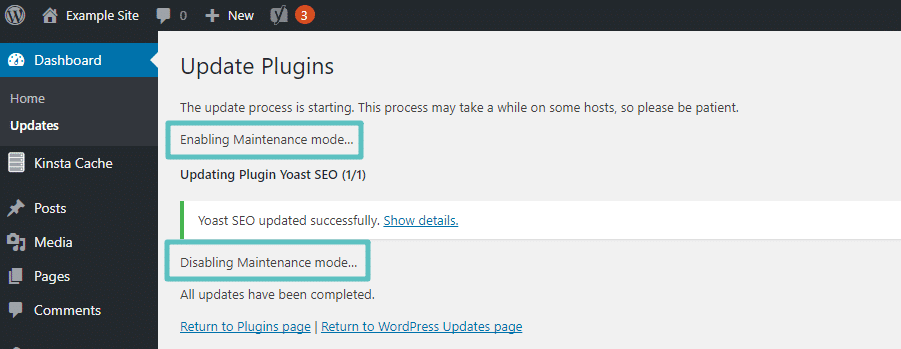
Most of the time, the handoff from “maintenance mode” to “working site” takes just a few seconds, and you never even know your site was in maintenance mode.
But sometimes, things do go wrong. Some potential causes are:
- You accidentally close your browser tab in the middle of an automatic update
- You’re trying to automatically update a considerable number of plugins/themes at once
- There’s a compatibility problem that causes a glitch
As a result, you persistently see this message when you try to visit your site:
Briefly unavailable for scheduled maintenance. Check back in a minute.
How to Fix WordPress Stuck In Maintenance Mode
When WordPress puts itself into maintenance mode, it creates a file named “.maintenance” in the root folder of your WordPress site. This is the same folder that contains the following:
- wp-admin folder
- wp-config.php
To fix the WordPress stuck-in maintenance mode problem, you’ll need to connect to your server via FTP and delete that file. Once you’ve connected to your site via FTP, find the “.maintenance” file in your root folder and delete it.
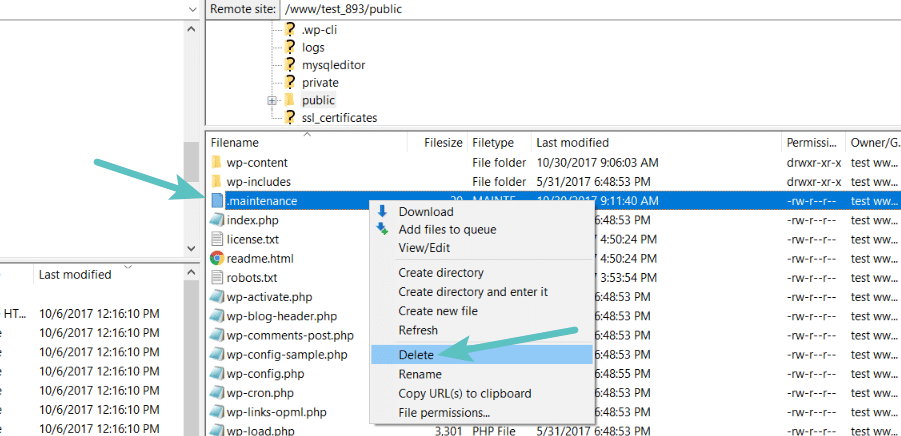
Once you delete that file, your site should function as expected. It is also recommended that you clear the cache on your WordPress site.
Assuming the failure wasn’t due to a compatibility issue, you should rerun the upgrade to ensure your site runs the latest version.