Our automatic SSL installation process (powered by AutoSSL) will automatically install Sectigo SSL certificates. Sectigo SSL certificates offer optimal coverage, completely automatically and free of charge. In addition, they also do not 'rate limit' requests, making it an ideal solution for us as shared hosting providers.
LetsEncrypt however, also offers you additional functionality, such as the ability to support wildcard coverage, and also supports redirection tracing which can be simpler for some sites hosted behind Cloudflare, or other CDNs / proxy services. Also, Sectigo does restrict certain regions from issuance entirely, as outlined above.
If your use-case/scenario requires a LetsEncrypt SSL certificate (such as the need to cover wildcards), then we now provide you with the ability to install a free LetsEncrypt SSL certificate from within cPanel...
cPanel -> Let's Encrypt™ SSL
The interface is split into two sections.
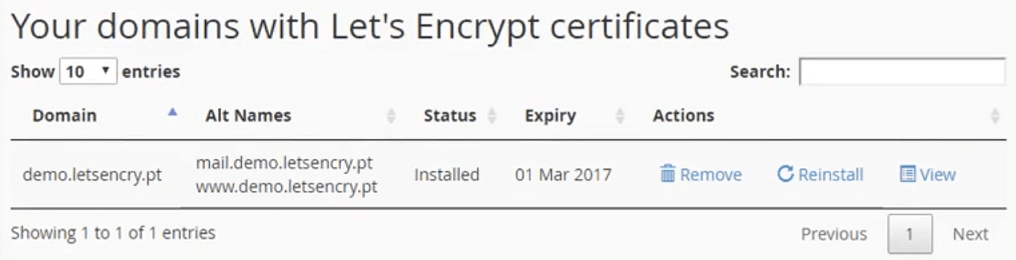
The first section will list all of your domains that have “Let’s Encrypt™” certificates issued, their expiry, and options to remove, reinstall and view them:
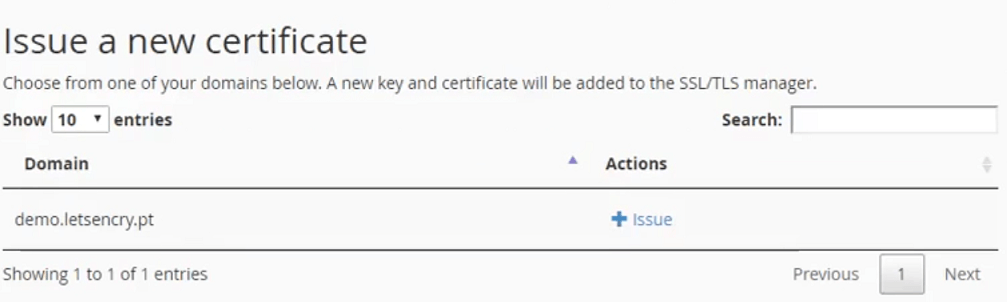
The second section will list all of the domains configured in your account that are eligible to have a certificate issued. Please note, redirected domains are unable to have a certificate issued.
Prerequisites
There are two important prerequisites to be met in order for a certificate to be able to issue:
- The domain name(s) you want to be signed must be pointing to this cPanel server already
- The Let’s Encrypt™ CA must be able to visit <a href="http://your-domain/.well-known/acme-challenge/xxx">http://your-domain/.well-known/acme-challenge/xxx</a> successfully.
These directories/files will be created automatically, but you should take care that you do not have any .htaccess rules that prevent access.
Most users will fulfil these requirements automatically.
Issuing Process
First, click the + Issue button to the right of the domain you wish to issue a certificate for. Please note, any you will be able to select any extra domains to include on the certificate in the next screen.
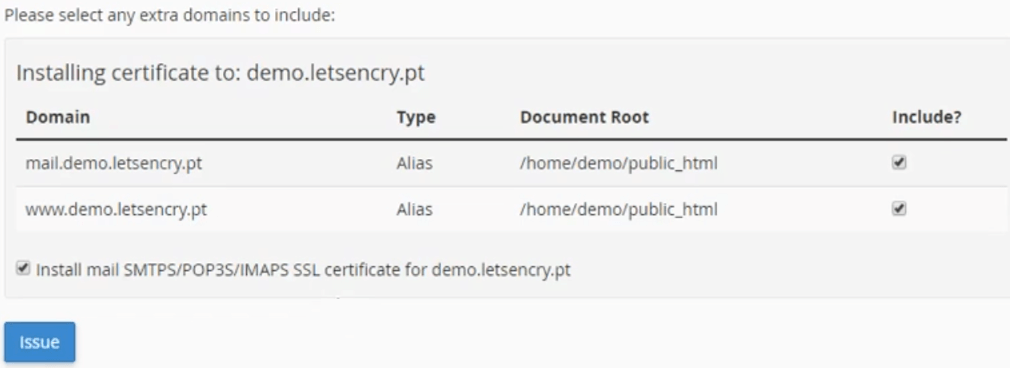
Ensure that all of the domains you wish to include in this certificate are selected as included and click ‘Issue’. The process may take anywhere from 10 to 45 seconds, so do not navigate away from the page.
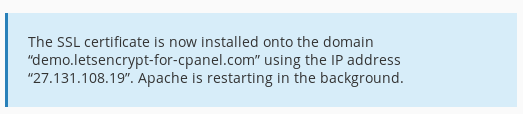
At completion, the keys and certificates should be installed on the server, with a success message:
Certificate renewal is automatic in the background.