

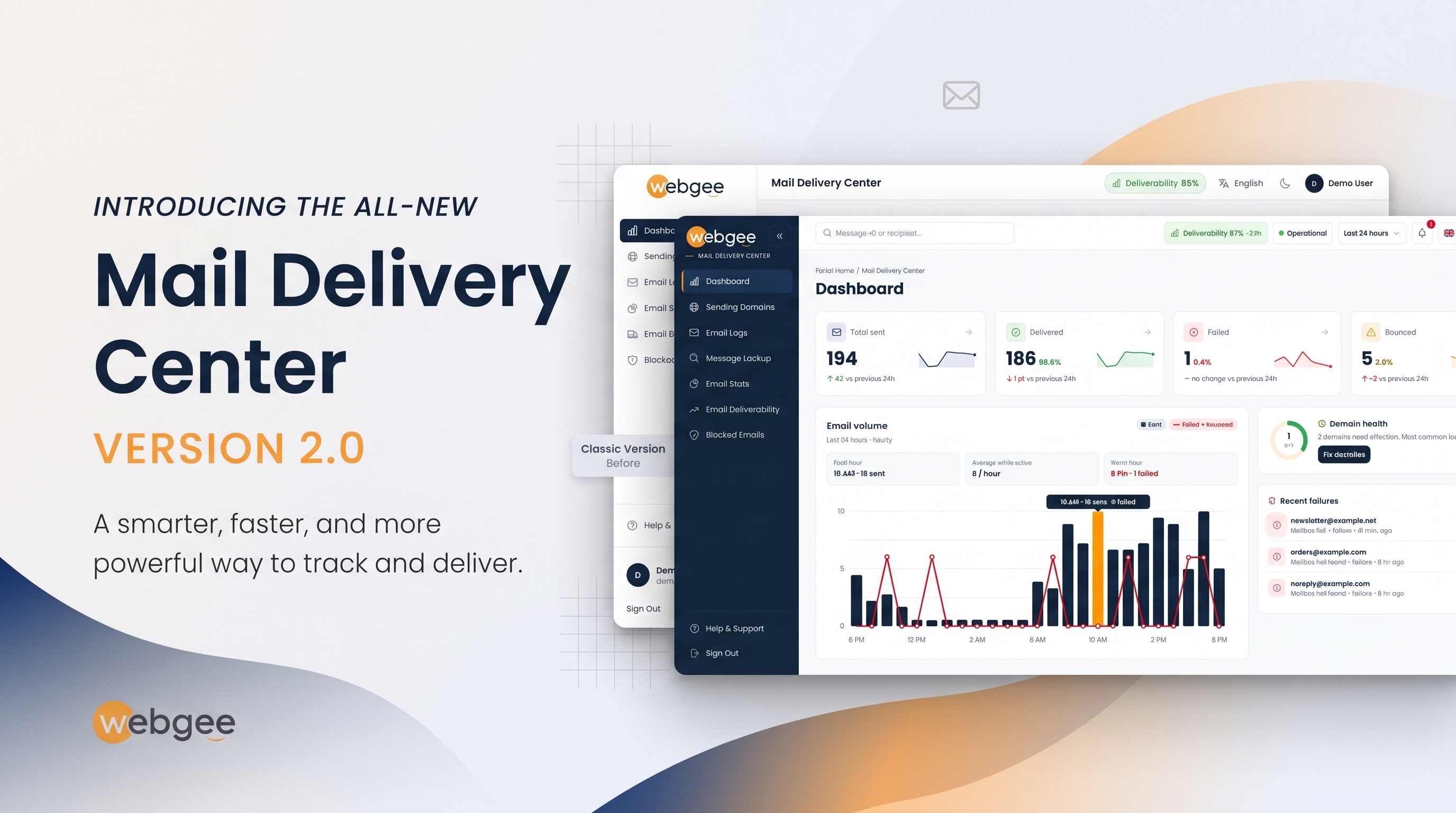
Your mail app's Sent folder only proves a message left. It says nothing about whether the other side accepted it, deferred it or threw it away. The Mail Delivery Center fills that gap: it records what happened to every message after it left the server, and what the receiving server said about it.
In October 2026 we rebuilt it from the ground up. It now looks and behaves like the WebGee client area, tells you why mail failed rather than only that it did, and gives you the exact DNS record to fix a domain. This is a tour of every page, with screenshots, so you know where to look the next time someone says they never got your email.
Key takeaways
- The Mail Delivery Center shows what happened to each email after it left the server, and what the receiving server said.
- One time range in the header now applies to every page, from the dashboard to the logs and stats.
- Search any Message-ID, Mail ID or recipient to open a message page with a timeline for every recipient.
- Sending Domains checks SPF, DKIM, DMARC and MX every six hours and gives you the exact record to publish.
- Nothing needs setting up: you sign in the same way and see the same mail as before.
Before you start
- A WebGee hosting plan that sends mail through our outbound relay (shared, reseller and Premium hosting do)
- Your client area email address and password
- At least one domain sending mail, so the pages have something to show
What changed in this release
If you used the old Mail Delivery Center, these are the differences you will notice first:
- One time range for every page. The separate pickers on each page are gone.
- A page for every message, with a timeline per recipient and the receiving server's exact reply.
- DNS health with the exact record to add. DKIM, DMARC and MX are now checked alongside SPF.
- Faster email logs, with status buttons, expandable rows and a full CSV export.
- Why mail failed, and where: failures grouped by reason, and delivery broken down by mailbox provider.
- Blocked emails in bulk, with the reason and date for each block.
- Six languages and dark mode. Arabic switches the whole layout to right-to-left.
Nothing needs setting up. You sign in the same way and see the same mail as before. The full list is in What's new in the Mail Delivery Center.
Getting in
There are two routes, and both reach the same place:
- From the client area: select Mail Delivery Center in the sidebar. You are signed in automatically, with no second password.
- Directly: open mdc.webgee.com and sign in with your client area email address and password. Bookmark it if you check delivery often.
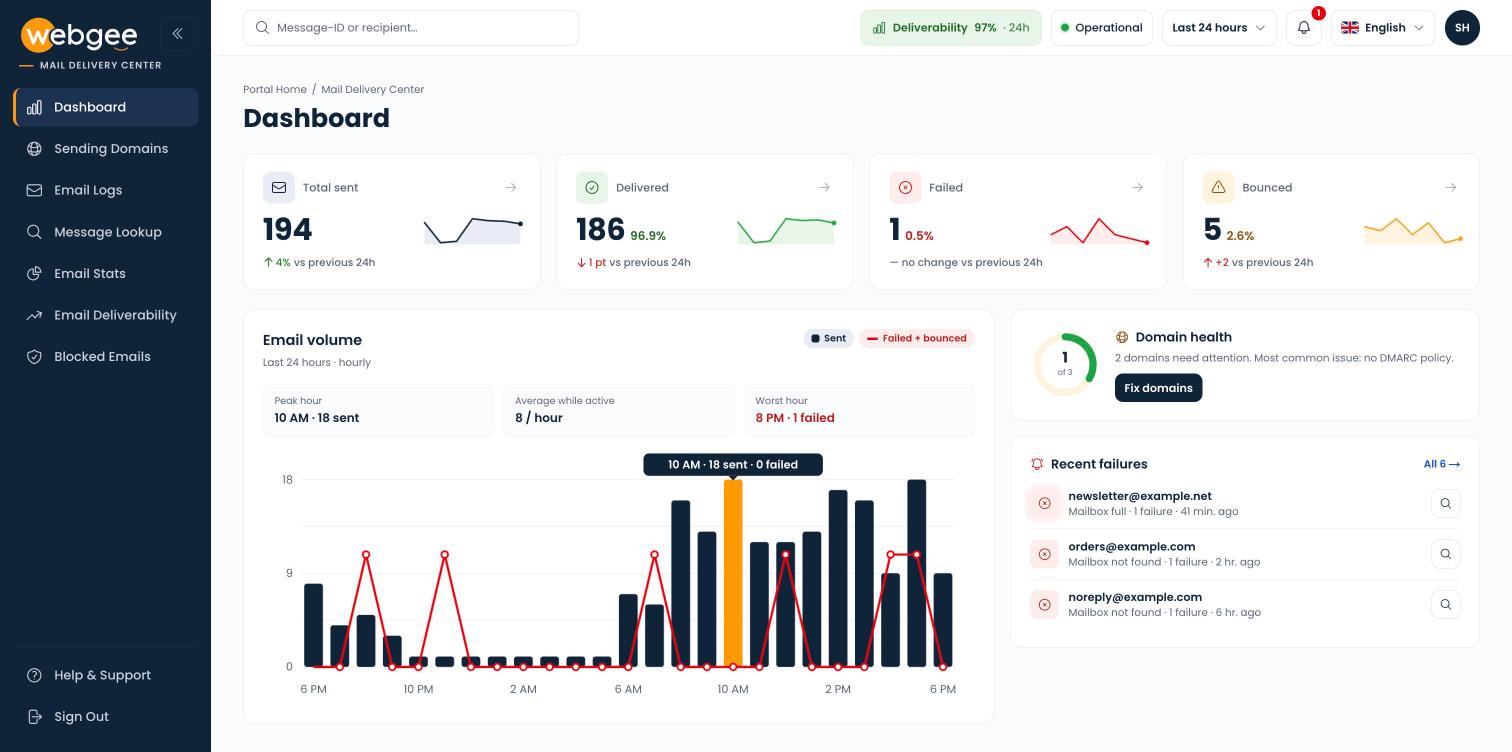
The new dashboard: delivery cards, the email volume chart, domain health and recent failures.
The header across the top of every page carries the controls you use most: a search box for finding one message, a Deliverability badge with your delivery rate over the last 24 hours, a status pill for WebGee's email relay, the time range, notices, the language switcher, and your account menu with Dark mode.
One time range for every page
The time range in the header applies to everything at once: the dashboard cards, the logs, the stats and the deliverability charts all follow it. It shows Last 24 hours until you change it.
- Select the time range in the header.
- Choose Last 24 hours, Last 7 days, Last 30 days or This billing period (the current calendar month).
- For any other window, enter a From and To date under Custom and select Apply.
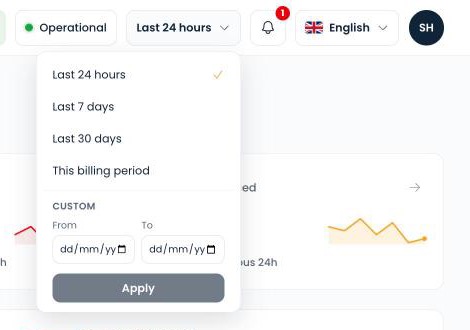
Preset periods, or a custom From and To date.
Your choice stays in place as you move between pages, and resets when you close the browser tab.
Reading the Deliverability badge. The percentage is delivered mail divided by mail that reached a final outcome over the last 24 hours, so messages still in flight do not drag it down. Green is 85–100%, amber 75–85% and red below 75%. Read it alongside how much you sent: two failures out of ten is 80%, and one bad address explains it.
The dashboard: what changed since last time
The dashboard answers three questions: how much you sent, how much of it arrived, and what needs fixing. Four cards sit at the top:
- Total sent: every message handed to the relay in the period.
- Delivered: accepted by the receiving server.
- Failed: refused for a temporary reason, such as a rate limit at the far end. The relay retries these.
- Bounced: refused permanently with a 5xx reply, such as an address that does not exist. These are not retried.
Each card compares the period with the one before it and shows a seven-day sparkline, so you can tell at a glance whether today is unusual. Green means better and red means worse, whichever way the number moved, so fewer bounces show as green.
Below the cards, the email volume chart shows when you sent, not just how much, and marks your Peak hour and your Worst hour. Beside it, Domain health counts how many of your sending domains pass all four DNS checks, and Recent failures lists the newest problems grouped by sender and reason.
A brand-new account that has not sent anything yet sees a setup checklist instead of empty charts: add the SPF record, the DKIM record and a DMARC policy, then send a test email. Each step ticks itself once the record is found. More in The dashboard.
Find one message, from anywhere
When a customer says an email never arrived, start with the search box at the top of any page. Paste a Message-ID, a WebGee Mail ID or the recipient's address and press Enter. If exactly one message matches, its page opens straight away.
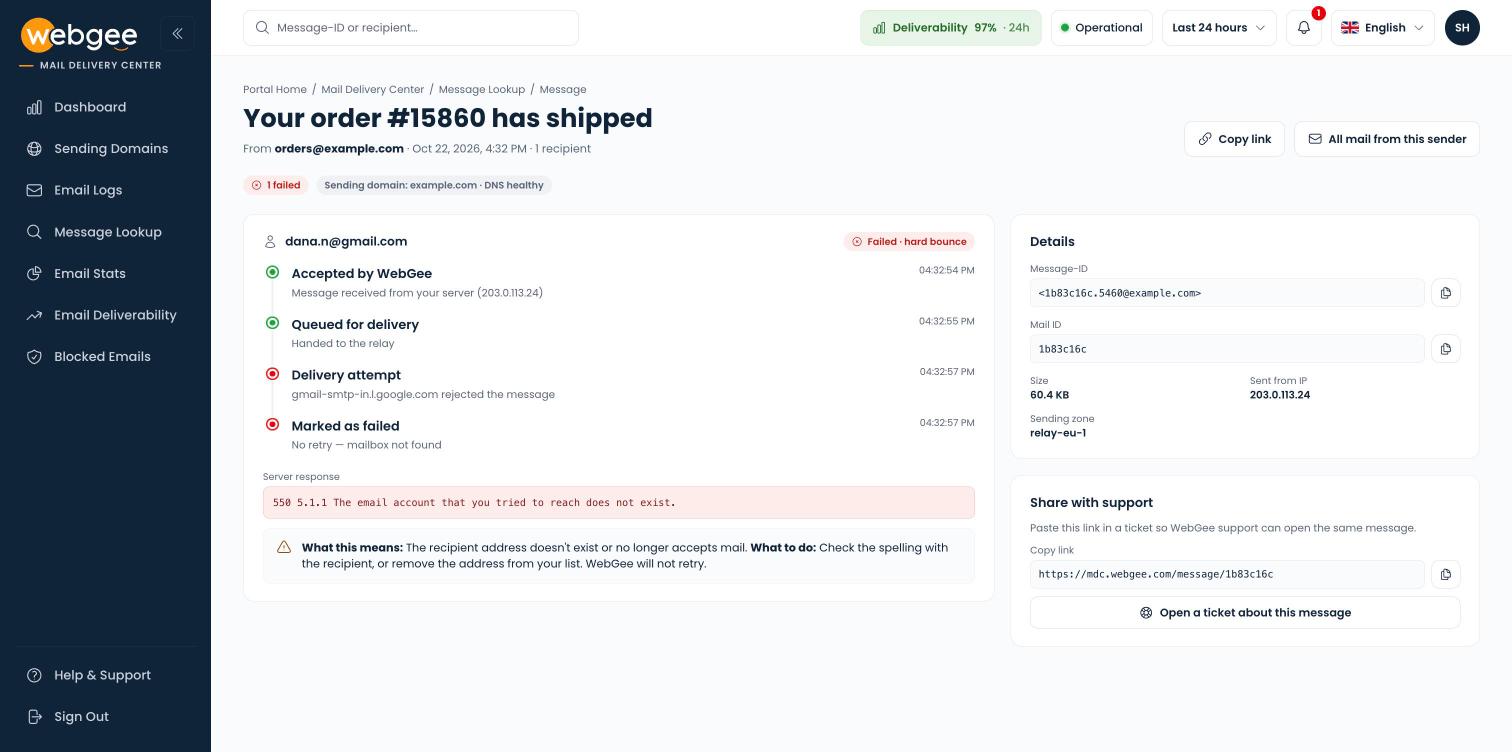
Every message has its own page, with a timeline for each recipient.
Each recipient gets a timeline: Accepted by WebGee, Queued for delivery, the Delivery attempt with the receiving server named, and the final outcome. Under a failed recipient, Server response shows the reply word for word, What this means puts it in plain words, and What to do says what to change.
Need help? In Share with support, copy the page's link and select Open a ticket about this message. Our support team opens the same page, so you do not have to copy replies or IDs by hand. See Trace a single email.
Email Logs: every message, filtered in seconds
Email Logs is the searchable record of everything your sending domains handed to the relay. One search box covers sender, recipient and subject, and status buttons with a count on each narrow the list: Delivered, Failed (a temporary 4xx reply the relay retries), Bounced (a permanent 5xx rejection) and Pending.
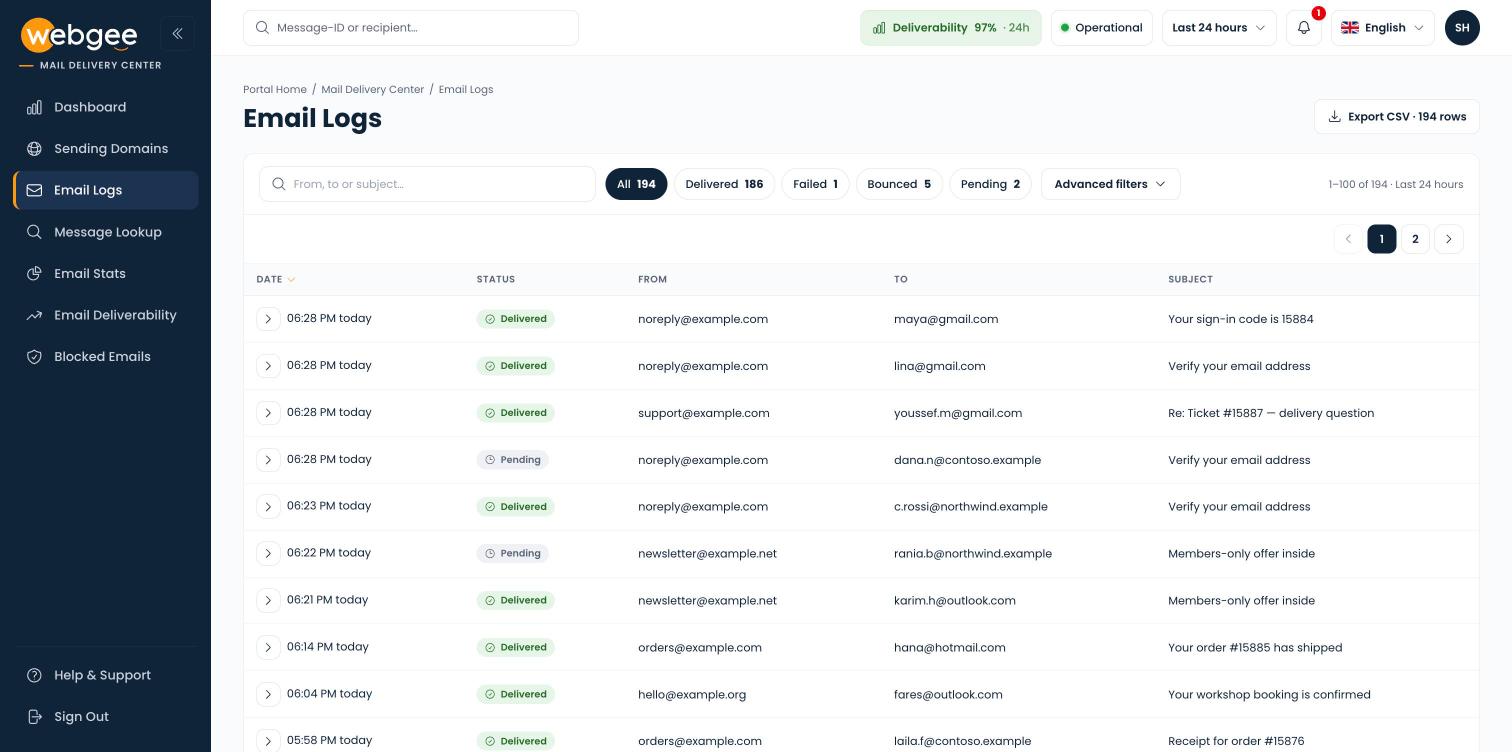
One search box and status buttons, each with its count.
Expand a row to see every recipient, the receiving server's reply, the mail server the relay talked to, and the reason in plain words, without leaving the list:
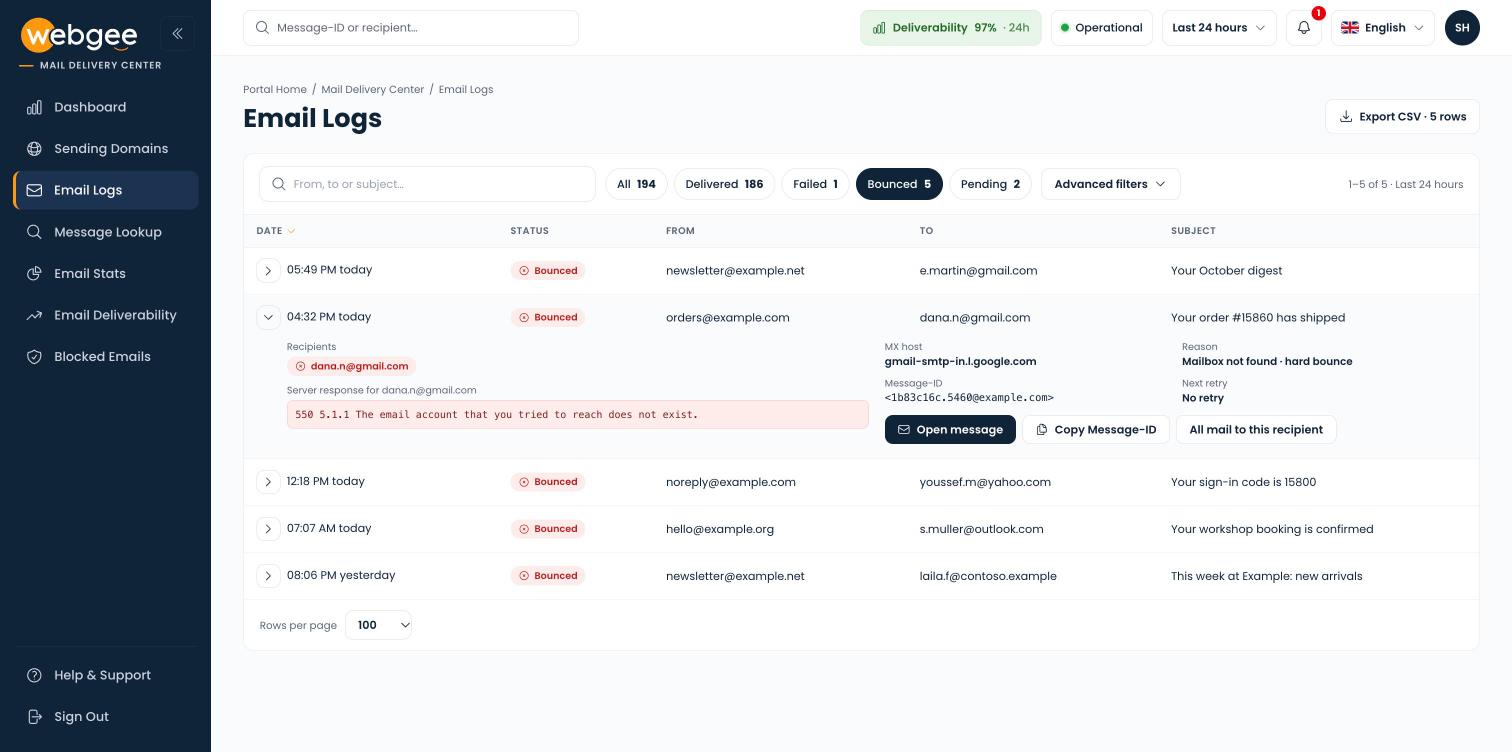
An expanded row: the server's reply, the MX host and the reason.
A few replies come up again and again:
- 550 5.1.1 … does not exist: the address does not exist. Check the spelling, or remove it from your list.
- 552 5.2.2 … mailbox is full: nothing to fix at your end. Ask the recipient to make space.
- 550 5.7.26 … unauthenticated: Gmail rejected mail that failed SPF and DKIM. Fix the domain on Sending Domains.
- 421 4.7.0 or 451 4.7.1: the receiving server is slowing you down or greylisting. The relay retries automatically.
Export CSV now exports every message that matches your search and filters, not just the page you are looking at, up to 50,000 rows. See Email logs.
Delivered is not the same as the inbox. Delivered means the recipient's server accepted the message. If someone insists they never received a message that shows as Delivered, ask them to check their spam folder before you go any further.
Sending Domains: DNS health with the exact fix
Sending Domains checks the four DNS records that decide whether your mail is trusted: SPF, DKIM, DMARC and MX. Cards at the top count your domains as Healthy, Needs attention (most often a missing DMARC policy) or Failing.
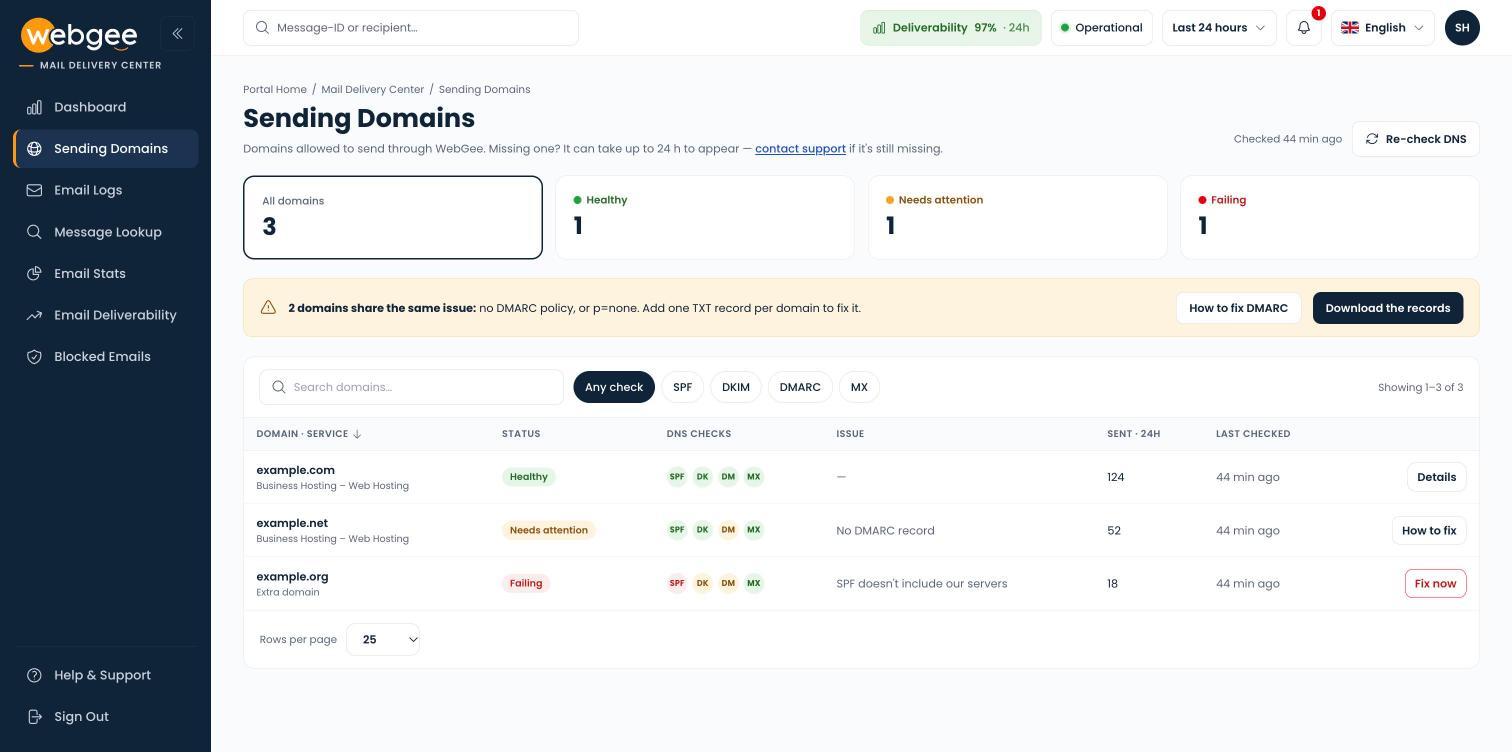
Every sending domain with its SPF, DKIM, DMARC and MX checks.
To fix a domain:
- Select Fix now, How to fix or Details on the domain's row.
- Find the record card marked Fail, Missing or Warning. It shows the Current record beside the one to publish under Add this record.
- Copy the suggested record and add it as a TXT record at your DNS provider: host @ for SPF, _dmarc for DMARC.
- Back on the domain page, select Re-check now.
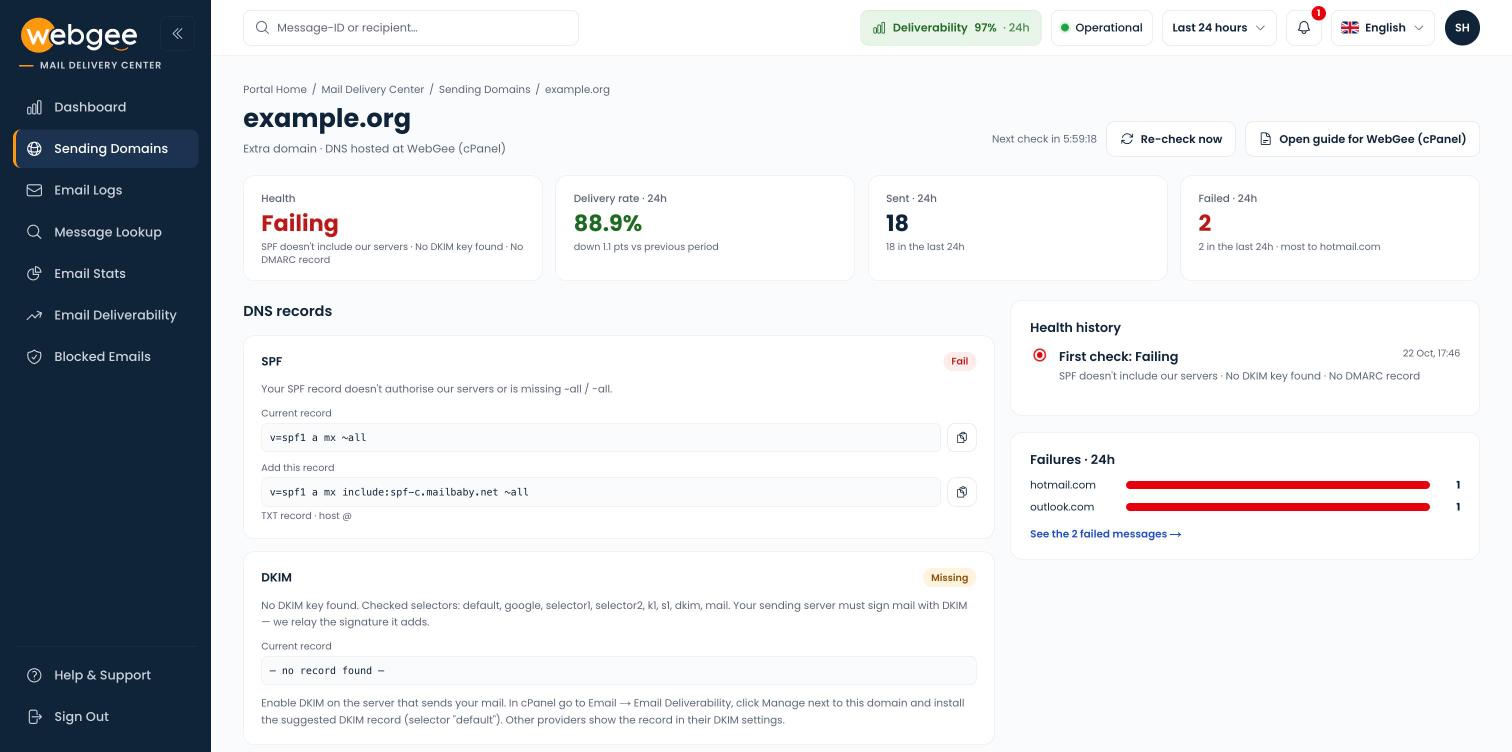
A domain page: the current SPF record next to the one to publish.
The suggested SPF record keeps any other senders already in yours and adds WebGee's, so you replace the old record rather than adding a second one. For a domain with no other senders it looks like this:
v=spf1 a mx include:spf-c.mailbaby.net ~allA domain with no DMARC policy shows as Needs attention rather than Failing: mail still goes out, but Gmail and Yahoo expect a policy from anyone who sends in bulk. The suggested record starts in monitoring mode, which changes nothing about delivery. Replace example.com with your domain:
v=DMARC1; p=none; rua=mailto:[email protected]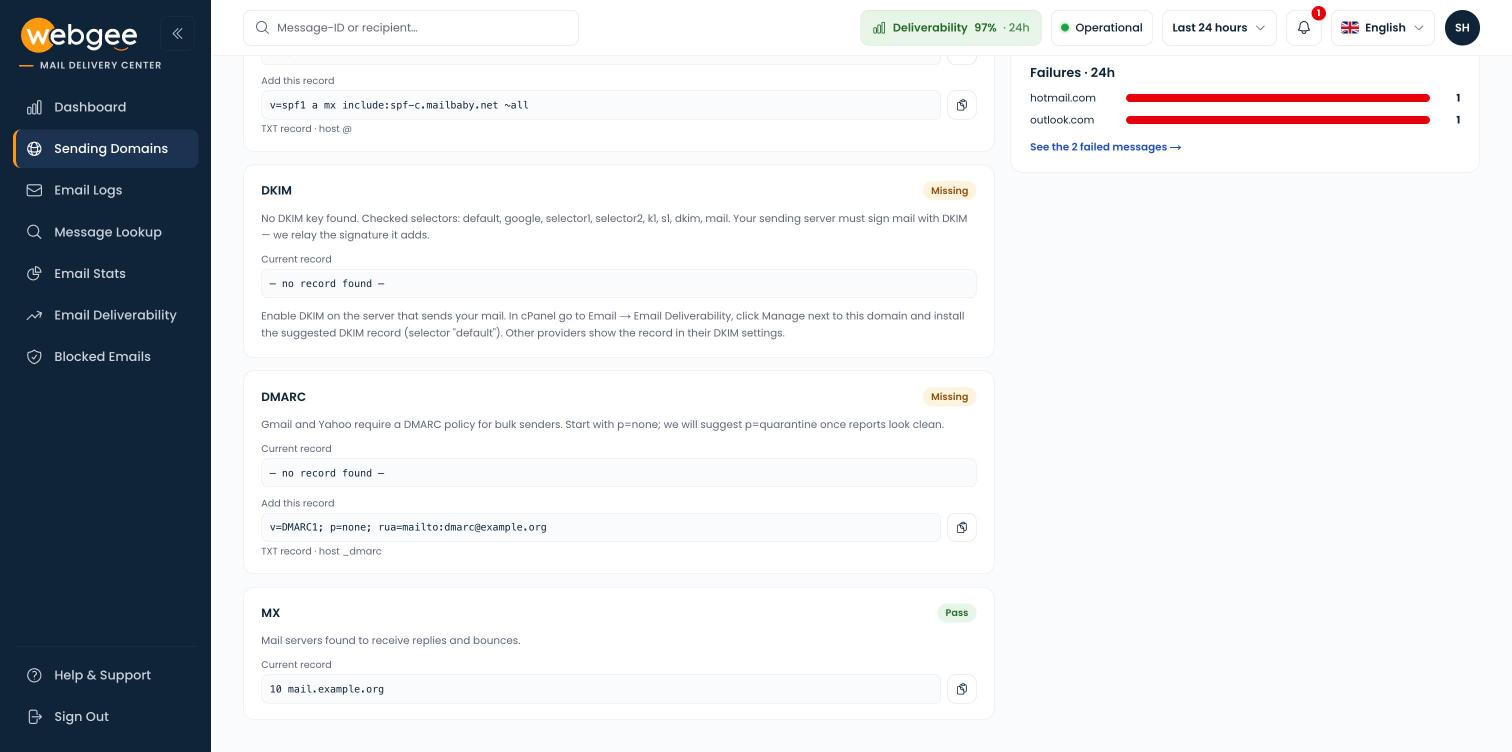
The DKIM, DMARC and MX cards, with the DMARC record to add.
For DKIM, the key is created by the server that sends your mail, so the Mail Delivery Center cannot show it in advance. In cPanel, open Email → Email Deliverability, select Manage next to the domain and install the suggested DKIM record.
You do not have to keep checking afterwards. Every domain is re-checked automatically every six hours, and if one that was passing starts failing, an alert appears at the top of every page. When several domains share a problem, a banner offers Download the records with the exact host and value for each. See Sending domains.
Publish records where your DNS actually lives. Add records at whichever DNS provider your nameservers point to. Adding them in cPanel while your nameservers are elsewhere changes nothing. The domain page shows "DNS hosted at …" to tell you where that is.
Email Stats: why mail failed, and who sent it
Email Stats breaks your mail down rather than summarising it. It opens on Failures, with counts for hard failures (permanent, not retried) and soft failures (temporary, still retrying), a bar showing the mix of reasons, and a table explaining each one: invalid recipient, mailbox full, spam or policy block, rate limited, a DNS problem at the recipient's domain, or a connection problem.
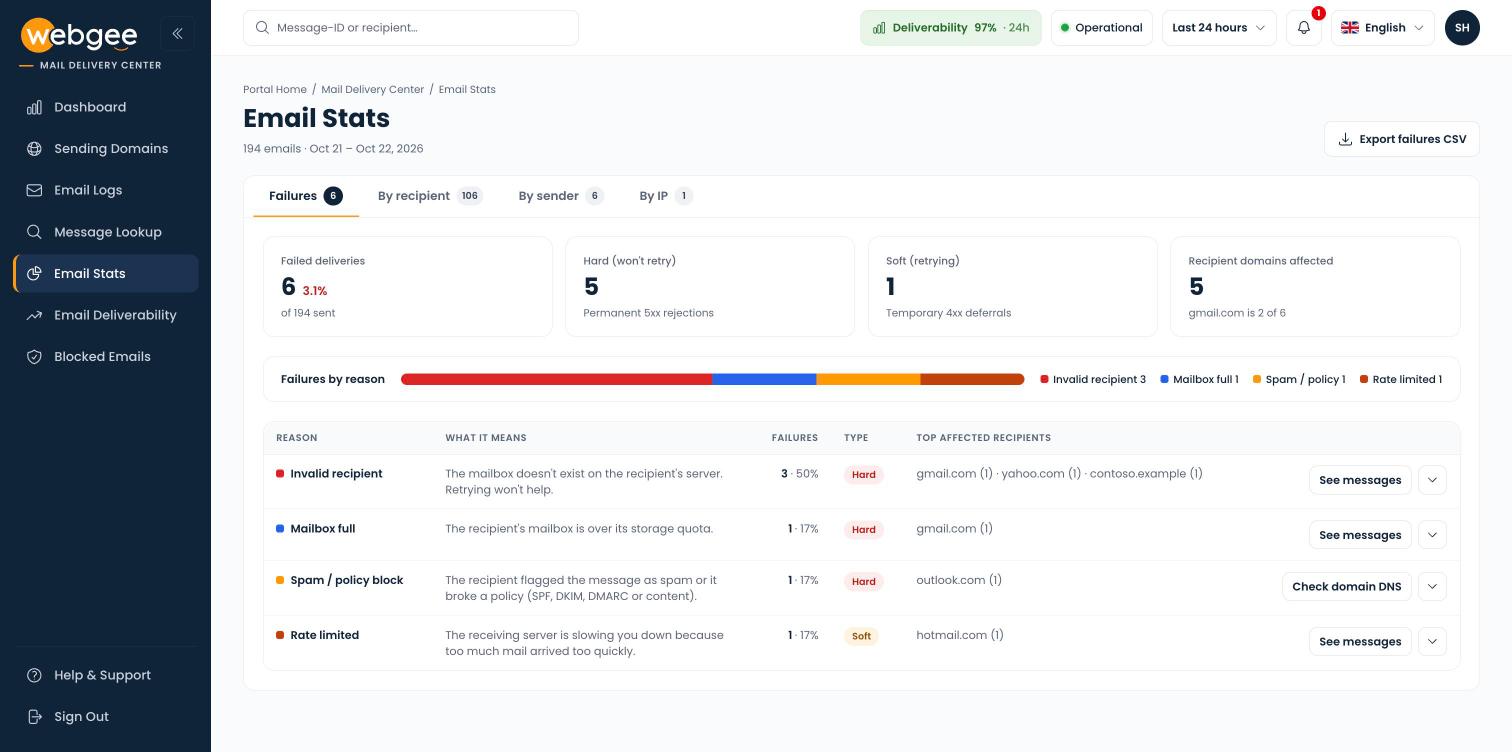
Failures grouped by reason, with what each means and what to do.
A high share of Invalid recipient is the one to act on first. Mailbox providers treat repeated sending to dead addresses as a sign of a stale or bought list, and judge everything else you send by it.
Three more tabs answer who and where. By sender shows which mailbox or application generates your traffic; a mailbox you barely use sitting at the top is how a compromised account usually shows up. By recipient shows who receives the most, and one recipient dominating usually means a loop. By IP shows where your mail came from.
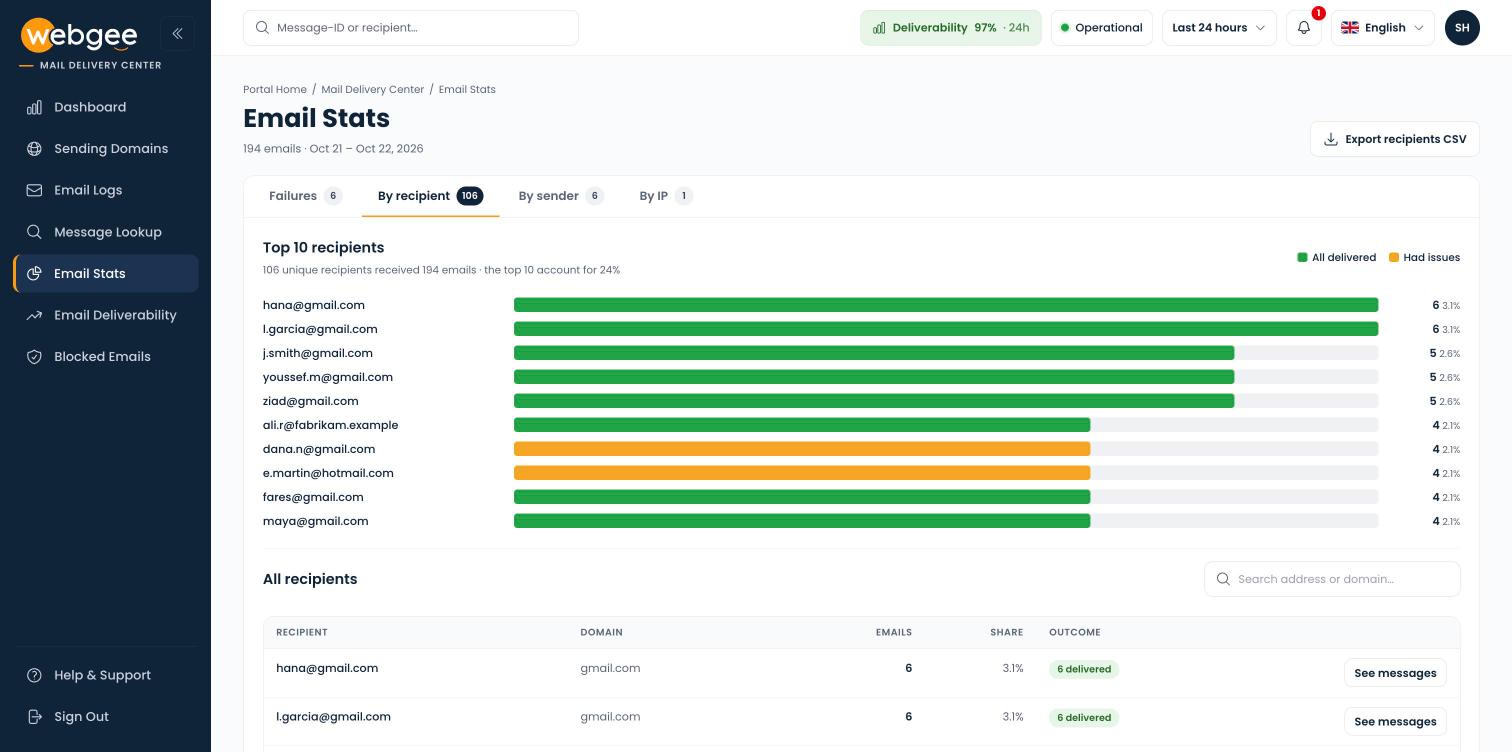
The top 10 recipients, coloured by outcome, above a searchable table.
Every tab has its own CSV export. See Email stats.
Email Deliverability: Gmail, Microsoft, Yahoo and the rest
Most delivery problems are specific to one mailbox provider, and so are their fixes. Email Deliverability shows your rate for Gmail, Microsoft, Yahoo / AOL and Other, each with what that provider requires. Business domains are placed by their mail servers, so mail to a company on Google Workspace counts under Gmail.
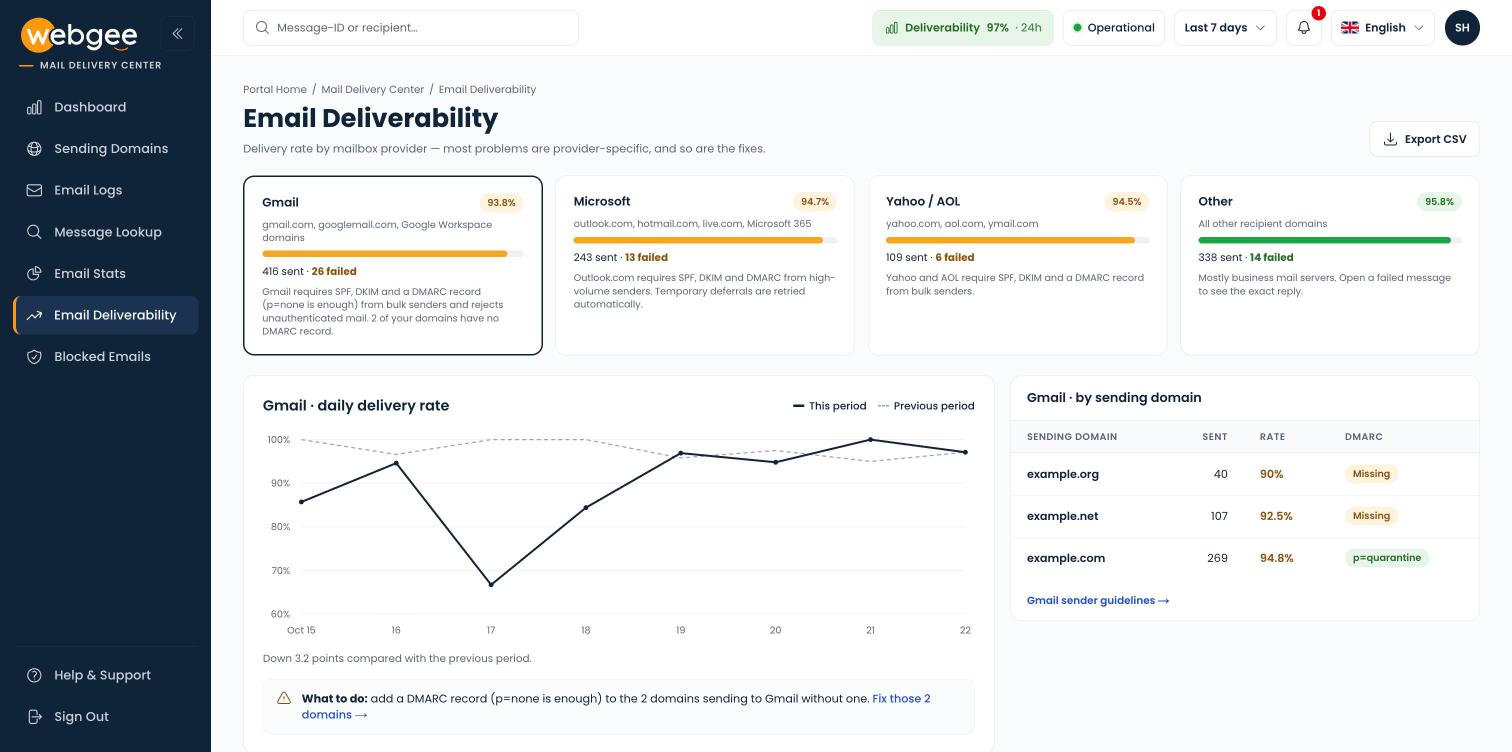
Gmail selected: the daily rate against the previous period, and Gmail by sending domain.
Select the provider with the lowest rate and the chart switches to it, with this period as a solid line and the previous period dashed. A gradual decline over weeks usually means reputation; a sudden drop on one day points at something that changed that day, such as a new sending application or a DNS change. The table beside it lists your domains that sent to that provider, worst first, with each one's DMARC status. Choose Last 7 days or longer so the trend means something. See Email deliverability.
Blocked Emails, now in bulk
Blocked Emails lists the mail from your sending domains that WebGee will not deliver, and why. Tabs split the entries into Local blocks, Trap list and Subject blocks, and each row shows the reason and when it was blocked.
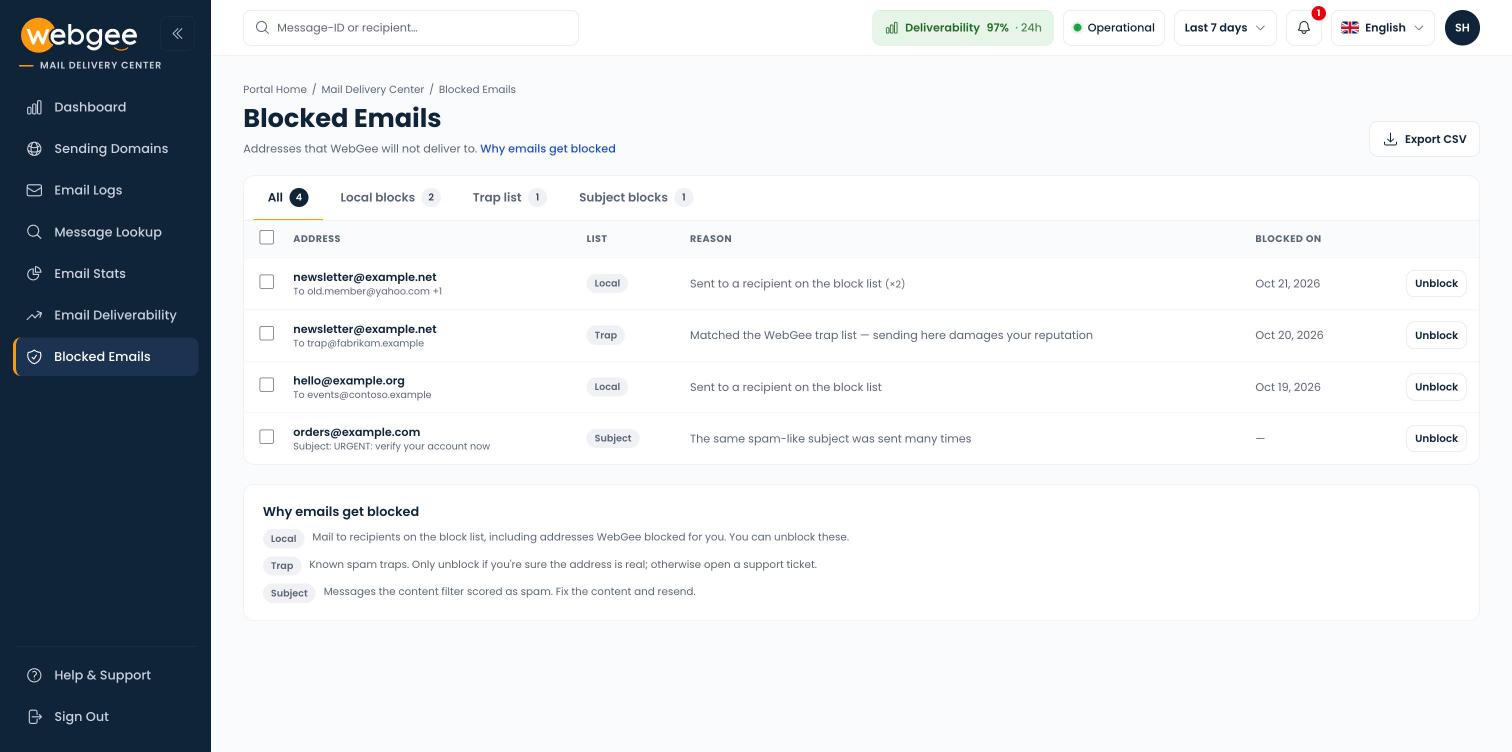
Blocks grouped by why they happened, with the reason and the date.
A block is a protection, not a punishment: it stops one bad recipient or one bad message pattern from affecting everything else you send. When a block was a mistake, select Unblock on the row, or tick up to 50 entries and select Unblock selected. Confirm the address is real first; releasing a dead address brings the bounces back. Never unblock and resend to a Trap list entry, because trap addresses are not real people. See Blocked emails.
What has not changed
- You reach it the same way: Mail Delivery Center in the client area sidebar, or mdc.webgee.com with your client area email address and password.
- You see the same mail as before: messages sent from your own sending domains.
- Delivery itself is unchanged. This release changes how delivery is reported, not how mail is sent.
The quickest way to get to know it is to open the dashboard, set the time range to Last 7 days, and look at Domain health. If anything is below the total, Sending Domains will hand you the exact record to fix it.
Frequently asked questions
Do I need to set anything up to use the new Mail Delivery Center?
No. You sign in the same way, from the client area sidebar or at mdc.webgee.com, and see the same mail as before. Nothing needs to be set up to start using the new pages.
Which plans include the Mail Delivery Center?
All plans that send mail through WebGee's outbound relay, including shared, reseller and Premium hosting.
Does "Delivered" mean the email reached the inbox?
No. Delivered means the recipient's mail server accepted the message. It can still be filed as spam at the far end, so check the recipient's spam folder next.
How often are my domains' DNS records checked?
Every sending domain is re-checked automatically every six hours, and you can select Re-check now on a domain's page at any time. If a domain that was passing starts failing, an alert appears at the top of every page.
Can WebGee support see the same message I am looking at?
Yes. On a message page, copy the link in Share with support and paste it into your ticket. Support opens the same page, so you do not need to copy replies or IDs by hand.
