

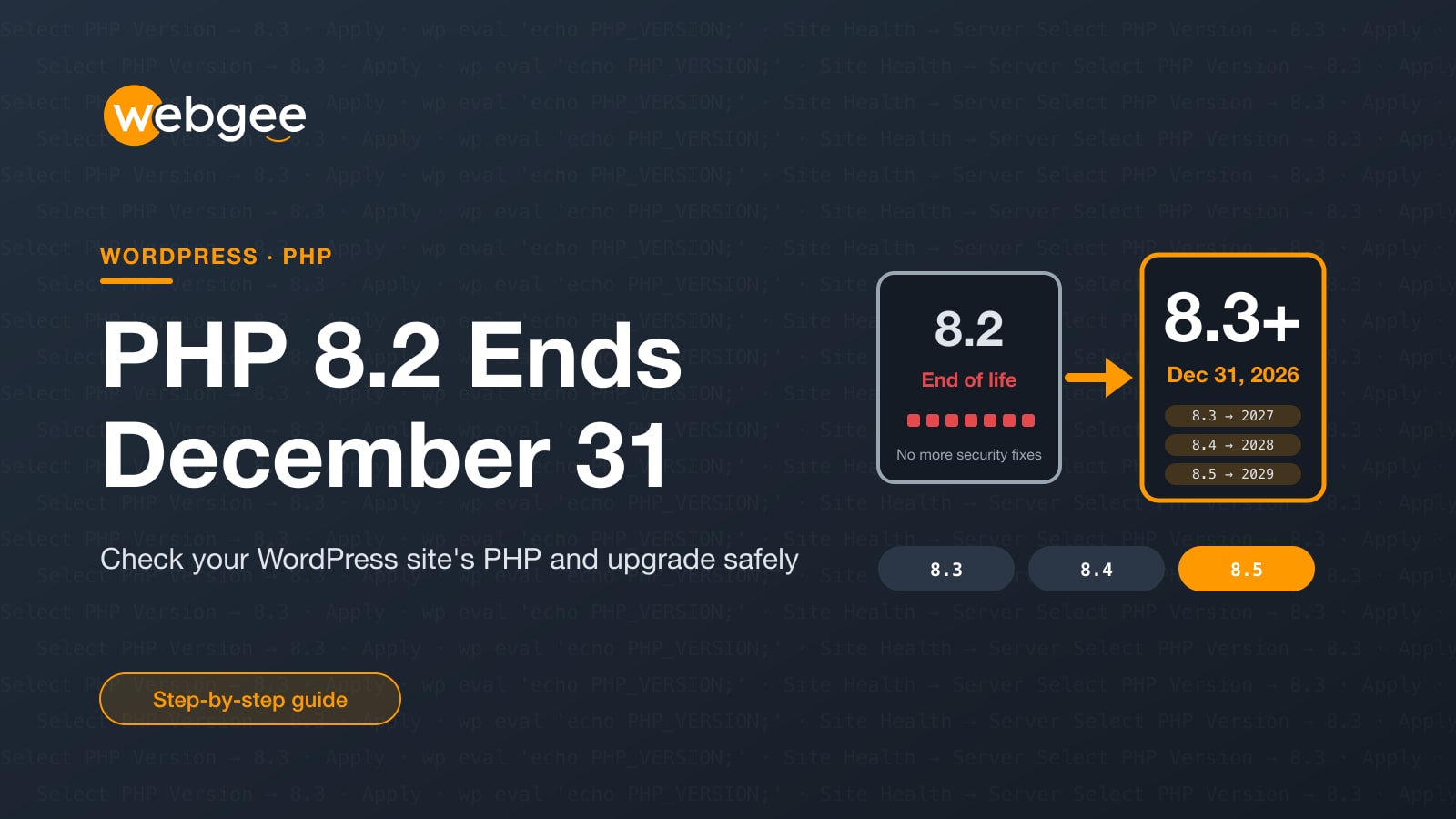
Your WordPress site runs on PHP, the language WordPress is written in. Like WordPress, PHP gets security fixes, but only for a limited time. Each version gets four years: two of full support, then two of security fixes only. After that, it is end of life, and any new hole stays open for good.
The next deadline is close. PHP 8.2 reaches end of life on December 31, 2026. It joins PHP 8.1 (which ended a year earlier), 8.0 and 7.4. A large share of WordPress sites still run one of these versions, often without their owners knowing.
Key takeaways
- PHP 8.2's security support ends on December 31, 2026. PHP 8.1, 8.0 and 7.4 are already past end of life.
- An end-of-life PHP version never gets another fix, even for flaws that let attackers take over a server.
- Check your version in WordPress under Tools › Site Health › Info › Server.
- Move to PHP 8.3 (supported until the end of 2027) or newer, testing on a staging copy first.
- On WebGee you change PHP per site yourself, in cPanel or WordPress Cloud, in under a minute.
Why this matters now In October, the PHP2Shell flaws showed what a PHP-level hole looks like: remote code execution, fixed in PHP itself, not in WordPress. The next one found after December 31 will not be fixed for PHP 8.2.
PHP support dates at a glance
- PHP 7.4, 8.0 and 8.1: end of life, no fixes of any kind.
- PHP 8.2: security fixes until December 31, 2026.
- PHP 8.3: security fixes until December 31, 2027.
- PHP 8.4: active support until the end of 2026, security fixes until December 31, 2028.
- PHP 8.5: active support until the end of 2027, security fixes until December 31, 2029.
WordPress itself still runs on PHP 7.4 and later, but it recommends PHP 8.3 or newer. "Runs on" is not the same as "safe on".
Step 1: find out which PHP your site runs
In WordPress, go to Tools › Site Health › Info and open the Server section. The PHP version is near the top. Site Health also warns you on its Status tab when your version is out of date. Over SSH:
# PHP version WordPress is using
wp eval 'echo PHP_VERSION, PHP_EOL;'

# Check plugins and themes for updates before you switch
wp plugin list --update=available
wp theme list --update=available
Step 2: get ready
Most version jumps go smoothly, but the ones that break do it visibly: a white screen or "There has been a critical error on this website." A few minutes of preparation avoids that:
Before you change PHP
- Update WordPress, every plugin and your theme to their latest versions
- Check each plugin's page for the PHP versions it supports, especially page builders, payment gateways and anything using ionCube
- Delete plugins you no longer use, rather than testing them
- Take a fresh backup (on WebGee cPanel hosting, JetBackup can make one on demand)
- If you can, make a staging copy and test the new version there first
Step 3: switch PHP on WebGee
cPanel hosting
- In cPanel, open Select PHP Version.
- To change one site only, open the Per Domain Settings tab. Account Global Settings changes every domain in the account.
- Choose the new version, for example 8.3, and select Apply. The change is immediate.
- Open the Extensions tab and check that what your site needs (such as
imagick,intlorzip) is still ticked.
On accounts with Bolt-Cache enabled, the PHP selector doesn't apply; contact support and we'll help you change it.
WordPress Cloud
- Open the website, then go to Advanced › Developer tools.
- Pick the PHP version from the selector. The newest is marked LATEST.
- Select Restart at the top right to apply it.
WordPress Cloud gives every site its own container, so you can try a new PHP version on a staging site first and push it live when you're happy.
Step 4: test, and roll back if needed
Right after switching, check:
- the home page and a few inner pages, logged out;
- wp-admin, including the editor;
- anything that generates files or takes money: contact forms, PDF invoices, image uploads, checkout;
- Tools › Site Health for new PHP warnings.
If something breaks, switch back to the previous version in the same screen. The change is instant, so your site is back in seconds. Then find the cause in the error log (WordPress's debug.log or the PHP error log), update or replace that plugin, and try again.
Go one step further If your plugins support PHP 8.4, choose it instead of 8.3. You get a year more of security fixes, and you won't have to repeat this upgrade at the end of 2027.
Stuck on an old PHP version?
Some hosts still lock sites to old PHP, or charge for "extended support" to keep an end-of-life version running. On WebGee you choose the PHP version for every site yourself, and our engineers on live chat 24/7 can help you test the change. If your host makes that hard, we'll move your WordPress site for free, and you can upgrade PHP the same day.
Frequently asked questions
When does PHP 8.2 reach end of life?
Security support for PHP 8.2 ends on December 31, 2026. After that date the PHP project publishes no more fixes for it.
Will my site stop working on January 1?
No. An end-of-life PHP version keeps running. The risk is that any security hole found after that date is never fixed, so the site becomes easier to break into over time.
Which PHP version should WordPress use?
WordPress recommends PHP 8.3 or newer. PHP 8.3 is supported until December 31, 2027, PHP 8.4 until the end of 2028 and PHP 8.5 until the end of 2029. Choose the newest version your plugins and theme support.
What if a plugin doesn't work on PHP 8.3?
Check for an update first; most maintained plugins already support it. If the plugin is abandoned, replace it. Keeping a whole site on an unsupported PHP version for one plugin is rarely worth the risk.
My host won't let me change PHP. What can I do?
Move to a host that lets you choose PHP per site. WebGee migrates WordPress sites for free, and you can pick the PHP version for each site yourself.
