

Every WordPress site owner knows the feeling: you click Update on a plugin, the page reloads, and for a second you wonder whether the site will come back. Usually it does. Sometimes it doesn't, and you find out from a customer.
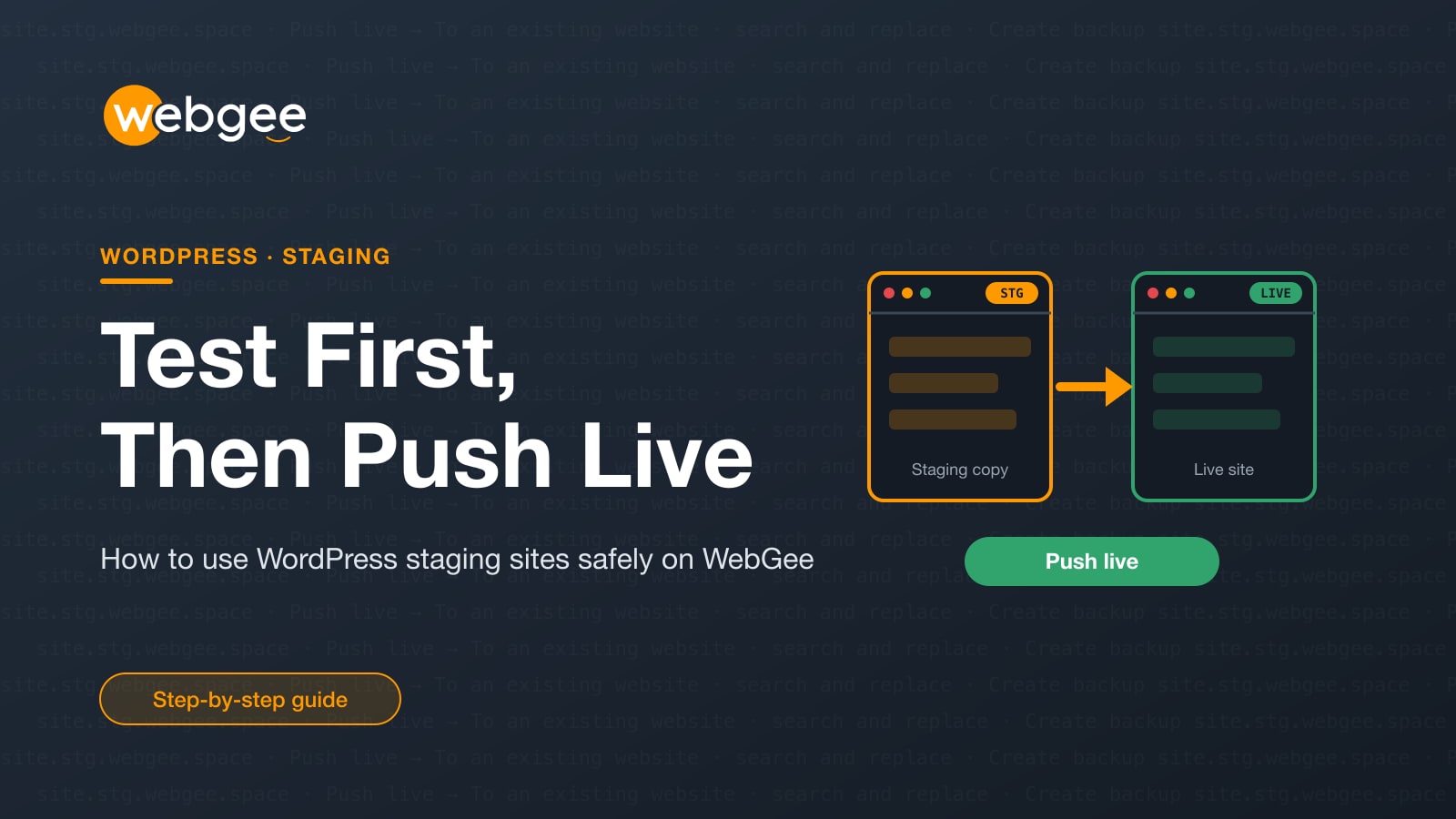
A staging site removes that gamble. It is a private copy of your website where you can run updates, try a new theme or rebuild pages, and only push the result live once you have seen it work. This guide explains when staging is worth it, walks through creating a staging copy and pushing it live on WebGee WordPress Cloud, and covers the habits that keep a push from undoing work on your live site.
Key takeaways
- A staging site is a private copy where you test updates and redesigns before visitors see them.
- WordPress 7.2 is due on December 8, 2026, so test it on staging before upgrading live.
- On WordPress Cloud, staging sites have their own allowance and push live with a search and replace.
- Pushing to an existing site replaces its files and database, so back it up first.
- On busy stores, avoid pushing stale copies; repeat tested updates on live instead.
Why use a staging site?
A staging site is a full copy of your WordPress install: the same files, plugins, theme and database, running on a separate address. Changes you make there have no effect on the site your visitors use. It is worth using for any change you could not comfortably undo in a few minutes.
Core, plugin and theme updates
Most updates are uneventful, but major releases change things that themes and plugins depend on. WordPress 7.2 is due on December 8, 2026, and its beta is already out. Testing it on a staging copy first lets you see whether your theme, page builder and key plugins cope before you upgrade the live site. Our article on what's new in WordPress 7.2 and the 7.1.3 security release lists the changes to check for.
Redesigns and larger content changes
A new theme, a rebuilt homepage or a reorganised menu can take days. Doing that work on the live site means visitors see half-finished pages. On staging you can take as long as you need and show the result to colleagues or clients before launch.
WooCommerce and payment changes
On a store, a broken checkout costs money for every minute it stays broken. WooCommerce updates, new payment or shipping plugins, and tax settings are all worth trying on staging first, including a test order, before they touch real customers.
How staging works on WebGee WordPress Cloud
WordPress Cloud is WebGee's managed WordPress platform. Each site runs in its own container on OpenLiteSpeed, managed from the panel at cp.webgee.cloud. Staging is built in, with push live from the site's own page, rather than something you add with a plugin.
A few things to know before you start:
- Staging sites live on WebGee's staging domain. You choose a label and the panel adds
.stg.webgee.space, so you do not need a spare domain or subdomain. - Staging has its own allowance. Packages count staging websites separately from production websites, so a staging copy does not use up a production slot. You can check both counts under Packages.
- Staging sites behave like production sites in almost every respect: same container, same tooling, same backups. They carry an STG badge throughout the panel so you always know which copy you are in.
- Two differences matter. Staging sites cannot have mailboxes, because email accounts require a production website. And because
stg.webgee.spaceis WebGee's domain, its search engine visibility is not yours to control, so do not park a real site there long term.
Step 1: Create a staging site
In the WordPress Cloud panel, go to Websites and select Add website.
- Choose Staging website instead of Production website.
- Choose what to put on it. Clone a website makes a copy of one of your existing websites, which is what you want when testing changes to a live site. Add WordPress site installs a fresh copy of WordPress, useful for building a new site from scratch.
- Enter a label in the Staging domain field. The panel appends
.stg.webgee.space. - Fill in the WordPress admin account if the form asks for it. These become the WordPress administrator, not your panel login. The password must be at least 10 characters with a lowercase letter, an uppercase letter, a number and a special character, and the key icon generates one that fits.
- Select Add. The panel shows live progress while it sets the site up.
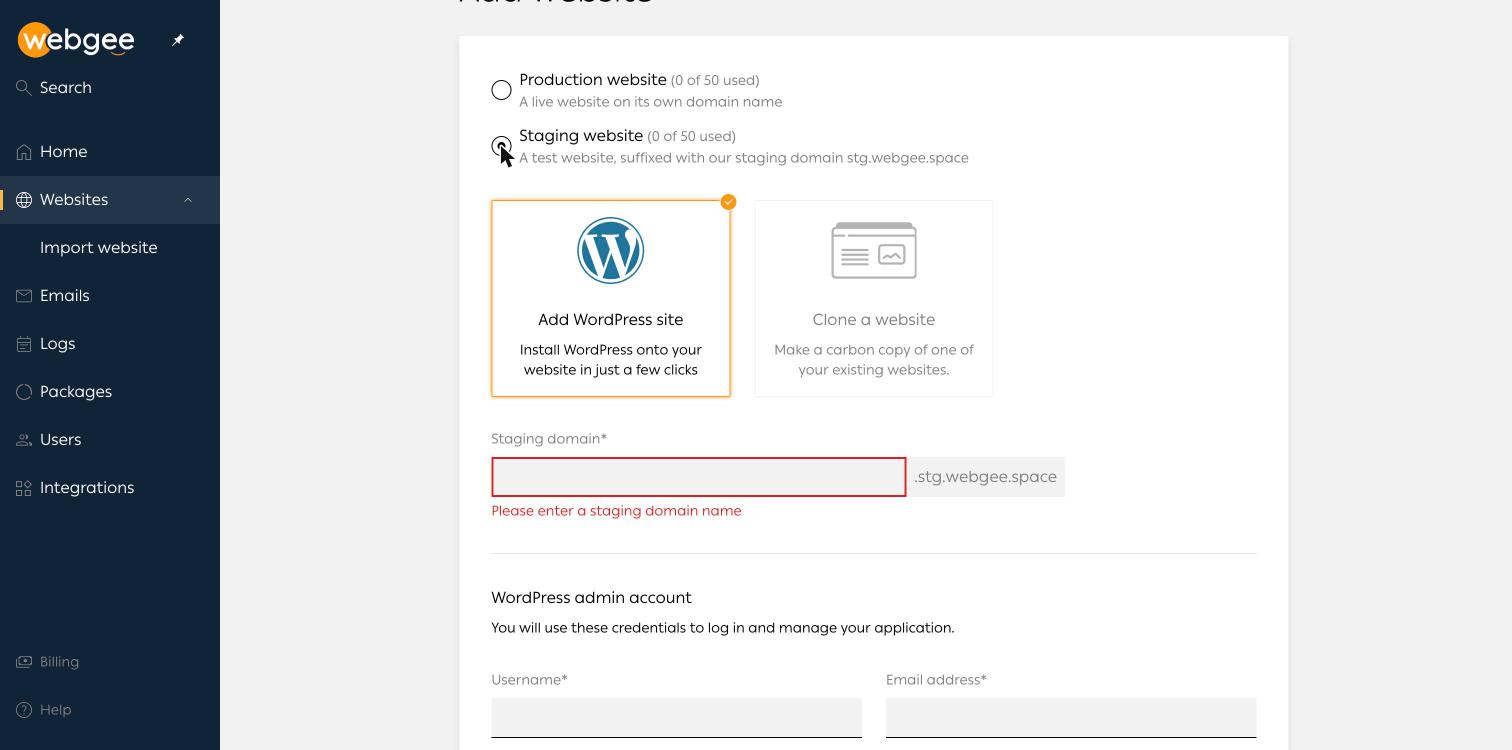
Production sites need nameservers set at your registrar before visitors can reach them. Staging sites skip this, because they run on WebGee's own domain, so the copy is reachable as soon as it is created. The full form is described in Add a website.
Step 2: Make and test your changes
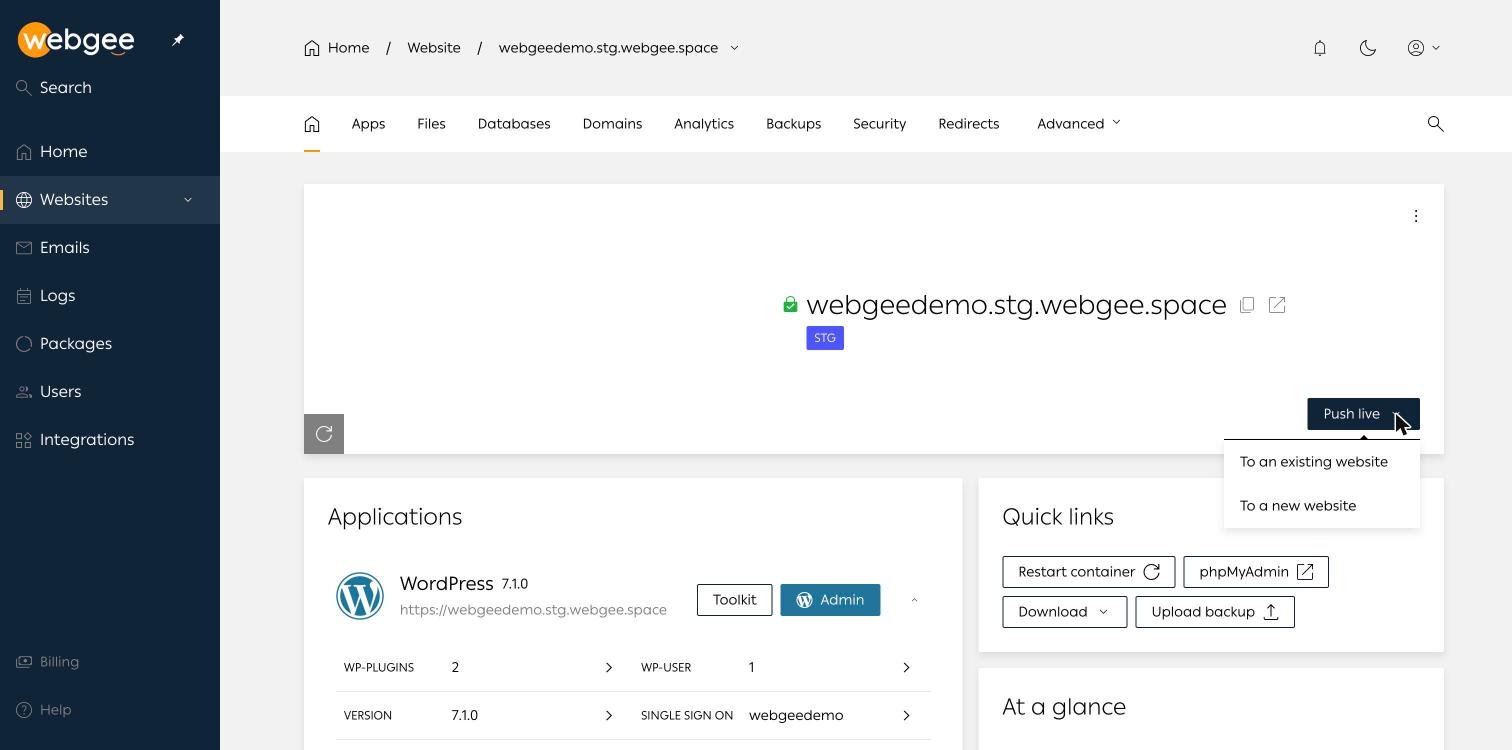
Open the staging site from Websites. The overview shows the STG badge next to the staging domain, your WordPress install under Applications, and the Push live button you will use later.
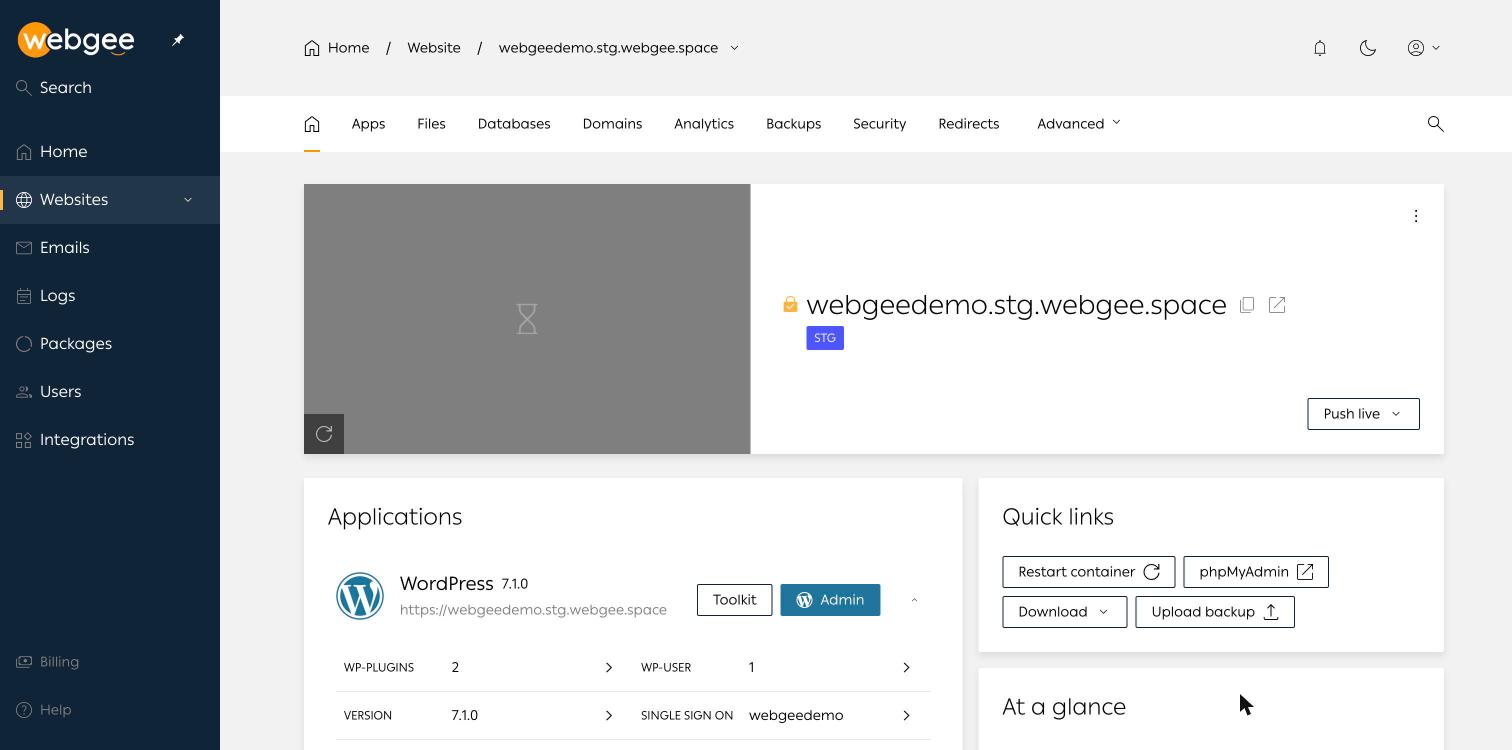
Use the Admin button to open wp-admin and work as you would on the live site: run the updates, switch themes, edit pages. Then test properly, not just the homepage:
- Click through your most important pages logged out, in a private window.
- Submit your contact or booking forms.
- On a store, add a product to the cart and go through checkout using your payment provider's test mode.
- Check the browser console and your error log for new warnings after updates.
Keep a short list of what you changed. You will need it if you decide to repeat the changes by hand on a busy store rather than pushing the whole site (see the WooCommerce section below).
Step 3: Back up before you push
Pushing a staging site to an existing website replaces that site's files and database, and the push is not reversible from the push dialog. A backup of the destination is your undo button, so take one every time.
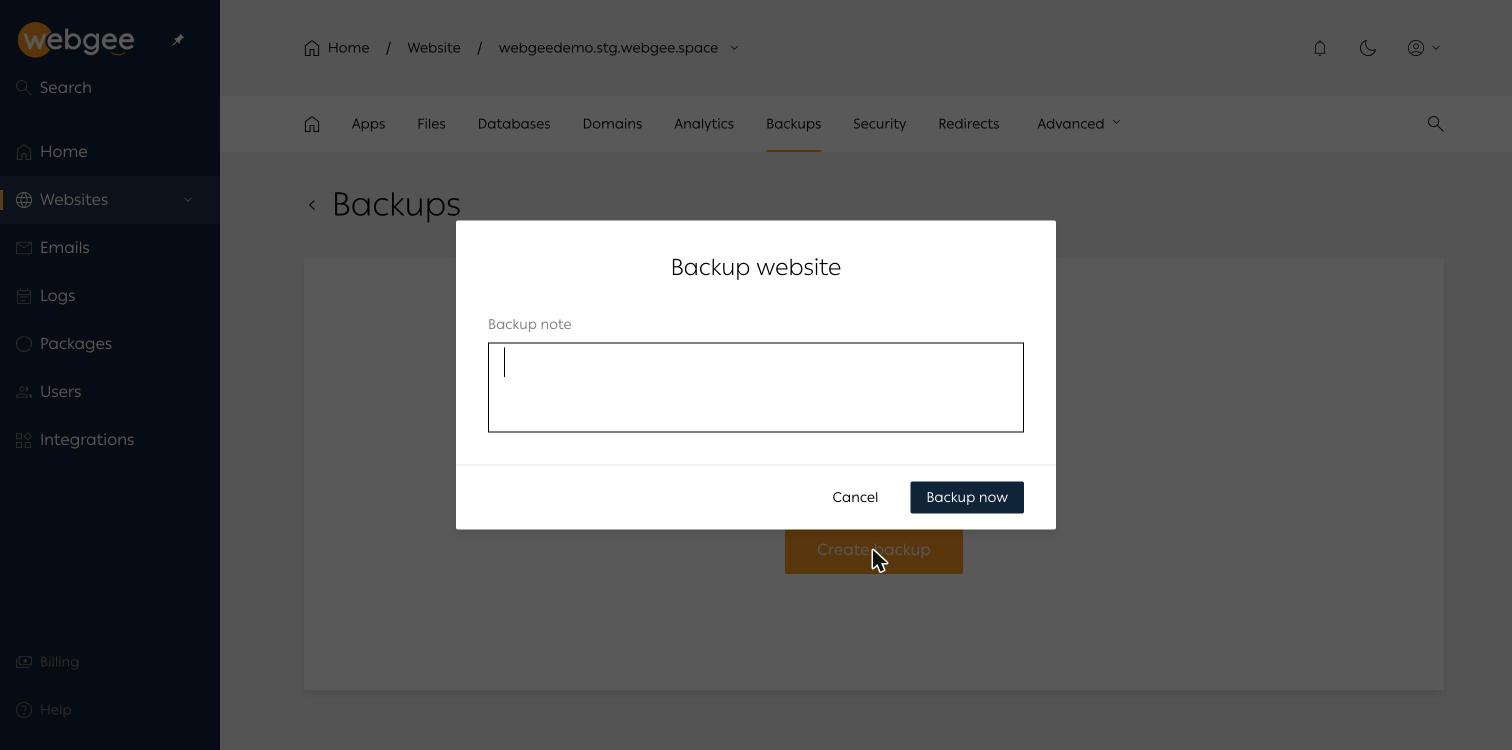
Open the live site, select Backups, then Create backup. Add a note saying why you took it, and select Backup now. Backups in WordPress Cloud cover the site's home directory and every database attached to it.
Keep an off-platform copy too For anything you cannot afford to lose, use Download on the site overview to keep a copy of the website data somewhere else. Backups stored only where the site lives share the site's fate.
Step 4: Push the staging site live
Go back to the staging site and open the Push live menu. It offers two destinations:
- To an existing website overwrites a production site you already have with the staging copy.
- To a new website creates a new production site from the staging copy, which is the usual route when you built a new site on staging.
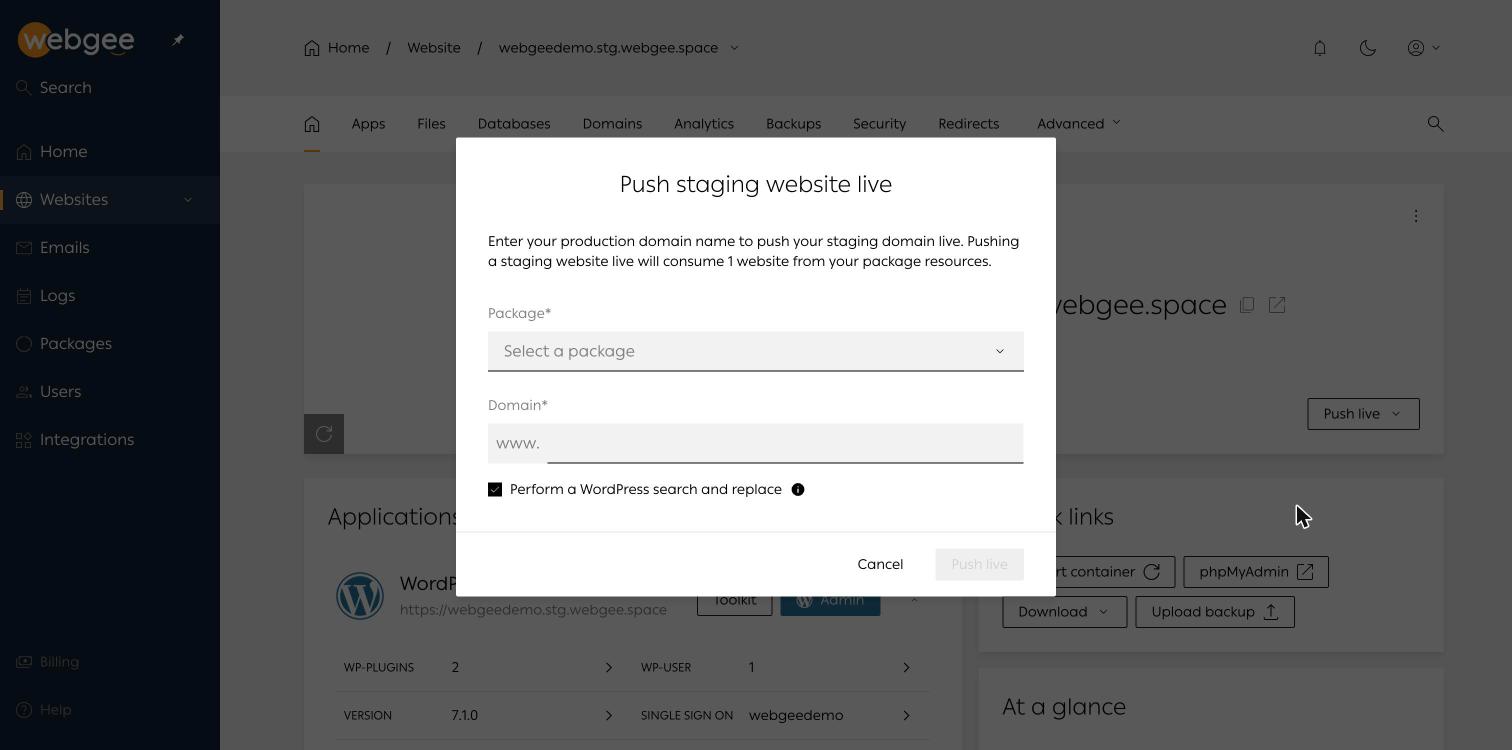
For a new website, the Push staging website live dialog asks for three things:
- Choose the Package the production site will use.
- Enter the production Domain.
- Leave Perform a WordPress search and replace ticked.
Then select Push live.
Why the search and replace box matters
WordPress stores full URLs all over its database: in post content, widget settings and serialised option values. Copy the database without rewriting them and the live site keeps pointing at the stg.webgee.space address for images, links and redirects.
The search and replace step rewrites those references from the staging domain to the production domain and handles serialised data correctly. Leave it ticked unless you have a specific reason not to. If you untick it, expect to run the replacement yourself afterwards, for example with WP-CLI:
wp search-replace 'https://example.stg.webgee.space' 'https://www.example.com' --all-tables --dry-runRun it with --dry-run first to see how many replacements it would make, then again without it.
Step 5: Check the live site after the push
Pushing live to a new website consumes one production website from your package, so check Packages to confirm the count moved. Then check the production domain:
After every push
- The site loads over https:// with a valid certificate.
- Site URL under Apps > Toolkit > General shows the production domain, not the staging one.
- Images and other media load. Broken images usually mean the search and replace was skipped.
- Key pages, forms and checkout work when you are logged out.
- If you use a caching plugin or CDN, clear it so visitors get the new version.
The staging site is not deleted by the push. Keep it as your working copy for the next round of changes, or delete it to free the staging slot. The full reference is in Staging sites and pushing live.
Be careful with WooCommerce orders and other live data
This is the part of staging that catches people out. A staging copy is a snapshot. From the moment you create it, your live site keeps changing: new orders, customer accounts, comments, form entries, stock levels.
Because pushing to an existing website replaces its files and database, anything the live site received after you made the staging copy is not in the staging database, and the push overwrites it. On a quiet brochure site that may be nothing. On a store it can be a day of orders.
Never push a stale copy over a busy store If the live site takes orders, bookings or submissions, do not push a staging copy over it without a plan. Either keep staging short-lived and push straight after a fresh copy and a fresh backup, put the store in maintenance mode while you push, or test on staging and then repeat the same updates by hand on the live site.
For routine plugin and core updates on a store, the last option is often the safest: staging proves the update works, and you then run the same update on the live site, with a backup taken just before. Save full pushes for changes that are themselves content or design, such as a redesign, ideally timed for a quiet period.
If something does go wrong, the backup you took in step 3 lets you restore the whole site, or use a custom restore to bring back only the files or databases you need.
Staging best practices
- Refresh staging before big tests. An old copy tests against old data and old plugin versions. Clone a fresh copy when you start a significant piece of work.
- Back up the destination before every push. With a note that says why.
- Know what a push includes. On WordPress Cloud a push to an existing site replaces both files and database, so plan around live data as described above.
- Do not run email from staging. Staging sites cannot have mailboxes. Keep email on the production site.
- Do not run a real site on the staging domain. Push it live to your own domain once it is ready.
- Test like a visitor. Logged out, on a phone, through the checkout, not only in the editor.
- Tidy up. Delete staging copies you no longer need to free the slot, or keep one as your standing working copy.
On cPanel hosting? You can still stage
If your WordPress site is on WebGee's cPanel-based hosting rather than WordPress Cloud, staging is done through the tools in cPanel instead of a built-in Push live button.
Softaculous can create a staging copy on a subdomain such as staging.example.com (create the subdomain first) and later push it back with Push To Live. It lets you choose what to merge, including Files only, which moves themes, plugins and uploads but leaves live content alone, and is the right choice for most plugin and theme work on a site that receives orders. Remember to tick Discourage search engines from indexing this site under Settings > Reading on the staging copy. See Create a WordPress staging site with Softaculous.
Reseller customers with WHM access can also use WP Toolkit's Clone action to copy a site, files and database, to another domain or cPanel account on the same server, including Multisite networks.
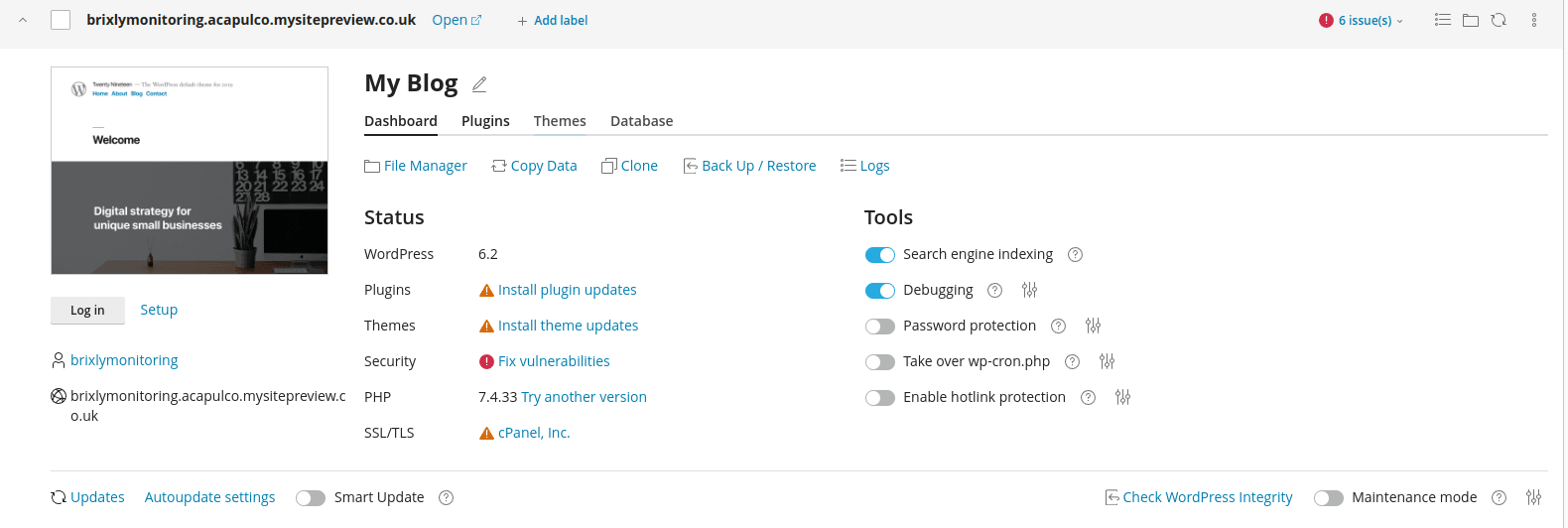
The step-by-step guide is Clone a WordPress site with WP Toolkit.
Which WebGee plans include staging?
Both WebGee WordPress Hosting and Premium WordPress run on WordPress Cloud, so the steps in this guide apply to either. On WebGee WordPress hosting, a staging environment is included on the Turbo, Pro and Ultra plans; the entry-level GoPress plan does not list it. On Premium WordPress, staging is listed from the Business+ plan. Every WordPress hosting plan includes free website migration, so you can move an existing site across and start testing on staging straight away.
Already hosting elsewhere? Request a free migration and we will move your websites and email across for you.
Frequently asked questions
What is a WordPress staging site?
A full copy of your WordPress site, with the same files, plugins, theme and database, running at a separate address. You test changes there and only apply them to the live site once they work.
Does a staging site use up one of my website slots on WordPress Cloud?
No. WordPress Cloud packages count staging websites separately from production websites. Pushing a staging site live to a new website does consume one production website from your package.
Will pushing staging live delete my WooCommerce orders?
Pushing to an existing website on WordPress Cloud replaces that site's files and database, so orders placed on the live site after you created the staging copy would be overwritten. Back up first, and on busy stores consider repeating tested updates on the live site instead.
Can I use email on a staging site?
No. On WordPress Cloud, email accounts require a production website, so staging sites cannot have mailboxes. Keep email on your live site.
Which WebGee WordPress hosting plans include staging?
On WordPress hosting, a staging environment is included on the Turbo, Pro and Ultra plans. On Premium WordPress it is listed from the Business+ plan.
