

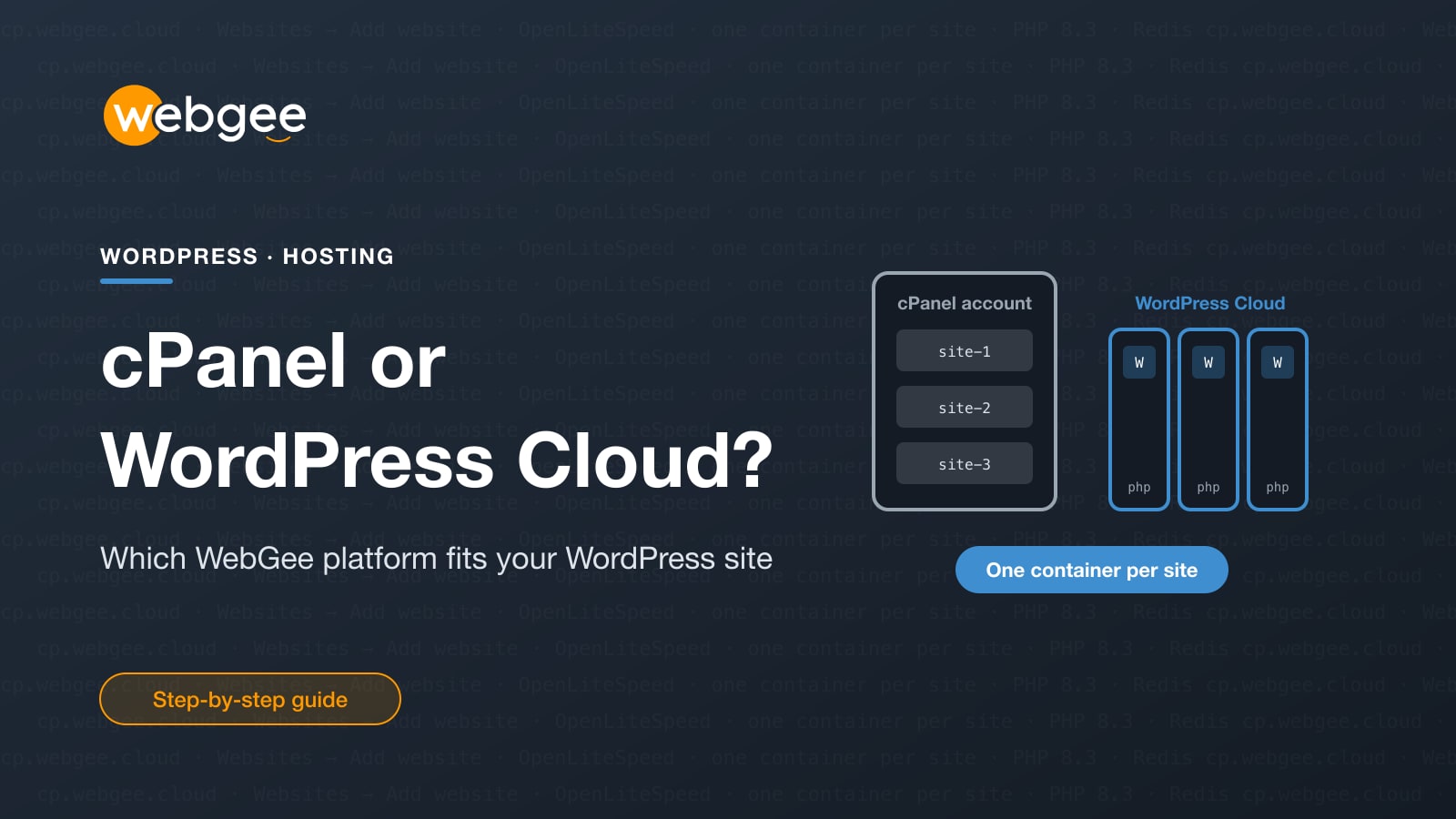
WebGee runs WordPress on two different platforms. One is classic cPanel hosting, where WordPress sits in a hosting account alongside your email, files and other sites. The other is WordPress Cloud, a managed WordPress platform where every site runs in its own container and you manage it from a WordPress-aware control panel at cp.webgee.cloud. WordPress Cloud powers our WordPress Hosting and Premium WordPress plans.
Both run WordPress well. They differ in how sites are isolated, how much is built in, and what your day-to-day work looks like. This guide sets out the differences, helps you decide which fits your site, and then walks through what working in WordPress Cloud actually looks like, with screenshots from the panel.
Key takeaways
- cPanel hosting puts sites in one shared account; WordPress Cloud gives each site its own container.
- WordPress Cloud sets PHP per site and gives each site its own Redis daemon.
- Staging is built into WordPress Cloud and does not use a production slot.
- Custom restore brings back individual files or databases without a full rollback.
- Choose cPanel for mixed apps, legacy PHP or familiar tools; WordPress Cloud for WordPress-only sites.
The short answer
Choose cPanel hosting if you want the industry-standard control panel, you run a mix of WordPress and non-WordPress sites, or you want lots of mailboxes and sites under one account with the tools you already know.
Choose WordPress Cloud if your sites are WordPress, you want each one isolated from the others, and you want staging, backups, PHP settings and WordPress management in one panel built around WordPress rather than around a hosting account.
The rest of this article explains why.
How the two platforms differ
The biggest difference is architecture. On cPanel hosting your sites live inside a shared hosting account. On WordPress Cloud, each website gets its own container running OpenLiteSpeed. That one decision drives most of the other differences.
cPanel hosting
- Control panel: cPanel, which manages websites, email, security, backups and domains in one place.
- Web server: LiteSpeed, with LSCache, on a shared server.
- Isolation: your sites share one hosting account. Extra sites are added as add-on domains.
- PHP: a PHP selector covering versions 5.6 through 8.3, set through cPanel.
- Redis: a shared instance.
- Staging: a manual copy, or Softaculous staging in cPanel, which you push back to live yourself.
WordPress Cloud
- Control panel: its own panel at
cp.webgee.cloud, separate from cPanel and from the client area. - Web server: OpenLiteSpeed, one container per website.
- Isolation: each website runs in its own container, so one site's problem stays with that site.
- PHP: chosen per website, so two sites in the same organisation can run different versions.
- Redis: each website gets its own Redis daemon inside its own container, not shared with anyone else.
- Staging: built in, with one-click push live.
- Node.js: built in, proxied by the web server.
- Site limit: websites are counted against your package, with staging sites counted separately.
The full comparison is on the WordPress Cloud overview in the WebGee docs.
When cPanel hosting is the better fit
cPanel is the right call when your hosting is about more than WordPress. A few situations where it wins:
- Mixed sites. If you run WordPress next to other applications, cPanel's app installer lets you run other applications, such as Drupal or Magento, alongside WordPress in the same account.
- Familiar tools. If you, your developer or your agency already work in cPanel, there is nothing new to learn.
- Older code. The PHP selector reaches back to PHP 5.6, which helps if you maintain a legacy site that cannot move to a modern version yet.
- Email-heavy accounts. cPanel cloud hosting plans include unlimited email accounts, and the Mail Delivery Center is included on all cPanel cloud plans.
If that sounds like you, look at cPanel cloud hosting.
When WordPress Cloud is the better fit
WordPress Cloud is built for people whose sites are WordPress and who want each one managed as its own thing.
- Isolation matters. Agencies and businesses running several sites get one container per site. A runaway plugin on one site does not share an account with the others.
- Different sites need different PHP. An older client site can stay on the version it needs while a new build runs the latest release.
- You test changes before they go live. Staging sites are part of the panel and do not use up a production slot.
- You want to fix WordPress without logging in to it. The WordPress Toolkit manages plugins, themes, users and debug settings from outside WordPress, which is exactly what you need when a site is broken.
- Busy or WooCommerce sites. A per-site Redis daemon caches database query results in memory, which the docs describe as the single most effective change available on a busy WordPress site.
The rest of this guide shows what those tasks look like in practice.
Adding a website
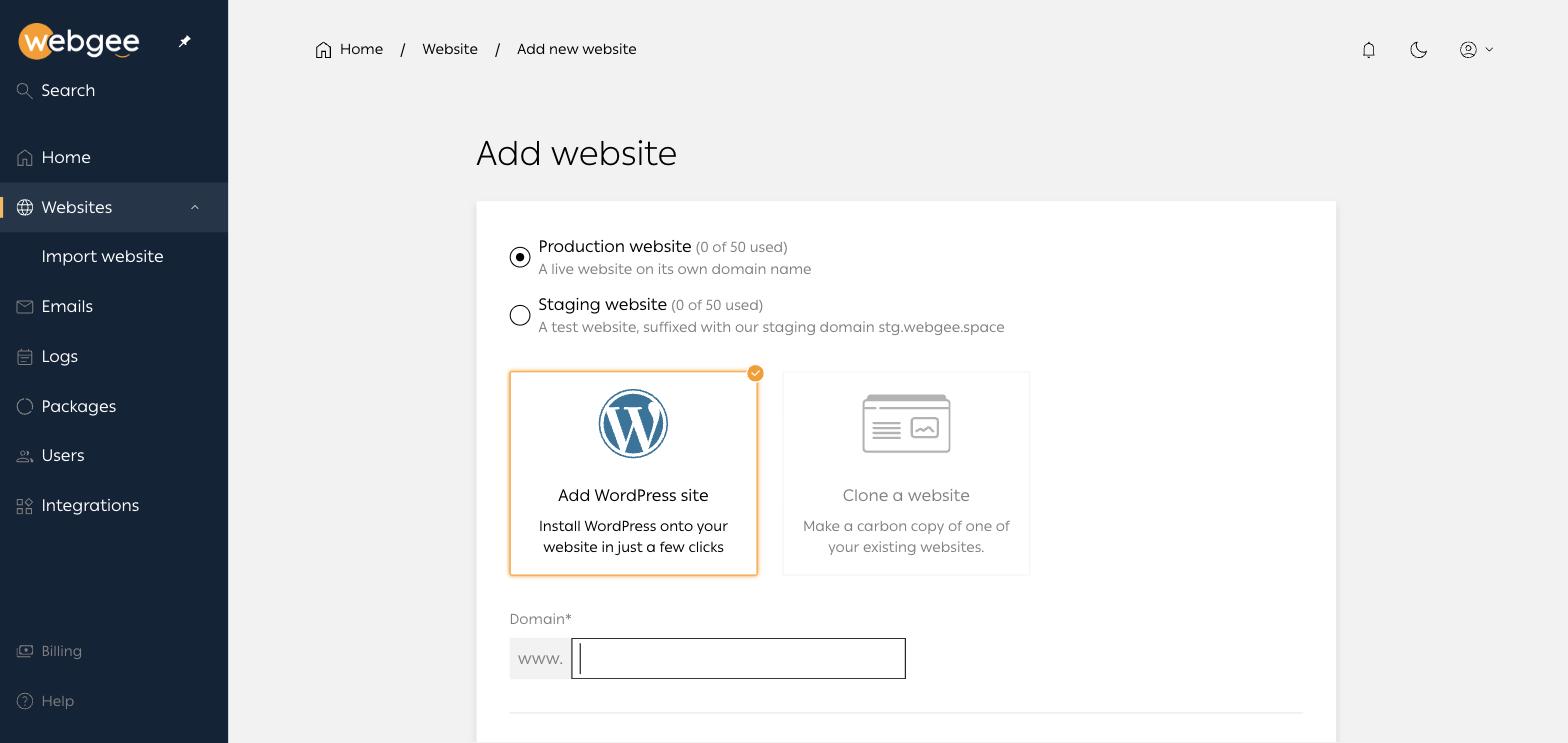
Go to Websites and select Add website, or use the button on the dashboard. Adding a site provisions a container, installs WordPress, issues an SSL certificate and creates a database, typically in under a minute.
The first choice is the type of site:
- Production website is a live site on its own domain name. The domain must already belong to your organisation in the panel.
- Staging website is a test site on WebGee's staging domain, ending in
.stg.webgee.space.
Then choose Add WordPress site for a fresh install, or Clone a website to copy one you already have.
You then fill in a WordPress admin username, email and password. These become the WordPress administrator, not your panel login. Record the password, though you will rarely need it: single sign-on logs you into wp-admin from the panel without it.
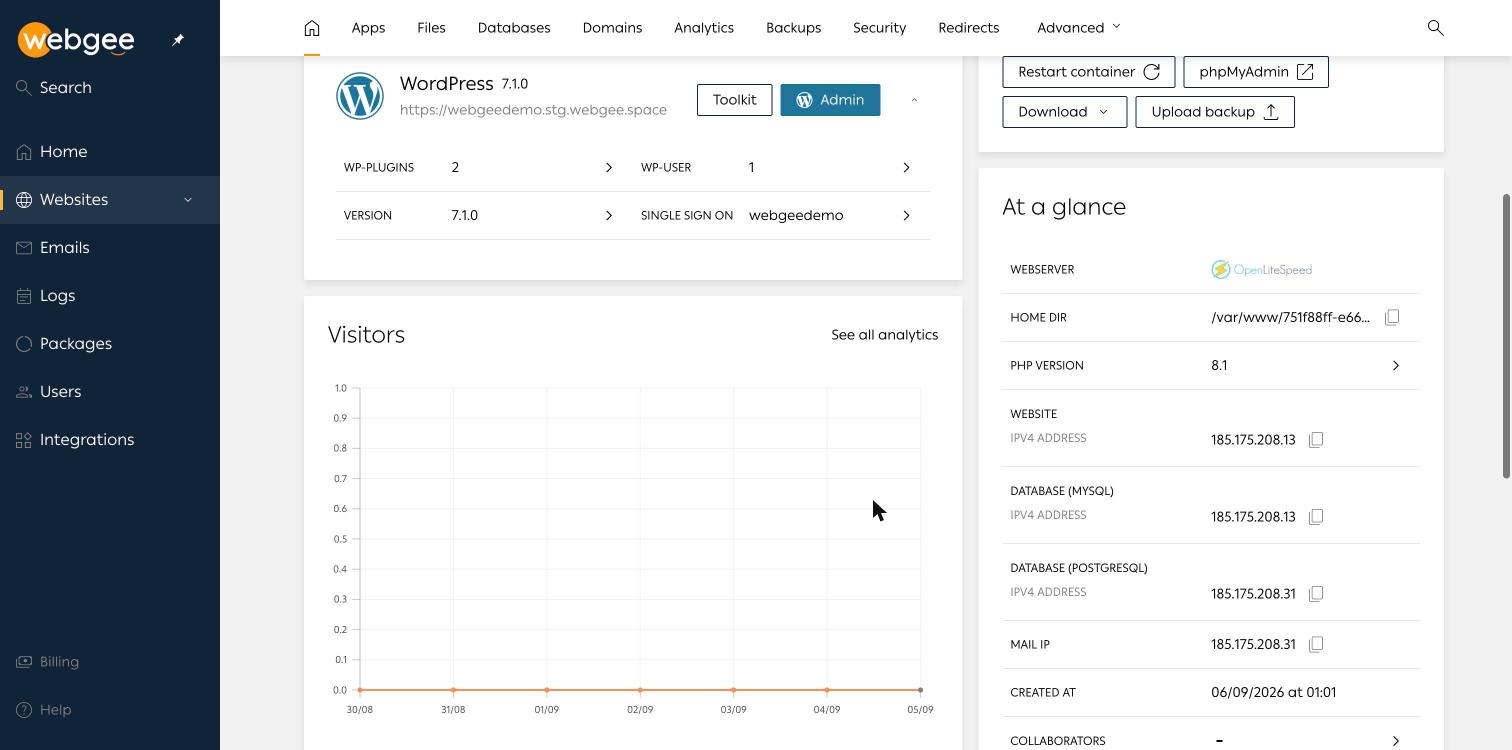
Once the site is created, its overview shows the installed application, quick links and an At a glance panel with the web server, home directory, PHP version and the IP addresses your DNS records point at. Quick links give you Restart container, phpMyAdmin, Download and Upload backup.
A production site opens with a banner listing the nameservers to set at your registrar. Until you set them, the site exists but visitors cannot reach it. Full steps are in Add a website.
Staging, briefly
Staging sites behave like production sites in almost every respect: same container type, same tooling, same backups. They carry an STG badge, have no mailboxes, and have a Push live button that sends the site to an existing website or creates a new production site from it.
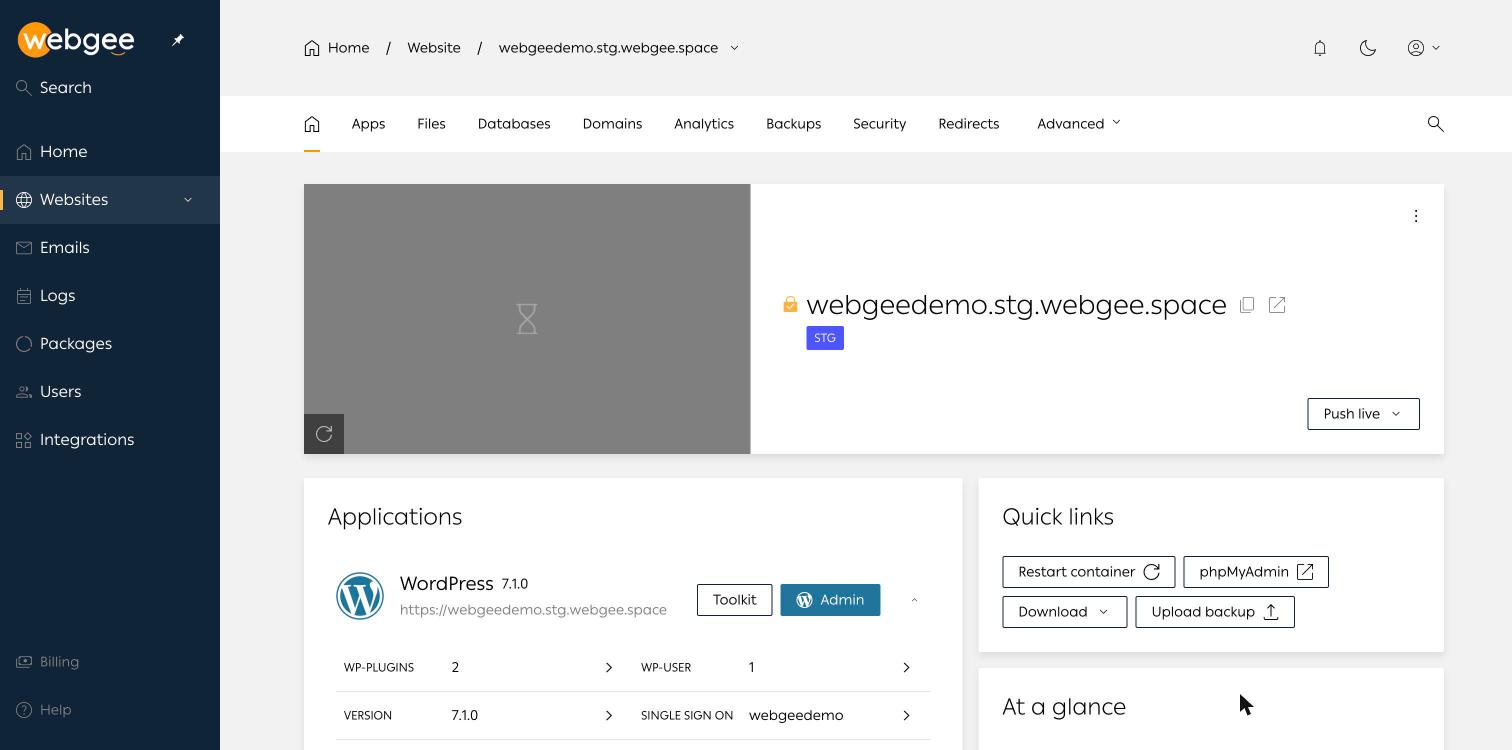
Staging sites are counted separately from production sites in your package, so testing never uses up a live slot. The details are in Staging sites and pushing live.
Backups and restores
Backups in WordPress Cloud cover the site's home directory and every database attached to it. Open a site, select Backups, then Create backup. You can add a note before you select Backup now, and it is worth doing: "before WooCommerce upgrade" tells you far more later than a bare timestamp. On a fresh WordPress site the backup completes in a few seconds.
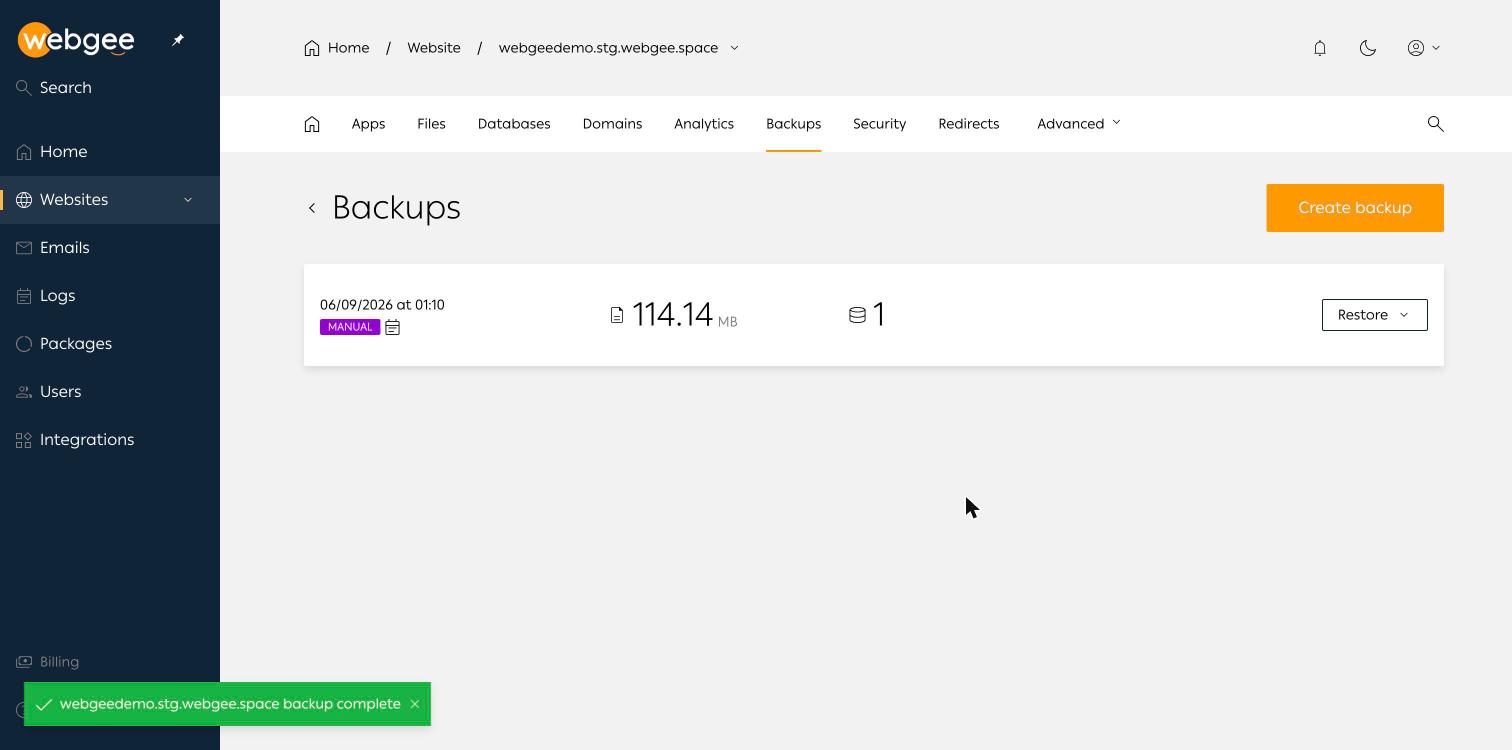
Restoring gives you two options. Full website replaces the current files and databases with the backup. Custom lets you browse the home directory as it was at that moment and pick individual files, folders or databases.
Custom restore is the one you will reach for most often. Recovering one broken plugin folder, or rolling back only the database after a bad import, avoids losing orders, comments and form submissions made since the backup.
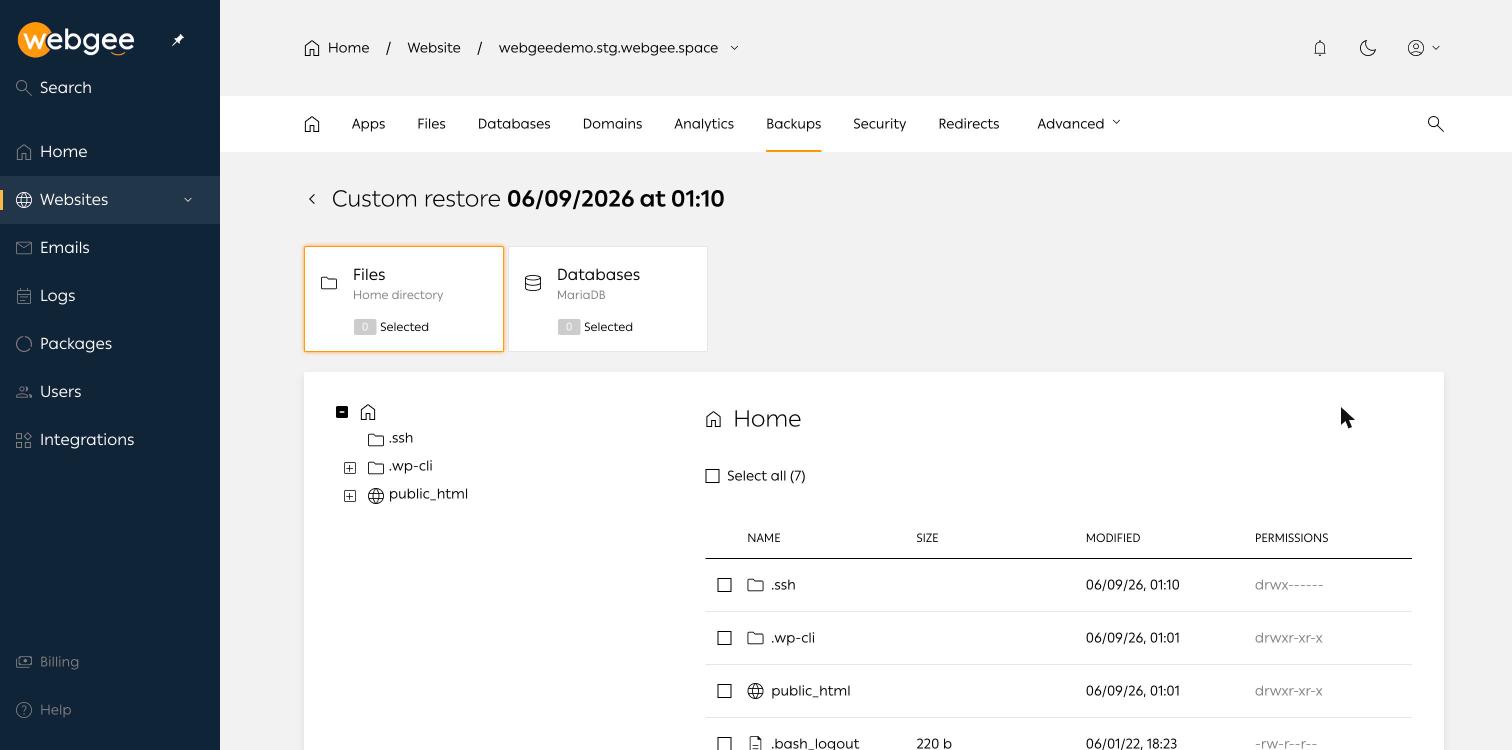
Before a full restore A full restore discards everything created since the backup was taken, including orders, comments and form submissions. On a live site, take a fresh backup first so you can get back to the current state if needed.
For anything you cannot afford to lose, use Download on the site overview to keep a copy off the platform as well. See Back up and restore a website.
Managing WordPress with the Toolkit
The Toolkit manages WordPress from outside WordPress. Open a site, go to Apps and select Toolkit beside the installation. From there you can:
- See the WordPress version and change its update policy. The default is to always update to the latest available version.
- Turn on maintenance mode to show visitors a maintenance notice, which is useful mid-migration.
- Install, activate, deactivate and delete plugins and themes, and set auto-updates for each one.
- List WordPress users and add a new one.
- Switch the
WP_DEBUG,WP_DEBUG_LOGandWP_DEBUG_DISPLAYconstants on or off. - Edit the Site URL if a migration left it pointing at the wrong domain.
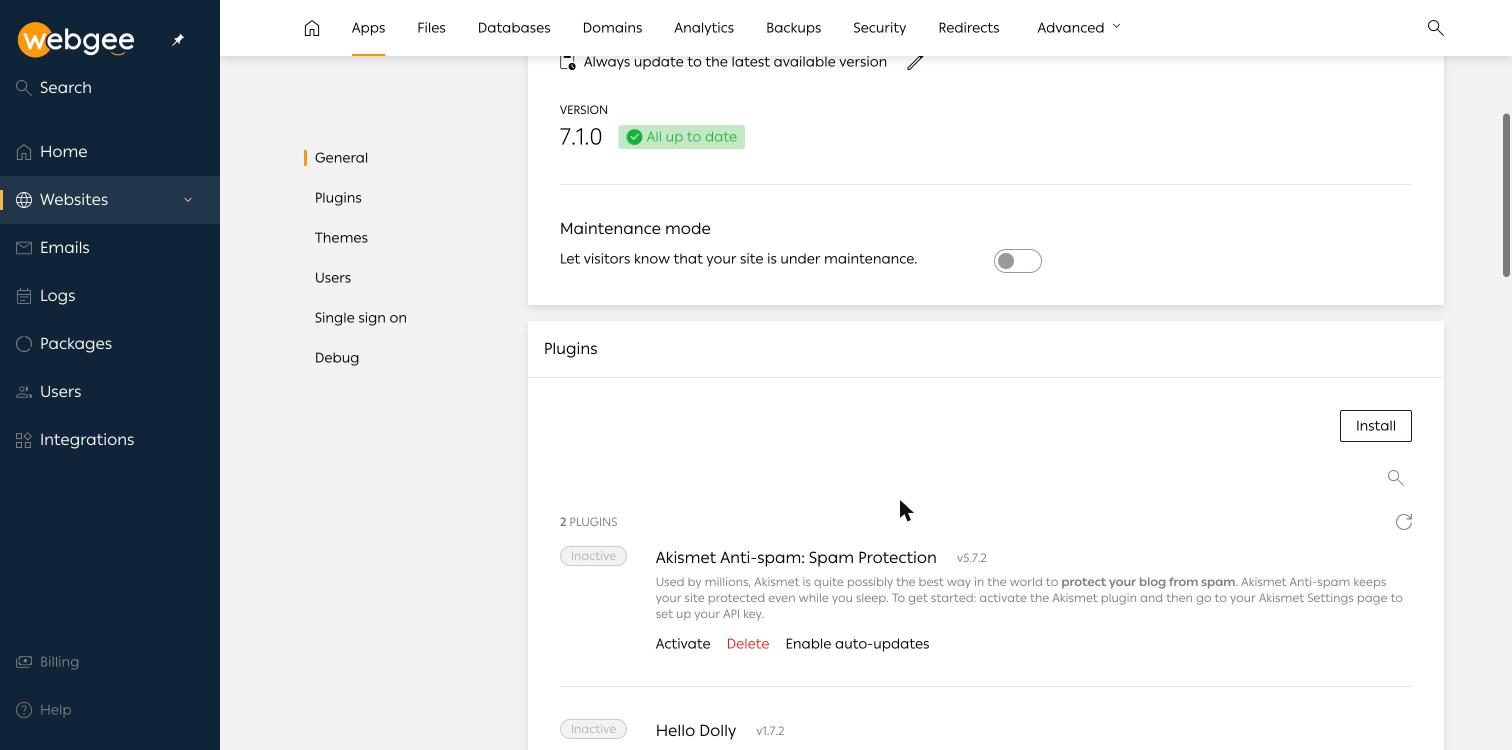
This is the way out of a classic WordPress failure: a plugin update that leaves the site on a white screen. Deactivate the plugin in the Toolkit and the site comes back, without needing to reach wp-admin. If you lose the administrator account, add a new user from the Toolkit instead of trying to reset a password you no longer control.
When debugging a live site, turn on WP_DEBUG and WP_DEBUG_LOG only, then read wp-content/debug.log. Leave WP_DEBUG_DISPLAY off, because it prints file paths and query details to every visitor. More in The WordPress Toolkit.
PHP versions and settings, per site
Because PHP is configured per website, open a site and go to Advanced, then Developer tools. The version list marks the newest release as LATEST and the supported versions as LTS.
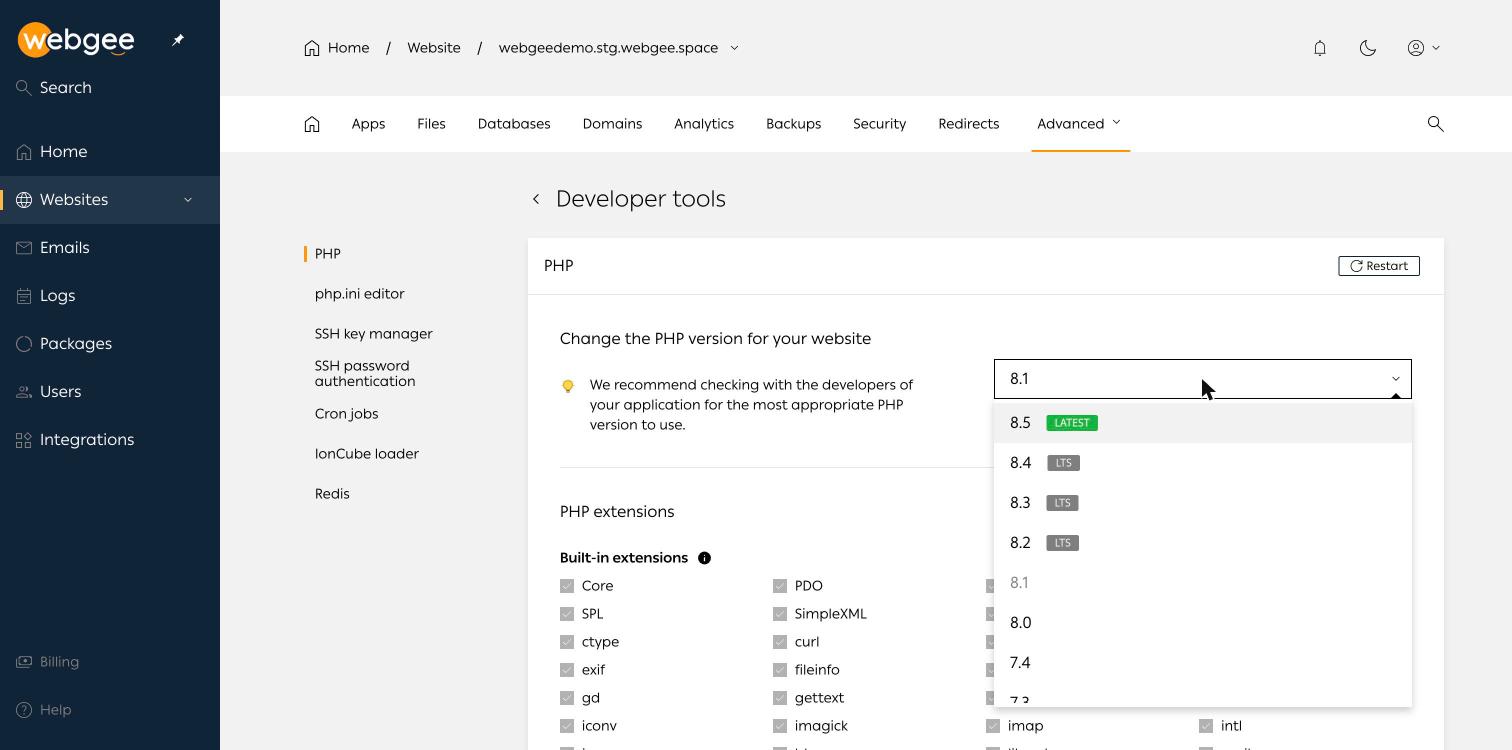
One thing to act on: new sites are provisioned on PHP 8.1, which no longer receives security updates. Unless your theme or plugins genuinely need 8.1, move to an LTS version. Make the change on a staging copy first, since a PHP version jump is the most common cause of a white screen after an otherwise routine change. Changes to the version or to php.ini need a PHP container restart, using Restart at the top right, before they take effect.
The same area has a php.ini editor. Common WordPress directives look like this:
memory_limit = 256M
upload_max_filesize = 64M
post_max_size = 64M
max_execution_time = 300
Raise upload_max_filesize and post_max_size together. The second must be at least as large as the first, or uploads fail without a useful message. Opcode caching, under Advanced then Optimisation, is on by default and should stay on for live sites. See PHP versions and settings.
Moving an existing site in
If you are on cPanel or Plesk today, WordPress Cloud has an import wizard under Websites, then Import website. You choose your previous panel, upload a full account backup (a .tar.gz from cPanel or a .tar from Plesk, up to 10 GB), review the summary and import.
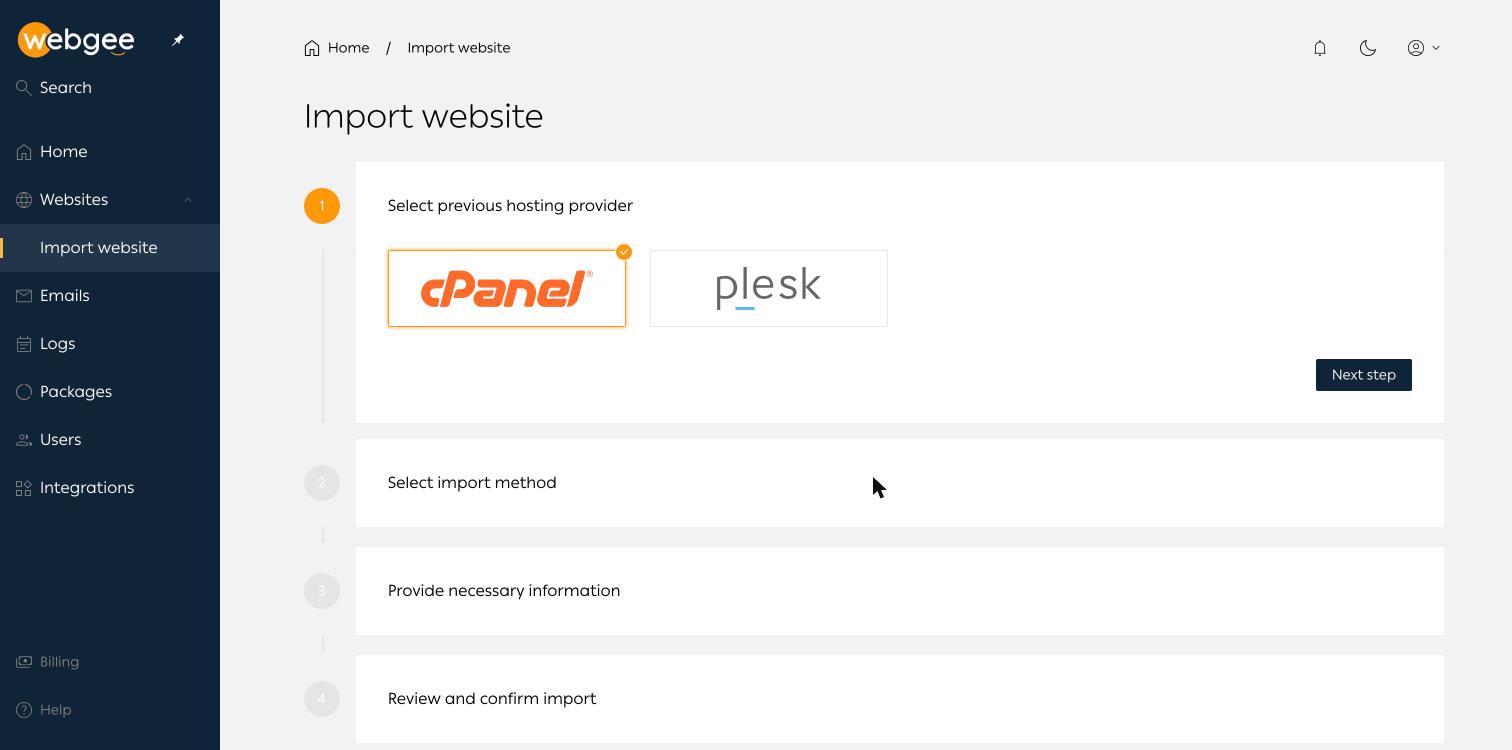
After importing, confirm the site loads before you change DNS, check the PHP version matches what the site ran on before, and set the Site URL in the Toolkit to the domain the site will serve on. Only then repoint your DNS. The full walkthrough is in Import a website from cPanel or Plesk.
If you would rather not do it yourself, WebGee offers free migration: the migrations team moves your sites from your previous host for you.
Quick decision checklist
- Are all your sites WordPress? WordPress Cloud is built around them.
- Do your sites need different PHP versions? WordPress Cloud sets PHP per site.
- Do you want each site isolated in its own container? Choose WordPress Cloud.
- Do you need cPanel itself, legacy PHP 5.6 or non-WordPress apps? Choose cPanel hosting.
- Do you test changes on staging before going live? WordPress Cloud has it built in.
- Moving from another host? Ask for free migration on either platform.
Making the choice
If your hosting is a mix of applications, email and sites that you already manage in cPanel, cPanel hosting remains a solid, familiar home. If your business runs on WordPress and you want each site isolated, with per-site PHP, built-in staging, point-in-time file and database restores and a Toolkit that can rescue a broken site, WordPress Cloud is the better fit.
Either way, you do not have to move the site yourself. Free migration is part of the offer.
Frequently asked questions
What is the main difference between cPanel hosting and WordPress Cloud?
On cPanel hosting your sites share one hosting account managed in cPanel. On WordPress Cloud each website runs in its own container on OpenLiteSpeed and is managed from a WordPress-aware panel at cp.webgee.cloud.
Can different sites run different PHP versions on WordPress Cloud?
Yes. PHP is configured per website under Advanced, then Developer tools, so two sites in the same organisation can run different versions.
Do staging sites count against my WordPress Cloud package?
Staging sites are counted separately from production websites, so a staging site never uses up a production slot.
Can I restore just one file or database from a backup?
Yes. Restore, then Custom, lets you browse the backup and pick individual files, folders or databases instead of restoring the whole site.
How do I move my site from cPanel to WordPress Cloud?
Use Websites, then Import website, and upload a full cPanel account backup (.tar.gz, up to 10 GB). Or ask WebGee for free migration and the migrations team will move it for you.
