

Your WordPress dashboard says everything is up to date. The core is on the latest version, the theme looks fine, and the site loads fast. And yet one forgotten plugin can still be the open door an attacker needs.
That is why we have switched on CMS Threats scanning and weekly notifications in cPGuard for WebGee cPanel hosting. cPGuard now checks every WordPress, Joomla and Drupal installation in your account for known vulnerabilities, and tells you exactly which plugin or theme needs attention — before someone else finds it.
Key takeaways
- Most WordPress break-ins come through an outdated or abandoned plugin, not WordPress core.
- cPGuard on WebGee cPanel hosting now scans every WordPress, Joomla and Drupal site for known vulnerabilities and emails you a weekly report.
- "Status: latest" covers the core only; the CVE column shows the riskiest plugin or theme.
- Deactivating a plugin does not protect you. Delete what you don't use.
- Back up, update or replace the flagged items, then confirm they show Safe in cPGuard.
In this guide
- Why plugins, not WordPress itself, are the usual way in
- What the new cPGuard weekly email tells you
- How to find the vulnerable plugin in cPanel in under a minute
- How to fix it safely, and confirm it worked
Why plugins are the weak spot
WordPress core is maintained by a large security team and updates itself for minor releases. Plugins and themes are different. A typical site runs a dozen or more, written by different developers, updated on different schedules — and some are abandoned altogether.
When a vulnerability is published for a popular plugin, automated bots start scanning the internet for sites that still run the old version, often within hours. They do not care how big your site is. If the vulnerable file is on your server, they will try it.
The most common trap is a plugin you are not even using. Deactivating a plugin does not protect you: its files stay on the server and can still be reached directly, which is how most of these vulnerabilities are exploited.
“Latest” does not mean “safe” A site can run the newest WordPress version and still have a high-risk vulnerability in one plugin. cPGuard shows both separately, so you can see the difference at a glance.
What cPGuard now does for you
cPGuard is the security suite built into WebGee's cPanel hosting. Alongside malware scanning and its web application firewall, it now runs a CMS Threats scan across your whole account:
- It finds every WordPress, Joomla and Drupal installation, including old copies and forgotten staging folders.
- It checks the core, each plugin and each theme against published vulnerabilities (CVEs).
- It scans for malicious files inside the installation and for infected content in its database.
- It emails you a summary each week, titled Threats to CMS installations detected.
It applies to shared, reseller and Premium hosting on cPanel — there is nothing to install or switch on.
How to read the weekly email
The four numbers at the top count problems across your whole account:
- Critical CMS Issues — installations with at least one known vulnerability.
- Updates Pending — installations whose core version is out of date.
- CMS threats — malicious files found inside an installation.
- Database infections — malicious content found in an installation's database.
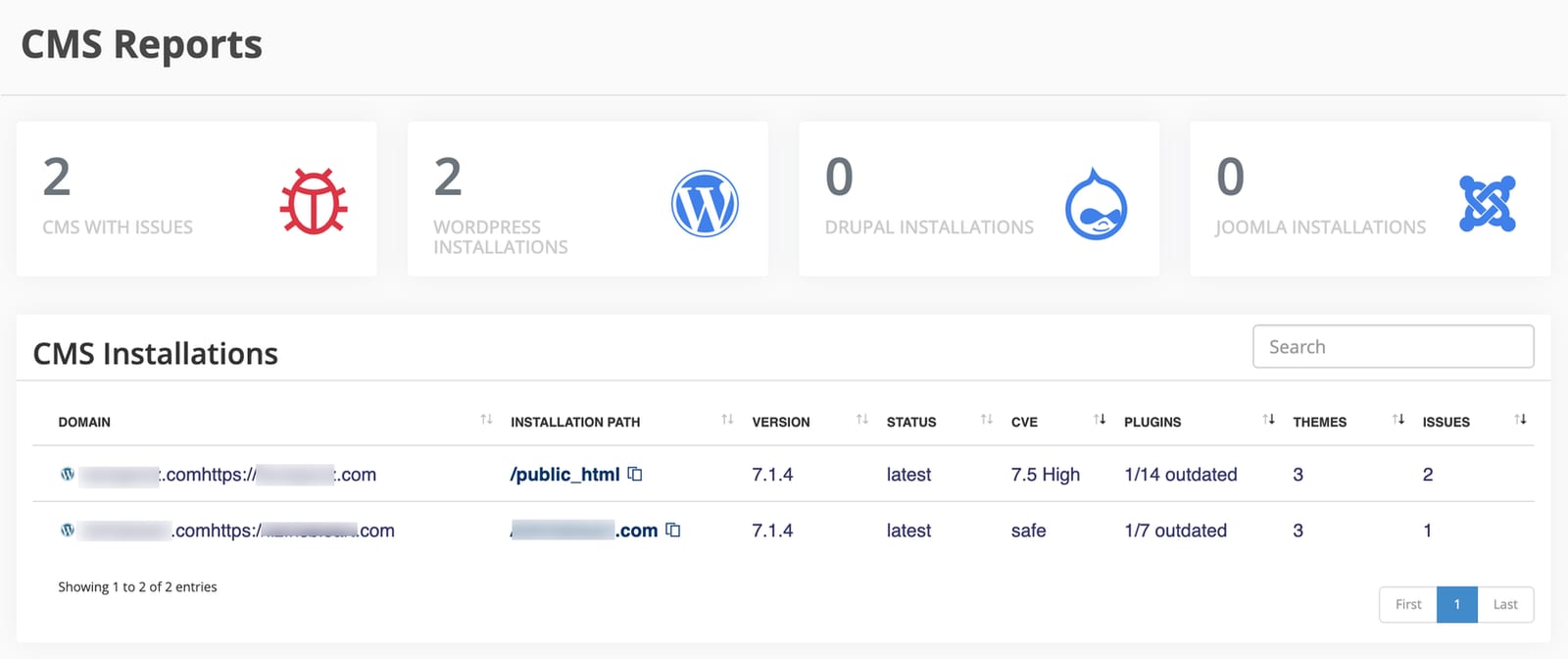
Below them, a table lists each affected site. Two columns are easy to misread together. Status describes the CMS core only: latest means WordPress itself is up to date. CVE shows the most severe known vulnerability anywhere in the installation, which is usually a plugin or theme. The score is out of 10: 4.0–6.9 is Medium, 7.0–8.9 is High and 9.0 or more is Critical.
So a row showing latest next to High, 7.5 is not a contradiction. Your core is current, but something installed on top of it has a published vulnerability.
If “CMS threats” or “Database infections” is above zero The site is already infected, not just exposed. Skip the updates and go straight to cleaning the site — or open a ticket and our engineers will help you.
Find the vulnerable plugin in cPanel
- In cPanel, type cPGuard into the Search Tools box and open it.
- Select CMS Threats.
- Find the installation from the email. CVE shows its worst score, Plugins shows how many are outdated, and Issues counts everything cPGuard found.
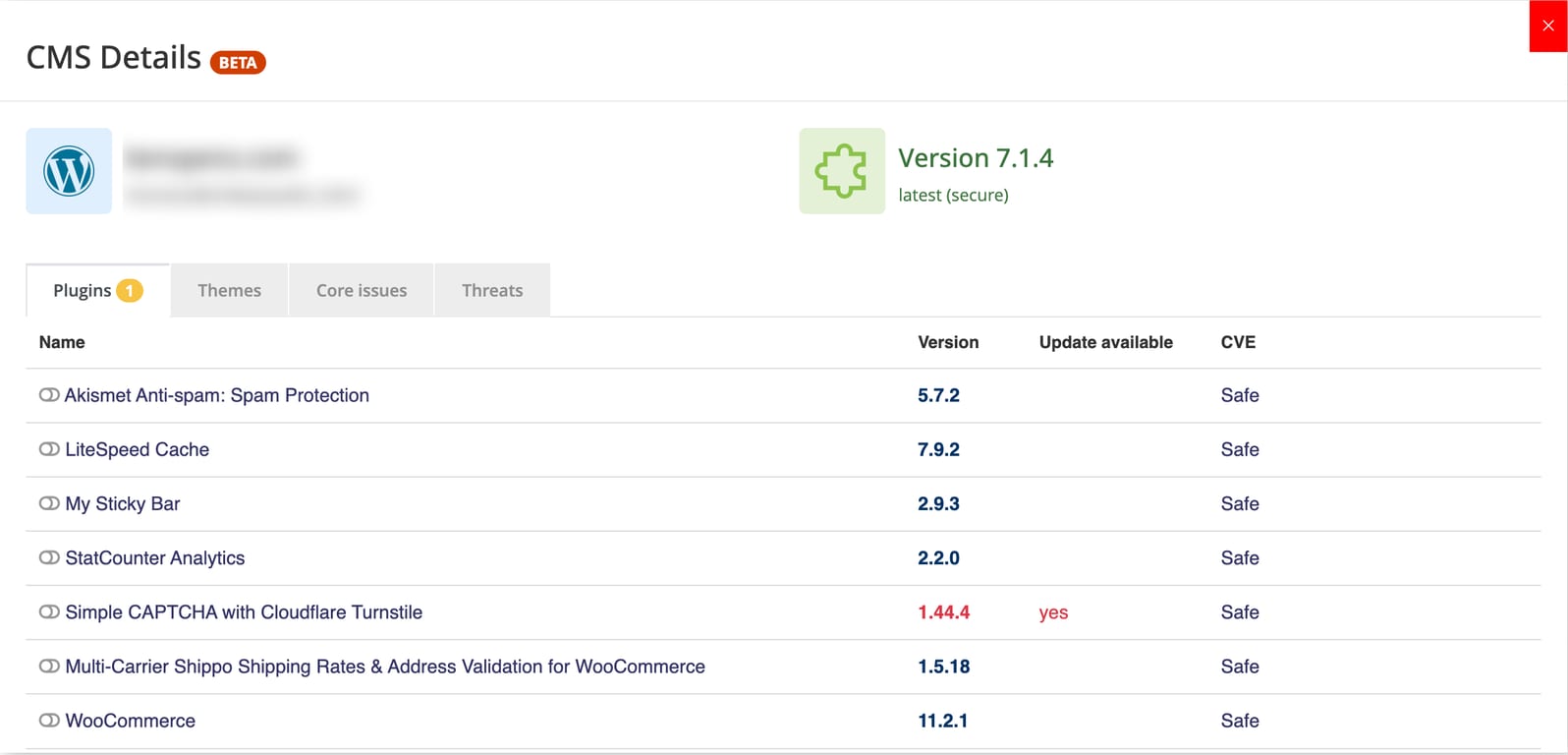
- Select the installation to open CMS Details, and work through the tabs: Plugins, Themes, Core issues and Threats.
In the Plugins and Themes tabs, a version in red with yes under Update available is outdated. A score in the CVE column, instead of Safe, is the vulnerability the email reported. Note its name.
Fix it safely
Take a backup first. On WebGee, daily JetBackup snapshots are already in cPanel, but a fresh one takes seconds and makes any update easy to undo.
- Log in to your WordPress admin at
/wp-adminand open Dashboard › Updates. - Update each plugin or theme you noted in cPGuard.
- If an item has a CVE score but no update is available, the author has not fixed it yet. Deactivate it, delete it, and replace it with a maintained alternative.
- Delete every plugin and theme you no longer use, including inactive ones.
# Prefer the command line? With SSH access, WP-CLI does the same in seconds:
wp plugin list --update=available
wp plugin update --all
# Remove a plugin you no longer use (deactivating is not enough)
wp plugin delete old-slider-plugin
Confirm it worked
- In WordPress, the Updates page shows nothing pending.
- In cPGuard › CMS Threats, open the installation again. The items you updated now show Safe in the CVE column.
cPGuard re-checks installations on its own schedule, so the page can take a little while to catch up. Your next weekly email should no longer list the site.
Still listed?
- You do not recognise the installation. Old copies such as
public_html/oldor a forgotten staging folder are scanned too — and are a common way in. If you no longer need the copy, delete its folder and its database. - The update fails. The plugin may need a newer PHP version, which you can switch per site in cPanel.
- Everything shows Safe but the email keeps arriving. Open a ticket with your support PIN and the installation path, and we will look at it with you.
Security that works while you run your business
Most site owners do not have time to follow vulnerability feeds for every plugin they install. With CMS Threats scanning, you do not have to: cPGuard watches your installations and tells you the moment something needs attention, in plain numbers and with the exact plugin to update.
It sits on top of everything else included with WebGee cPanel hosting — LiteSpeed speed, free SSL, daily backups, malware scanning and real engineers on live chat 24/7.
Frequently asked questions
Which WebGee plans include cPGuard CMS Threats scanning?
It applies to WordPress, Joomla and Drupal sites on WebGee's shared, reseller and Premium hosting on cPanel. There is nothing to install or switch on.
How often does cPGuard scan my WordPress site?
cPGuard re-checks your installations on its own schedule and emails you a summary each week, titled "Threats to CMS installations detected".
My email says Status: latest, but CVE: High. Is my site safe?
Status describes the WordPress core only. The CVE column shows the most severe vulnerability anywhere in the installation, usually a plugin or theme. Open cPGuard › CMS Threats in cPanel to see which one, then update or remove it.
Is deactivating a vulnerable plugin enough?
No. A deactivated plugin's files stay on the server and can still be reached directly. If you do not use a plugin, delete it.
What if no update is available for a vulnerable plugin?
The author has not fixed it yet. Deactivate and delete it, and replace it with an alternative that is actively maintained.
